Website Migration: How to Reduce the Risk to Google

A website migration keeps its rankings when every old URL gets a permanent 301 to its closest new page, the content and titles come across intact, and the changes happen in stages. Google says 301 redirects do not lose PageRank. Seed Light crawls and saves the old site before anything moves.
Key takeaways
Short on time? Here is the whole website migration SEO plan in five lines before we break it down. The order matters, so when you migrate your website, do not skip ahead.
- Save your old site first. Crawl it and keep a full list of every URL, title, and link before anything changes. That list is your safety net.
- Map and redirect every old URL. Point each old page to its closest new page with a permanent 301. Google confirms 301 redirects do not lose PageRank (Google Search Central, 2026).
- Keep your content. A prettier page with fewer words usually ranks worse. Carry the text over before you trim.
- Move in stages. Google advises changing your site one step at a time, not everything at once (Google Search Central, 2026).
- Tell Google and watch. Submit your sitemap, use Change of Address if your domain changed, then monitor for a few weeks.
1. Why redesigns and moves lose rankings
You want a fresh look. Maybe you are moving to a new platform too. The risk is simple: a website migration changes the addresses, the words, and the structure that Google already learned to trust. When you migrate your website without a plan, you can wipe out signals that took years to build.
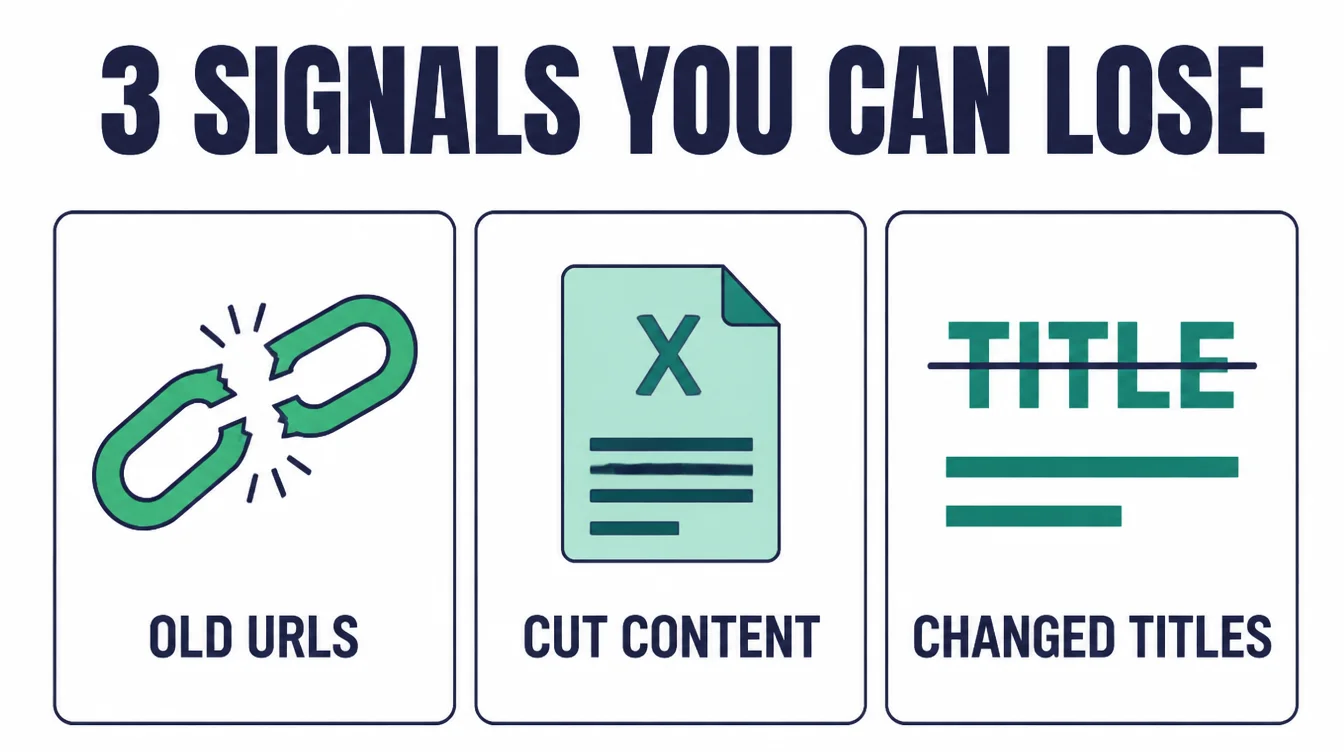
Here is the good news. A website migration does not have to cost you rankings. When owners lose traffic after a redesign, it is almost always because of a few avoidable mistakes, not because Google punishes change.
Old URLs go nowhere. Content gets cut to look "clean." Page titles get rewritten. None of that is required.
This guide walks you through the move step by step, in the right order. Follow it and your rankings come along for the ride. If you also want the design side, read our companion guide on a website redesign in 2026, and our broader take on building a small business website.
2. Step 1: crawl and save your old site first (your safety net)
Before you touch anything, take a snapshot of your current site. This is the step most people skip, and it is the one that saves them later. If something breaks after launch, this snapshot is how you find it.
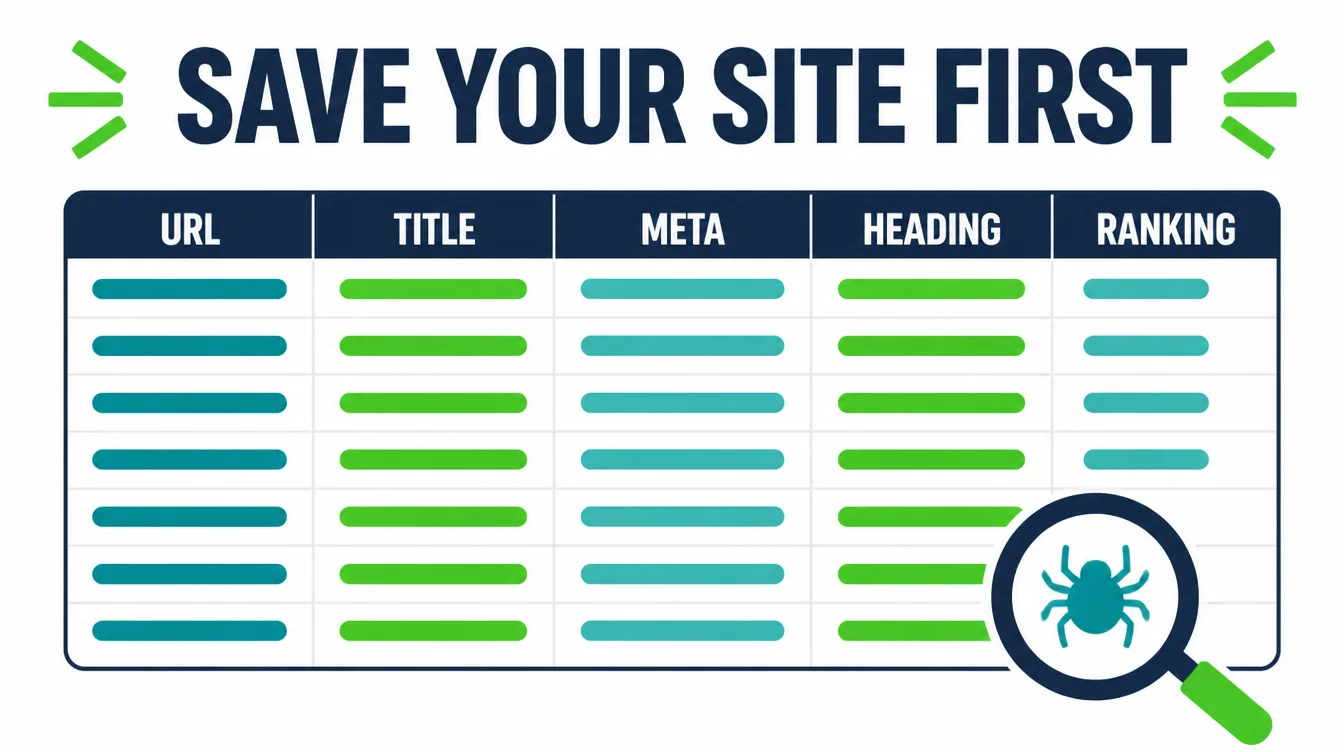
Run a crawler over your live site and export a full list. For each page, record five things:
- the URL
- the page title
- the meta description
- the main heading
- which pages it ranks for
A free crawler will do for a small site. Save the file somewhere safe and do not edit it.
Why bother? Because once the old site is gone, you cannot get this list back. With it, you can confirm later that every important page still exists somewhere, still has a redirect, and still has its content.
Without it, you are guessing. For the technical build itself, this is the kind of groundwork our web design and development team handles before any move.
3. Step 2: map every old URL to its new one
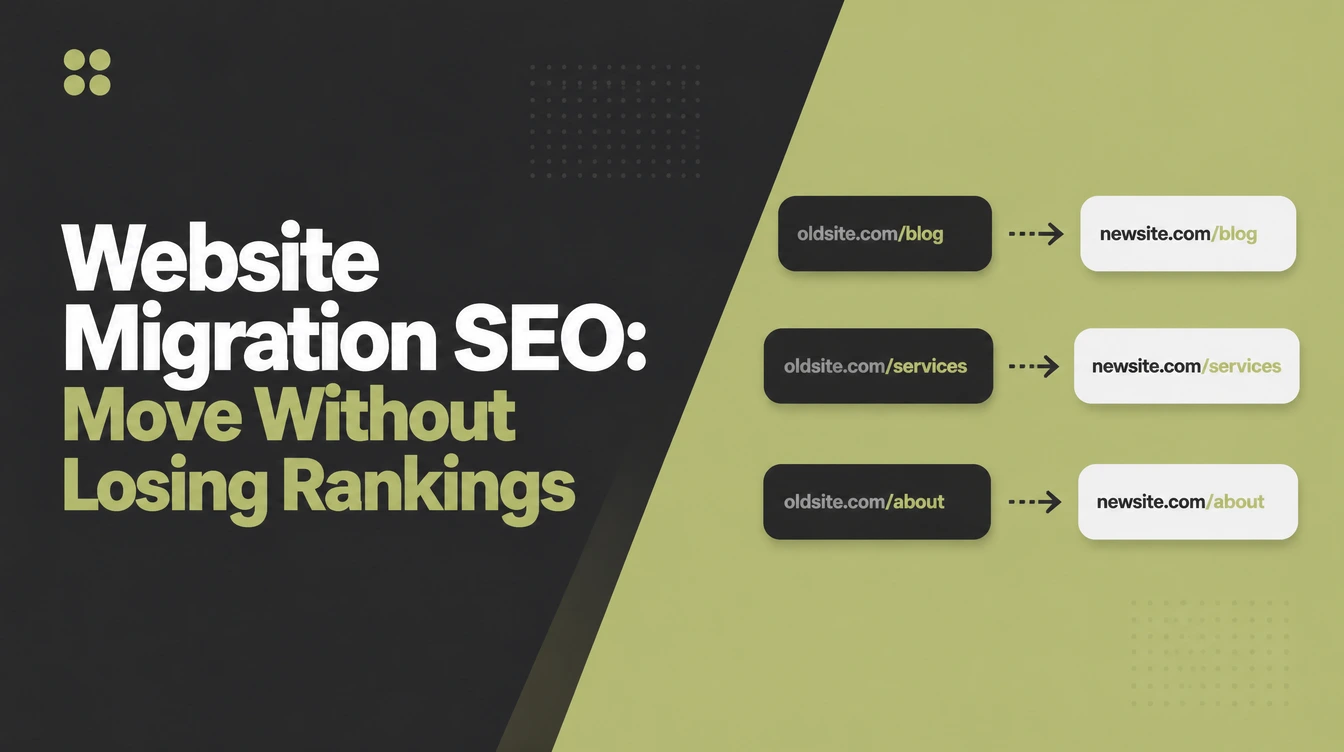
Now take that list of old URLs and decide where each one lands on the new site. This is your redirect map, and it is the heart of a safe migration. Build it in a simple spreadsheet: old URL in one column, new URL in the next.
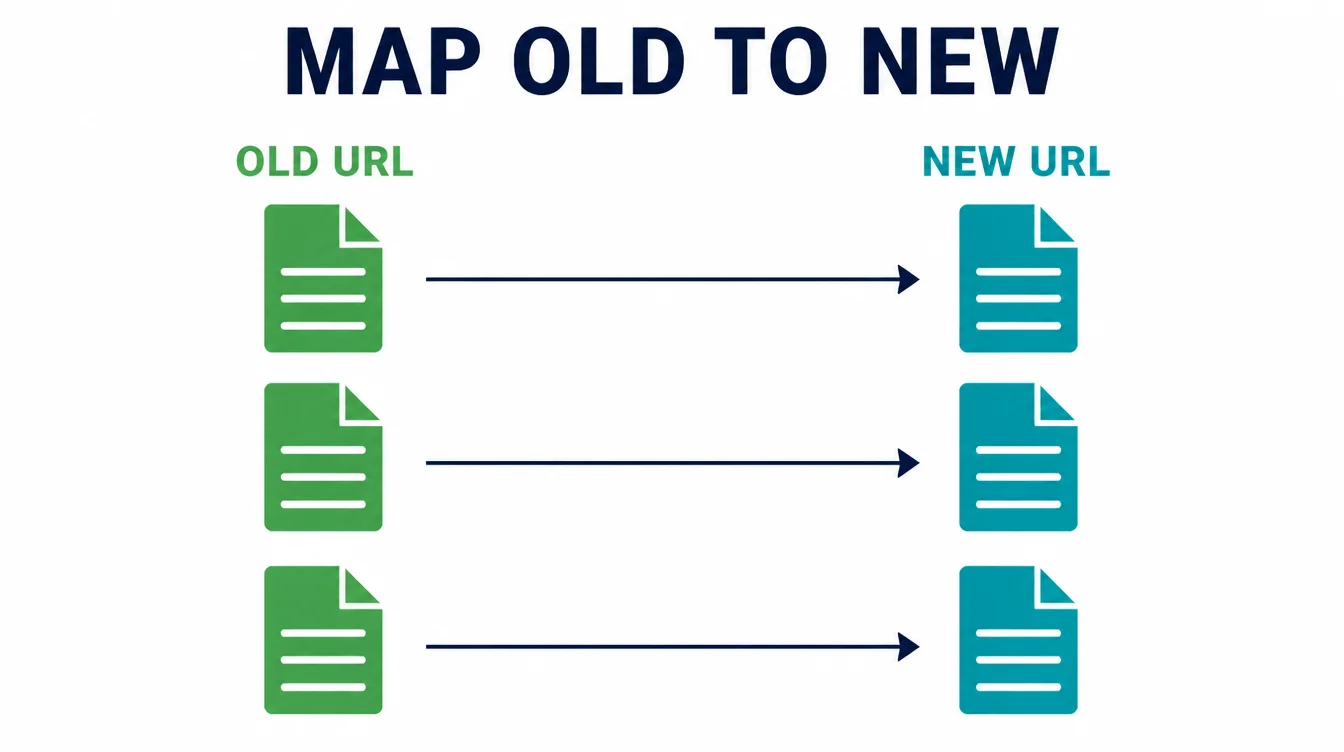
The golden rule: point each old page to the closest matching new page. An old service page should go to the new service page, not to your homepage. A blog post should go to the matching new post. Sending everything to the homepage throws away the signals those specific pages earned.
Do not assume your new URLs match the old ones. New platforms love to change URL patterns. If your old blog lived at one path and the new one uses another, every single post needs a redirect. Work through your map until no important old URL is left without a destination.
4. Step 3: set permanent 301 redirects (Google: 301s do not lose PageRank)
With your map ready, set up the redirects. Use a 301, the permanent kind. As Google puts it, the 301 and 308 status codes mean that a page has permanently moved to a new location (Google Search Central, 2026).
A temporary redirect tells Google the move is not final, which is the wrong message.
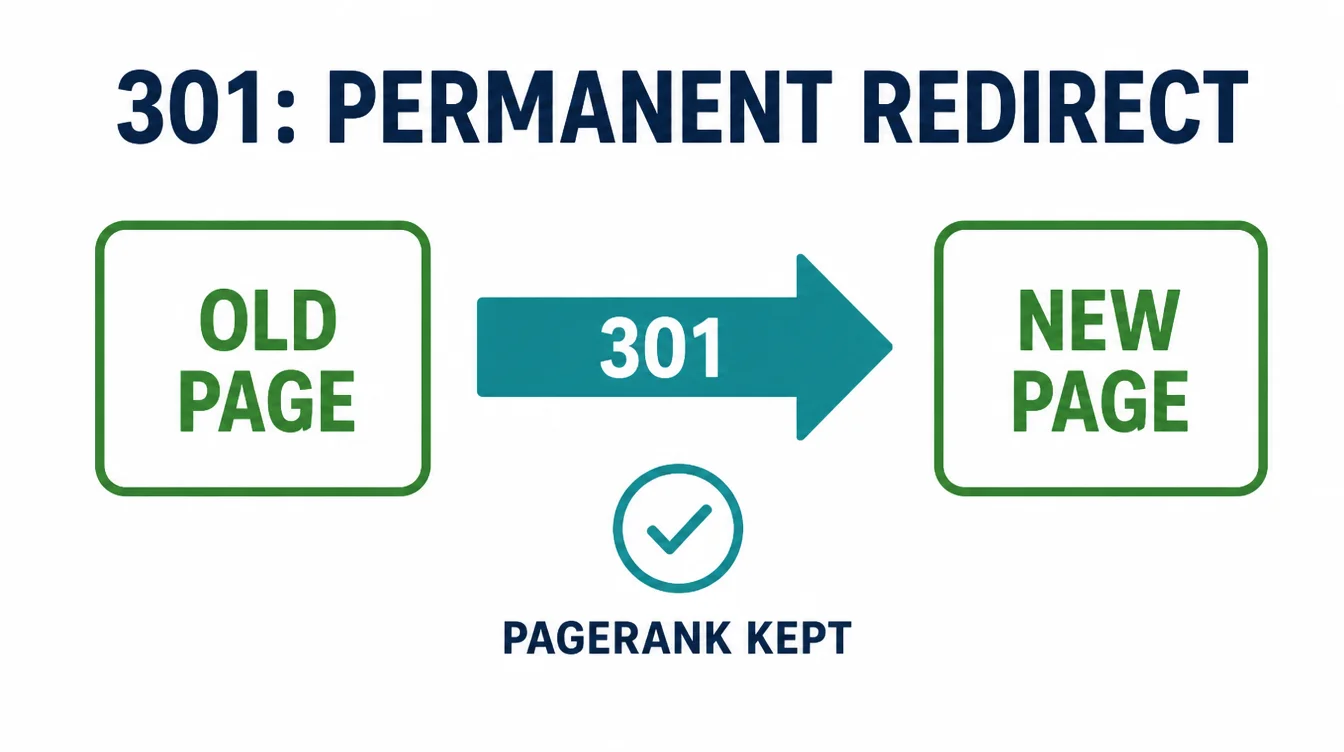
Worried this drains your ranking strength? It does not. Google states plainly that 301 and other permanent redirects do not cause a loss in PageRank (Google Search Central, 2026). So a clean 301 map carries the value of your old pages straight to the new ones.
Two things to watch here.
- Avoid redirect chains, where page A points to B which points to C. Send A straight to C.
- Keep the redirects in place for a long time. Google recommends keeping them generally at least one year, because people bookmark pages and other sites keep linking to your old URLs long after the move.
5. Step 4: keep your content (a prettier page with less content ranks worse)
This is where good intentions cause real damage. A new design tempts you to cut text for a cleaner look. Resist that on the pages that rank. The words on a page are a big part of why Google sends it traffic. Remove them and you remove the reason you rank.
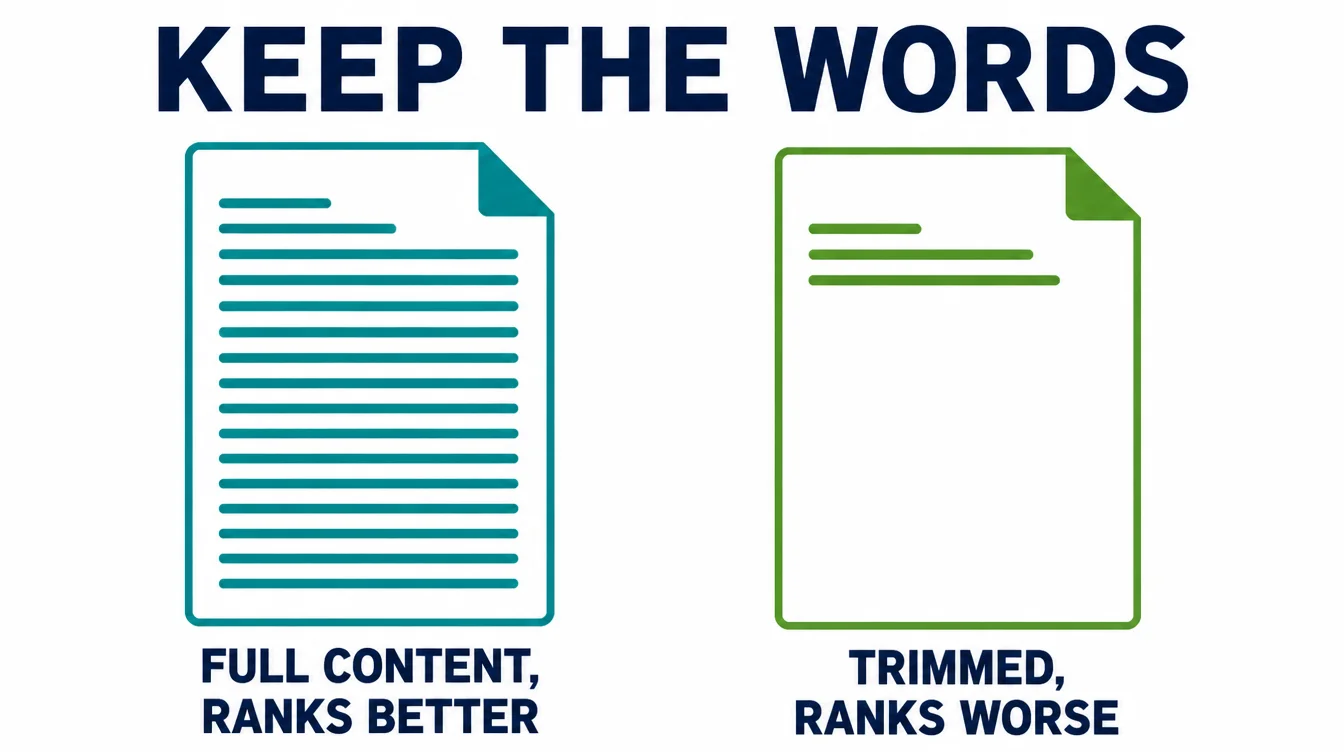
So carry your content over first, then improve it. Move the full text of each important page to its new version before you start trimming. Once it is live and stable, you can edit, expand, or rewrite. The mistake is launching a stripped-down page and watching the rankings follow the missing words out the door.
This matters most for your top pages. Check your old crawl, find the pages that earn the most traffic, and treat their content as precious cargo. If thin content is already an issue, our note on why a website is not showing on Google covers what to add back.
6. Step 5: preserve titles, meta and headings
Your page titles, meta descriptions, and main headings are signals Google reads to understand each page. During a migration, these often get rewritten by accident when content is rebuilt. That can shift rankings even when the URL and content are fine.
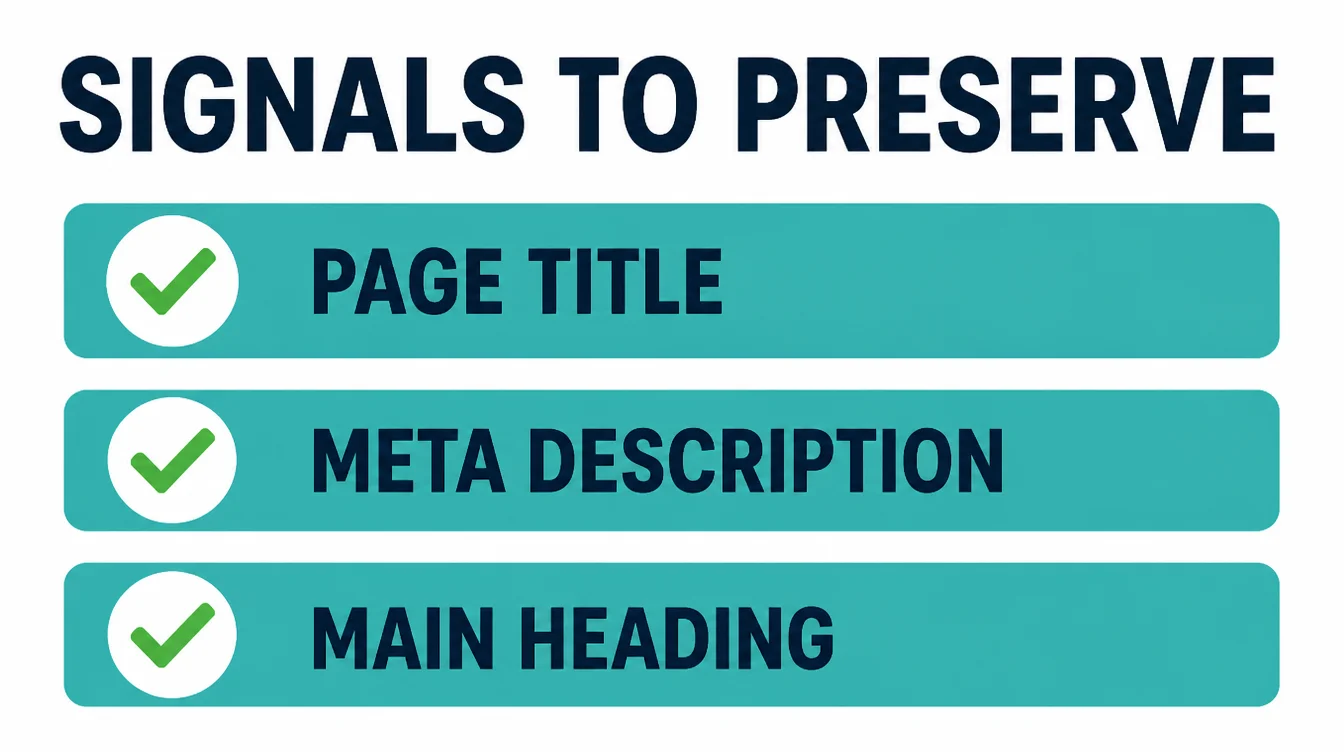
Pull the old titles and headings from your Step 1 crawl and reuse them on the new pages. If a page ranks well, keep its title as close to the original as you can. You can always tune titles later, once the move has settled and you can see what actually changed.
One more thing to keep: your structured data and any canonical tags. If your old pages had review markup, FAQ markup, or product markup, rebuild it on the new pages.
Losing it will not crash your site, but it can quietly remove the rich results you were getting. Our SEO service bakes these checks into every build.
7. Step 6: update internal links and your sitemap
After the move, your own pages may still link to old URLs. Those internal links should point at the new addresses directly, not bounce through a redirect. Google specifically advises changing the internal links on the new site from the old URLs to the new URLs (Google Search Central, 2026).
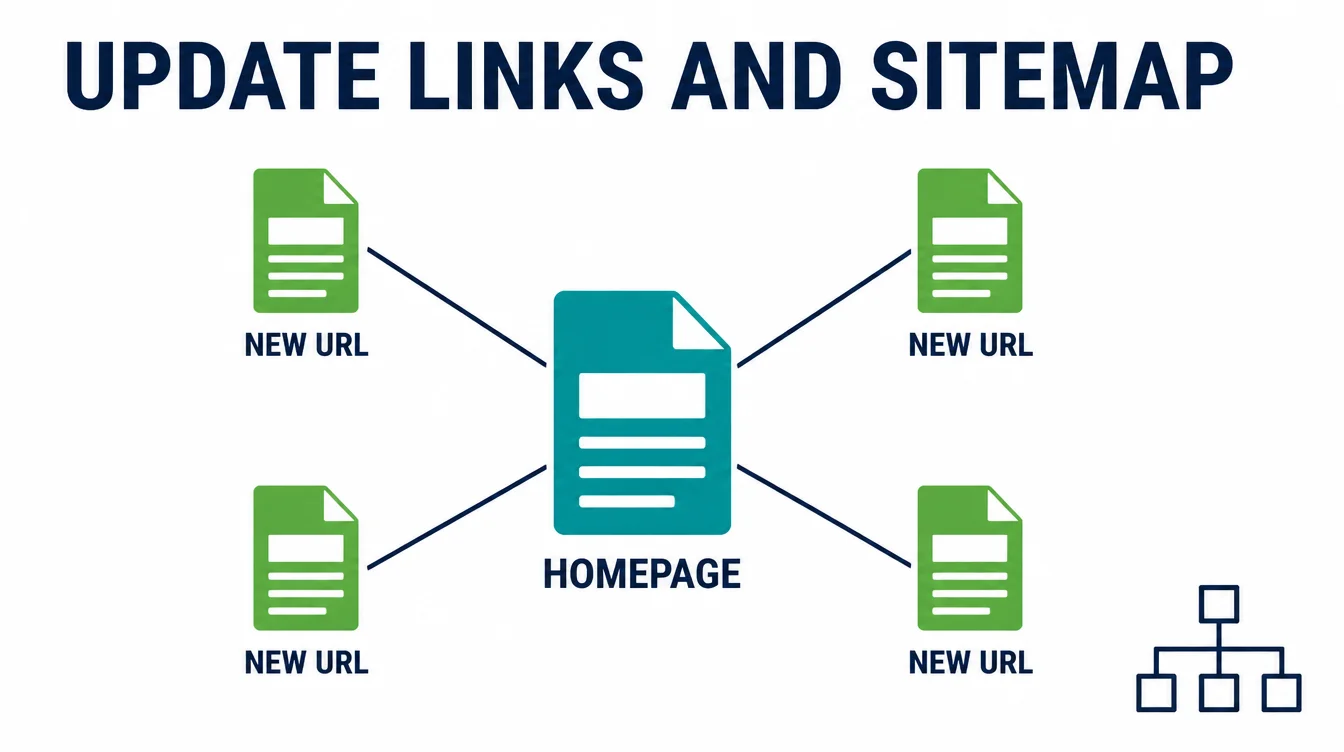
So go through your menus, your footer, your buttons, and the links inside your blog posts. Update every internal link to the new URL. Redirects are a safety net for outside links you cannot control, but your own links should be correct from day one.
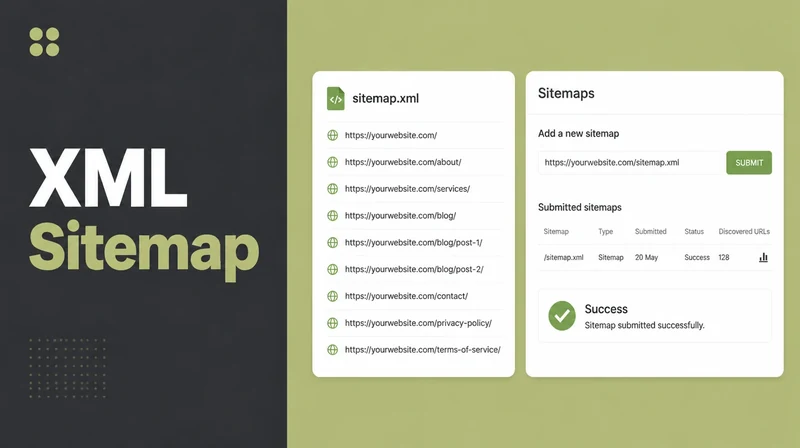
Next, build a fresh sitemap that lists only your new URLs. A sitemap helps search engines discover URLs but, as Google notes, does not guarantee that all the items will be crawled and indexed (Google Search Central, 2026).
It is a strong nudge, not a promise, so keep your redirects and internal links clean alongside it.
8. Step 7: tell Google (Change of Address, submit the sitemap)
Once the new site is live and the redirects work, tell Google directly. This speeds up the move and reduces the time your rankings sit in limbo.
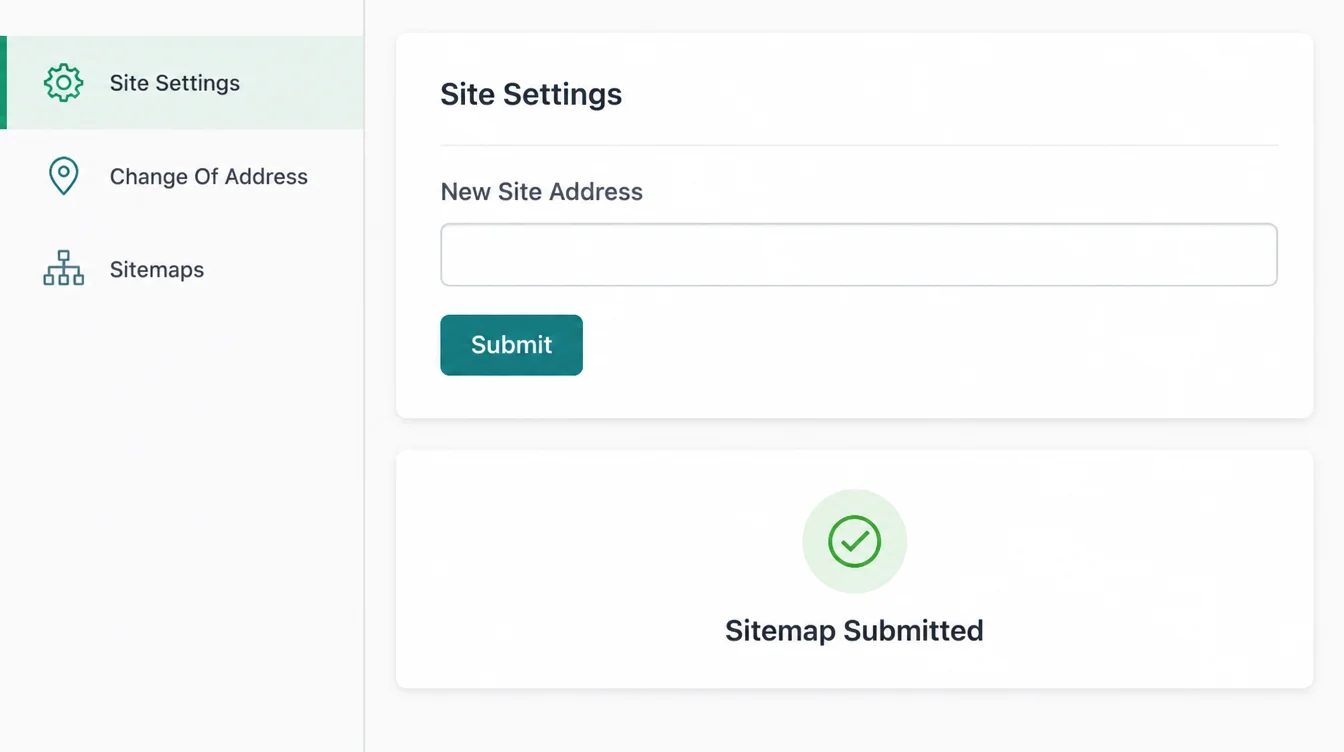
If you changed your domain name, submit a Change of Address in Google Search Console (Google Search Central, 2026). This links your old site to your new one so Google understands they are the same business. For a same-domain redesign you skip this step, since the domain has not changed.
Either way, submit your new sitemap in Search Console. Then keep both the old and new properties verified for a while so you can watch the old URLs hand traffic over to the new ones. To set expectations on timing, our guide on how long SEO takes is a useful companion read.
9. Step 8: do not change everything at once
This is the rule that quietly saves migrations. When you can, move in stages. Google advises planning your changes one after the other, not everything at the same time (Google Search Central, 2026).
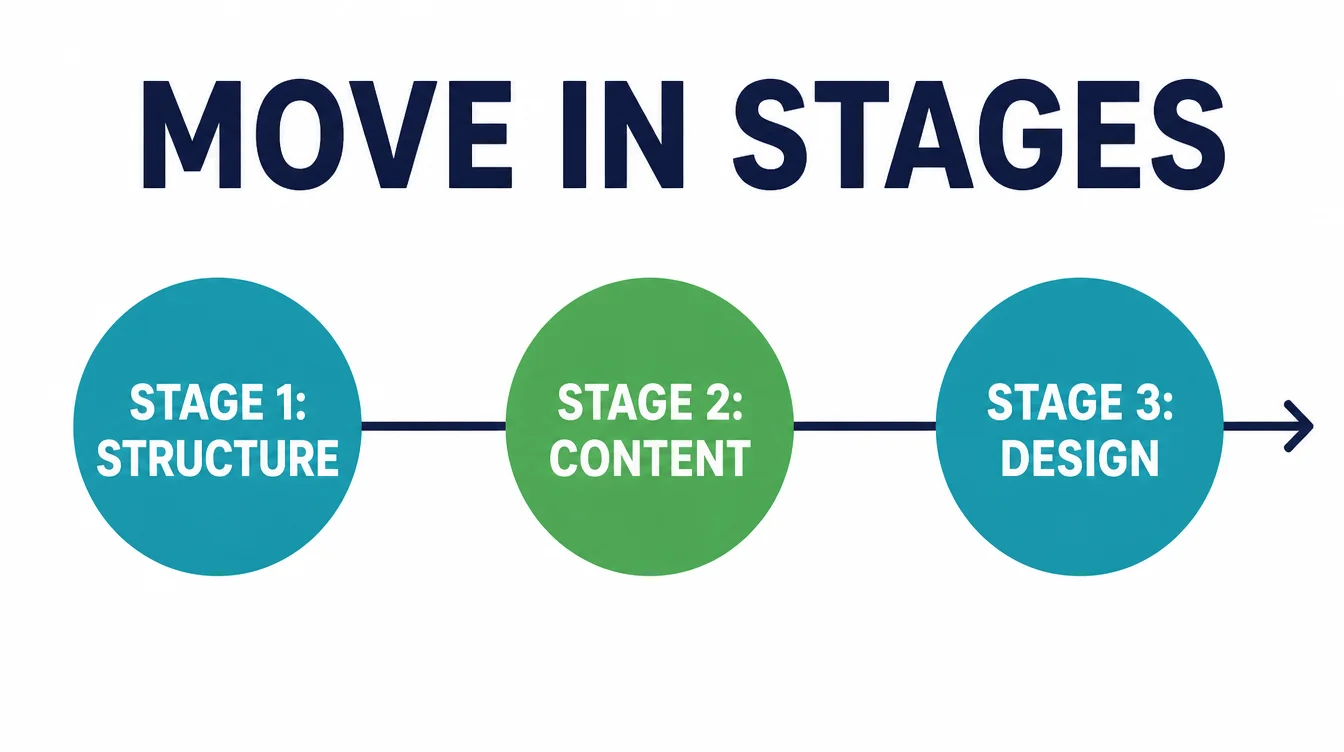
Why? Because if you change the design, the URLs, and all the content together and rankings dip, you have no idea which change caused it. Worse, you cannot easily undo just the broken part. Staged changes are easier to diagnose and easier to roll back.
In practice, do the structural move first: new platform, redirects, same content and titles. Confirm it is stable. Then, in a later pass, improve the content and refresh the design. It is slower, but it is the difference between a controlled move and a guessing game.
10. Launch-day checks (stray noindex, robots.txt block, redirect loops)
Launch day is where small mistakes do big damage. Most are invisible unless you check for them on purpose. Run through this short list the moment the new site goes live.
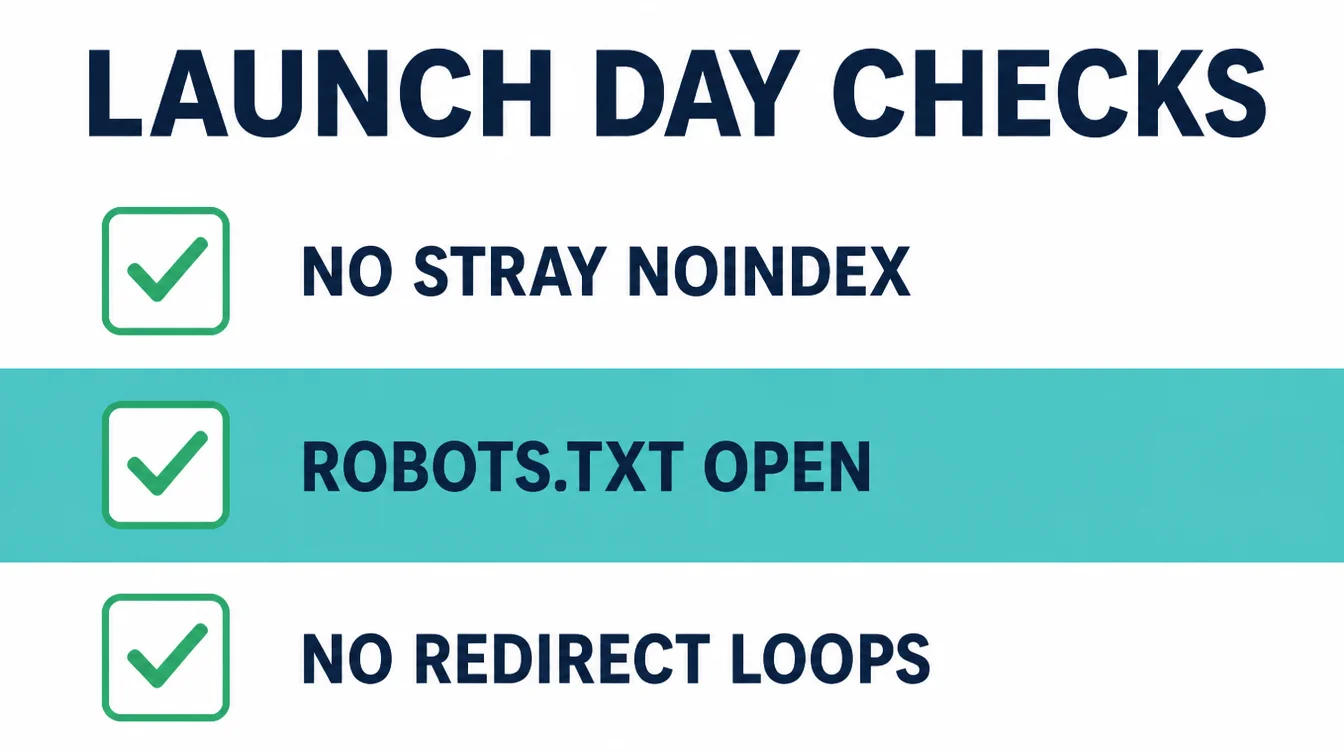
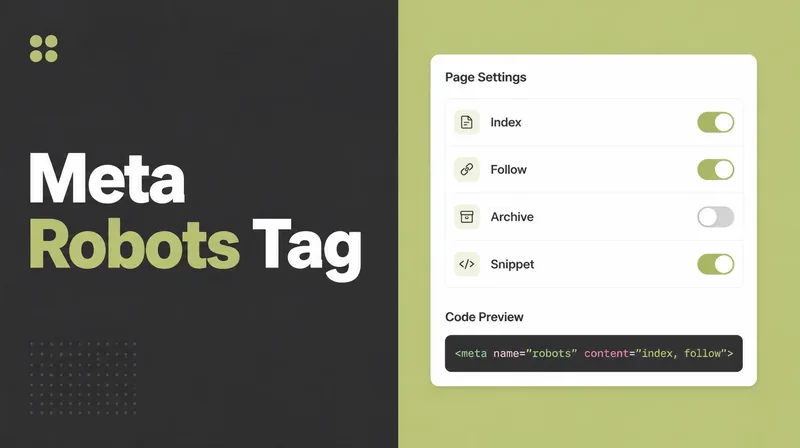
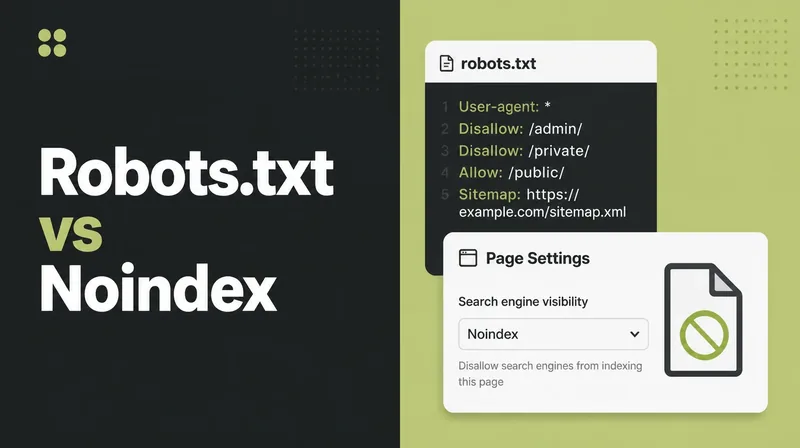
- Check for a stray noindex tag. Staging sites are often set to noindex so they stay hidden, and that setting sometimes ships to the live site by mistake. A site-wide noindex tells Google to drop you entirely.
- Check your robots.txt is not blocking the whole site, another common staging leftover.
- Test your redirects in batches. Pick your top old URLs and confirm each lands on the correct new page with a 301, not a chain or a loop. A redirect loop, where two pages point at each other, breaks the page for everyone.
Below is the full migration checklist in one place.
| Step | Why it matters |
|---|---|
| Crawl and save the old site | Your safety net: the only record of every URL, title, and link before the move |
| Map every old URL to a new one | Stops important pages ending in a dead end after the move |
| Set permanent 301 redirects | Carries ranking value over, since 301s do not lose PageRank |
| Keep your content | The words are why pages rank; cutting them cuts your traffic |
| Preserve titles, meta and headings | These signals tell Google what each page is about |
| Update internal links and sitemap | Points your own pages at the right new URLs and helps Google find them |
| Tell Google the site moved | Change of Address and a fresh sitemap speed up the transfer |
| Move in stages, not all at once | Makes any problem easy to spot and easy to undo |
11. After launch: what to monitor and how long recovery takes
The work is not done at launch. For the first few weeks, you are watching to confirm the move went cleanly and stepping in fast if it did not.
What to watch in Search Console
Watch these in Search Console: crawl errors and 404s climbing, your old URLs still getting hits with no redirect, and indexed pages dropping sharply. A small dip right after launch is normal as Google reprocesses everything. A steep, lasting drop means something broke, usually a missing redirect or a stray noindex from your launch list.
How long recovery takes
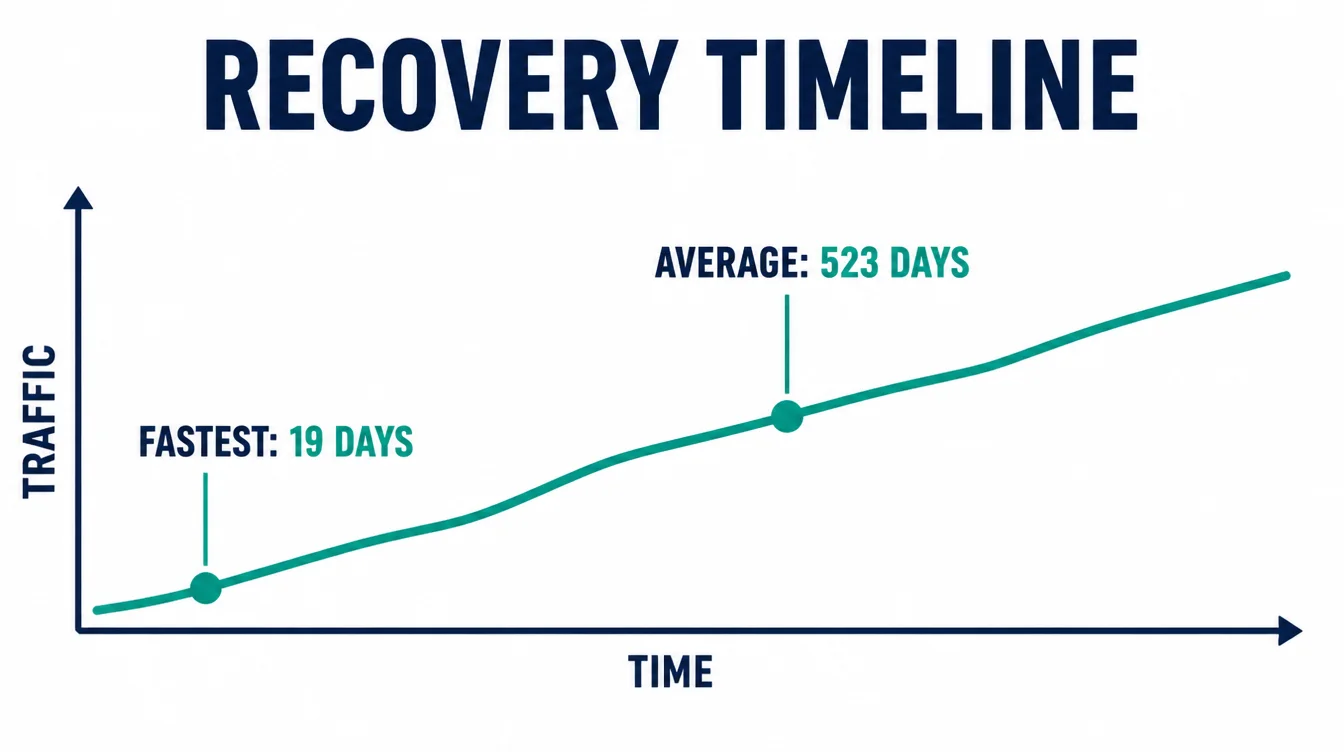
So how long until things settle? For a clean same-domain redesign, Google says you can expect a medium-sized site to take a few weeks for most pages to move in its index (Google Search Central, 2026).
A full domain-name change is a bigger gamble. One study of 892 domain migrations found it took 523 days on average for the new domain to match the old traffic, with the fastest recovering in 19, 22, 23, and 33 days and 17% still not recovered after 1,000 days (Search Engine Journal, 2024).
That huge range is the whole reason the prep work in this guide matters.
If you are unsure where your traffic stands, see how we run a website redesign, talk to Seed Light, or browse more guides on the blog.
Frequently asked questions
1. Will I lose rankings if I redesign my website?
Not if you plan it. Rankings drop when the move loses something Google was using: old URLs that go nowhere, content that gets cut, or titles and headings that change too much. If you keep the same domain, map every old URL to its new home with a permanent redirect, and keep your content and page titles, a redesign can hold its rankings. The damage comes from skipping those steps, not from the new look.
2. How long does it take to recover SEO after a migration?
For a clean same-domain redesign, Google says a medium-sized site can take a few weeks for most pages to move in its index. A full domain-name change is riskier and slower. One study of 892 domain migrations found it took 523 days on average for the new domain to match the old traffic, though the fastest recovered in 19 to 33 days. That gap is exactly why the prep work matters.
3. What is a 301 redirect and why does it matter?
A 301 redirect tells browsers and search engines that a page has permanently moved to a new address. Google says the 301 and 308 status codes mean a page has permanently moved to a new location. It matters because it carries visitors and Google from your old URL to your new one. Google confirms that 301 and other permanent redirects do not cause a loss in PageRank, so a clean redirect map protects the ranking strength you already built.
4. Do I need to redirect every old URL?
Redirect every old URL that had value: pages that ranked, earned links, or got traffic. Each one should point to the closest matching new page. Sending everything to the homepage wastes the signals those pages built. If an old page truly has no equivalent, you can still send it to the most relevant section. The goal is that no useful old address ends in a dead end.
5. Should I change content and design at the same time?
Try not to. Google advises planning your changes one after the other, not everything at the same time. If you change the design, the URLs, and all the content together and rankings dip, you cannot tell which change caused it. Move in stages where you can. Do the structural move first, confirm it is stable, then improve content. Staged changes are easier to diagnose and easier to undo if something breaks.
6. How do I tell Google my site moved?
There are two main steps. First, if you changed your domain name, submit a Change of Address in Google Search Console so Google links the old site to the new one. Second, submit your new sitemap in Search Console so Google can find your new URLs faster. A sitemap helps search engines discover URLs but does not guarantee every page gets crawled and indexed, so keep your redirects and internal links clean too.
7. How long should I keep the redirects in place?
Keep them for a long time. Google recommends keeping the redirects for generally at least one year. People bookmark pages, other sites link to your old URLs, and Google takes time to fully update its index. If you remove the redirects too early, all of that traffic and link value hits a dead end. There is no harm in leaving them in place longer, so many sites simply keep them permanently.