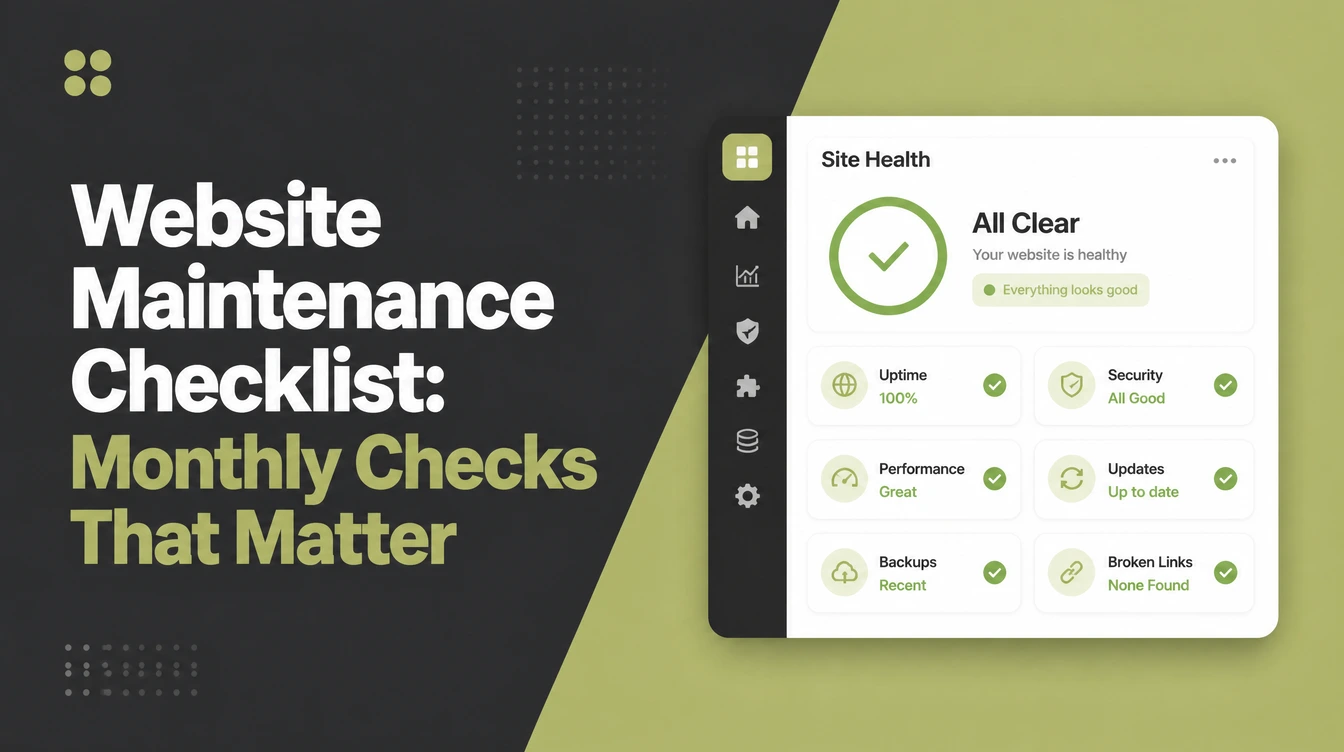
Website Maintenance Checklist: Monthly Checks That Matter

A website maintenance checklist covers the monthly jobs that keep a site safe and fast: backups, updates, a security scan, broken links, speed, forms, content and analytics. Plan one to two hours a month. Sucuri found 39.1% of infected CMS applications were outdated at the point of infection. Seed Light runs backups, updates, security and monitoring to the package schedule.
Key takeaways
Short on time? Here is the whole website maintenance checklist in five lines before we break each item down.
- Most hacks hit old software. 39.1% of CMS applications were outdated at the point of infection (Sucuri, 2023), so updates are your best defence.
- Backups are your undo button. Run them automatically and test a restore now and then, before you ever need it.
- Speed keeps customers on the page. 53% of visits are likely abandoned if a page takes longer than 3 seconds to load (Google, 2024).
- Vulnerabilities are exploding. 7,966 new ones were found in the WordPress ecosystem in 2024, a 34% rise (Patchstack, 2024).
- Make it a monthly habit. A short routine each month beats one panicked all-nighter after something breaks.
1. Why monthly maintenance matters
A website maintenance checklist saves you from the worst kind of surprise: the one that takes your site down on a busy day. Most owners think hacks come from clever new attacks. They do not. They come from old software that nobody updated.
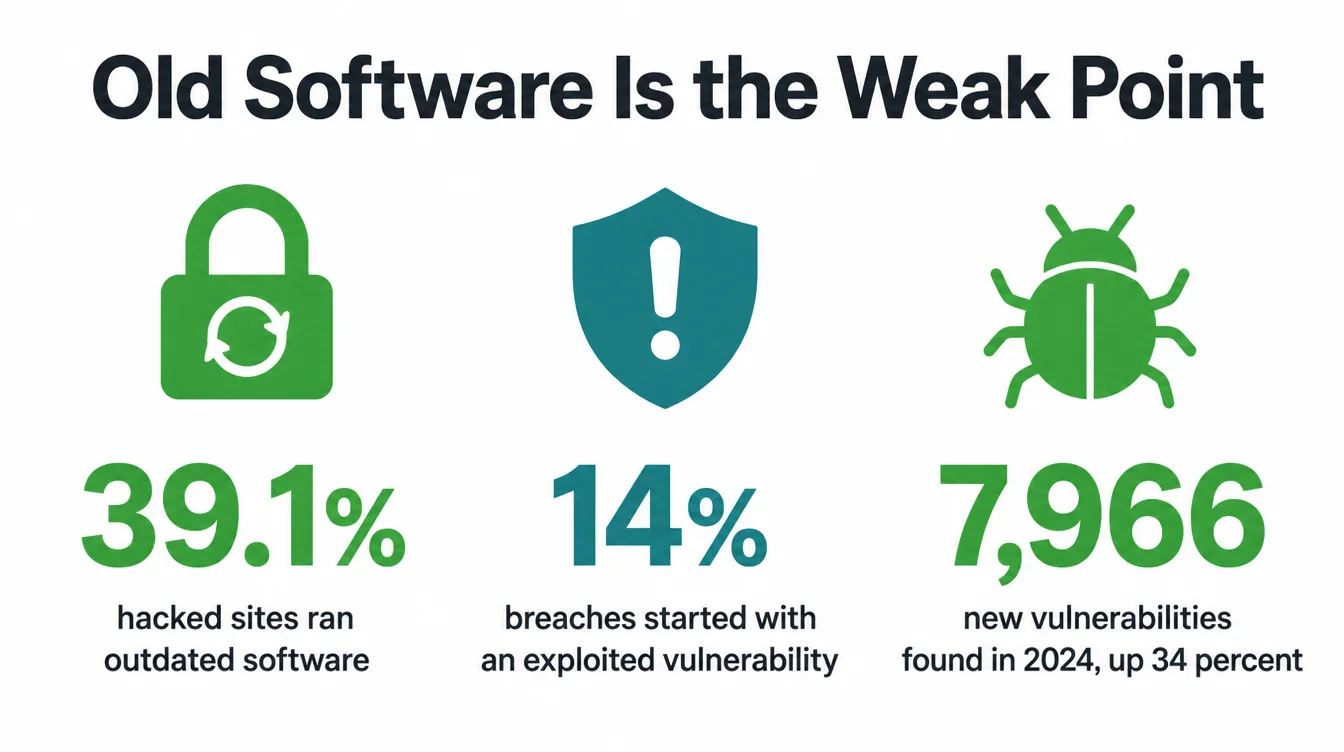
The numbers are blunt. Sucuri found that 39.1% of CMS applications were outdated at the point of infection (Sucuri, 2023).
Meanwhile, Verizon reported that the exploitation of vulnerabilities as an initial point of entry almost tripled in a year, accounting for 14% of all breaches (Verizon, 2024). As a result, the single best thing you can do is keep your site current.
The pace is rising too. Patchstack counted 7,966 new vulnerabilities in the WordPress ecosystem in 2024, a 34% increase over the year before, which is about 22 published every day (Patchstack, 2024).
Therefore a once-a-year clean-up is not enough. The checklist below has eight items. Do not try them all today. Pick a few, finish them, and come back next month.
2. The 5-minute version
No time to read the whole thing? Here is the TL;DR. If you only do five things this month, do these.
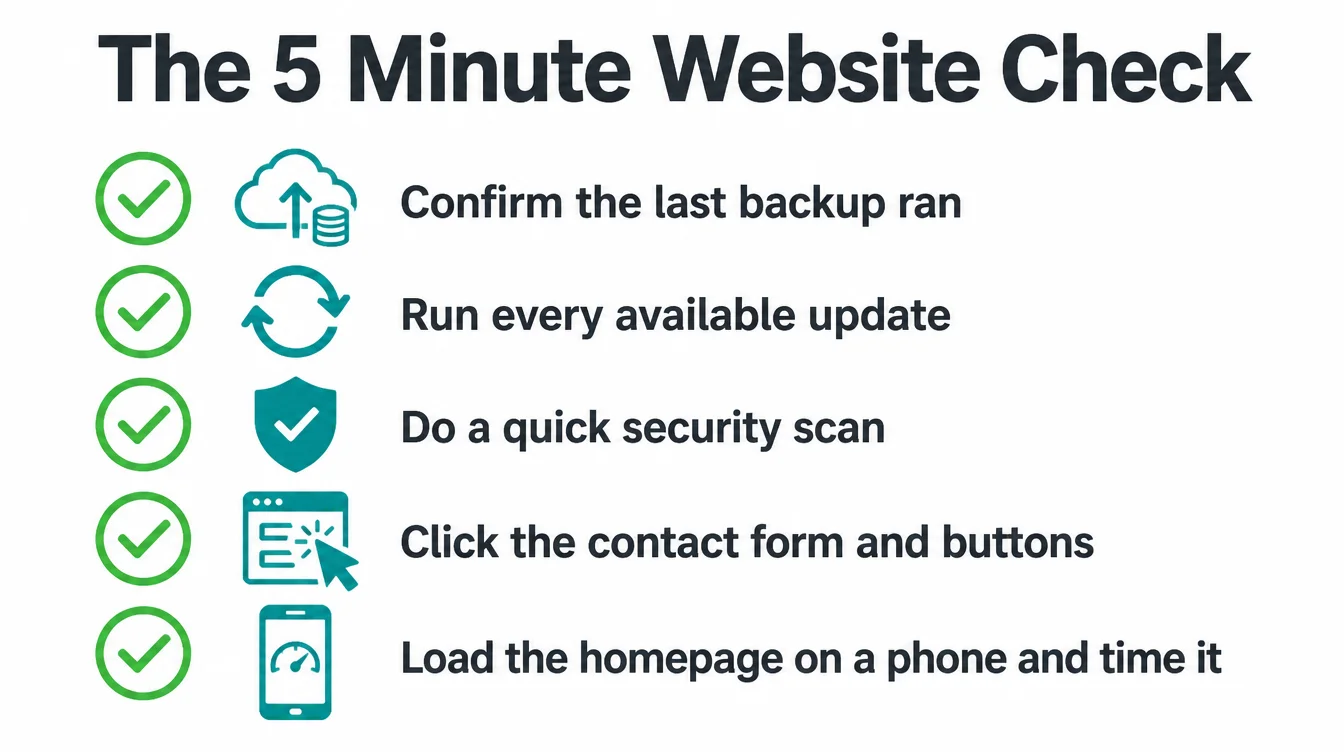
- Confirm your last backup actually ran and is recent.
- Run every available update for your site, plugins, and theme.
- Do a quick security scan and check for warnings.
- Click your contact form and buttons to make sure they work.
- Load your homepage on a phone and time it.
That is the floor. The rest of this checklist adds the depth that keeps small problems from becoming big ones.
3. Back up your site (and test the restore)
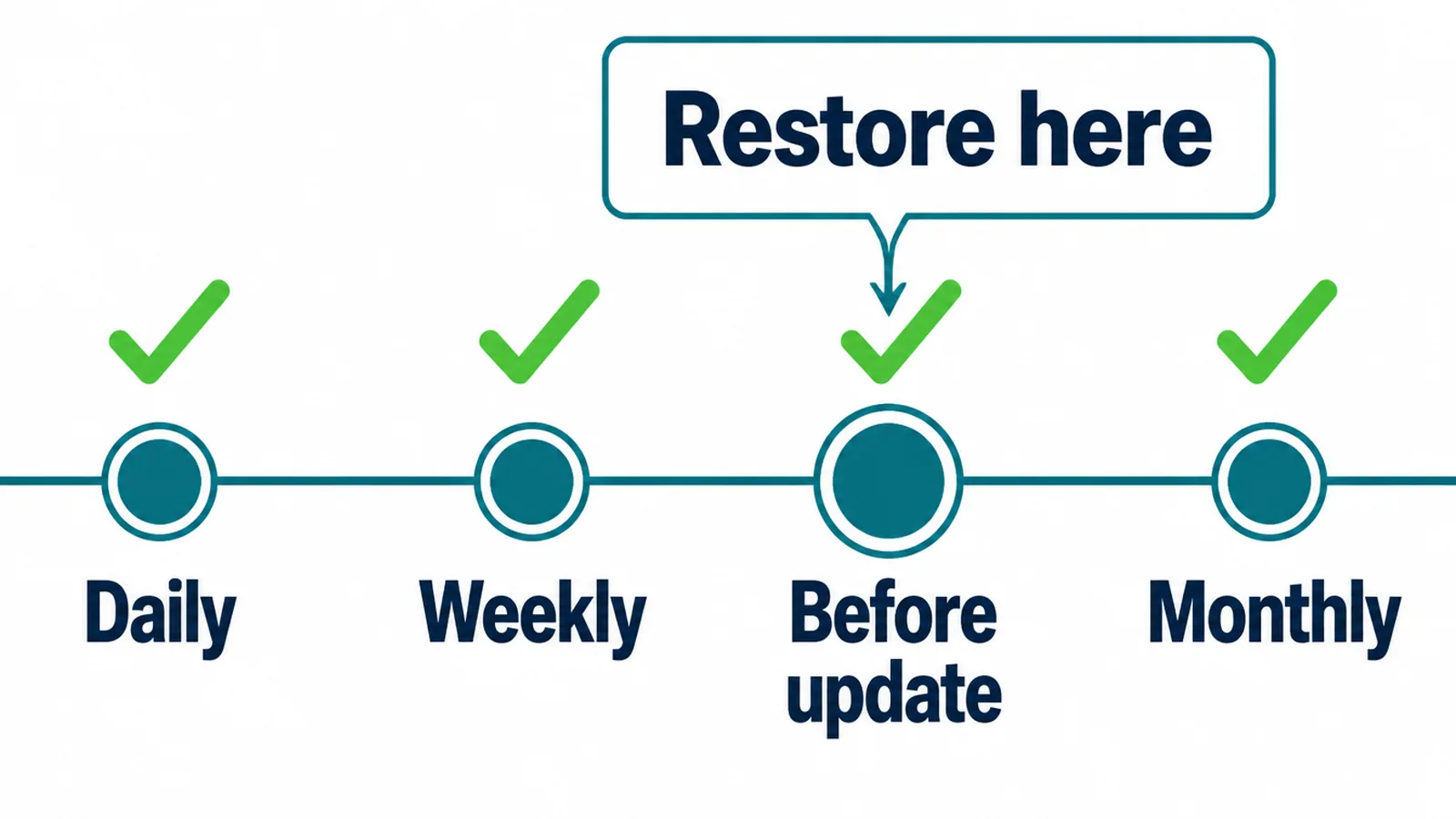
A backup is your undo button. When an update breaks something, a plugin clashes, or someone gets in, a recent backup lets you roll back in minutes instead of losing days.
In particular, it matters because hacked sites often hide a way back in. Sucuri found that 49.21% of compromised websites had at least one website backdoor (Sucuri, 2023).
Set backups to run automatically so you never have to remember. However, a backup you have never tested is just a hope.
Once in a while, restore a copy to a test space and confirm the site comes back whole. Keep a few versions, not only the latest one, in case a problem hides for a while before you notice it.
4. Update your CMS, plugins, and themes
This is the one that protects you most. Open your dashboard and run every update waiting for you: the core system, your plugins, and your theme. Each update often closes a security hole that attackers already know about.
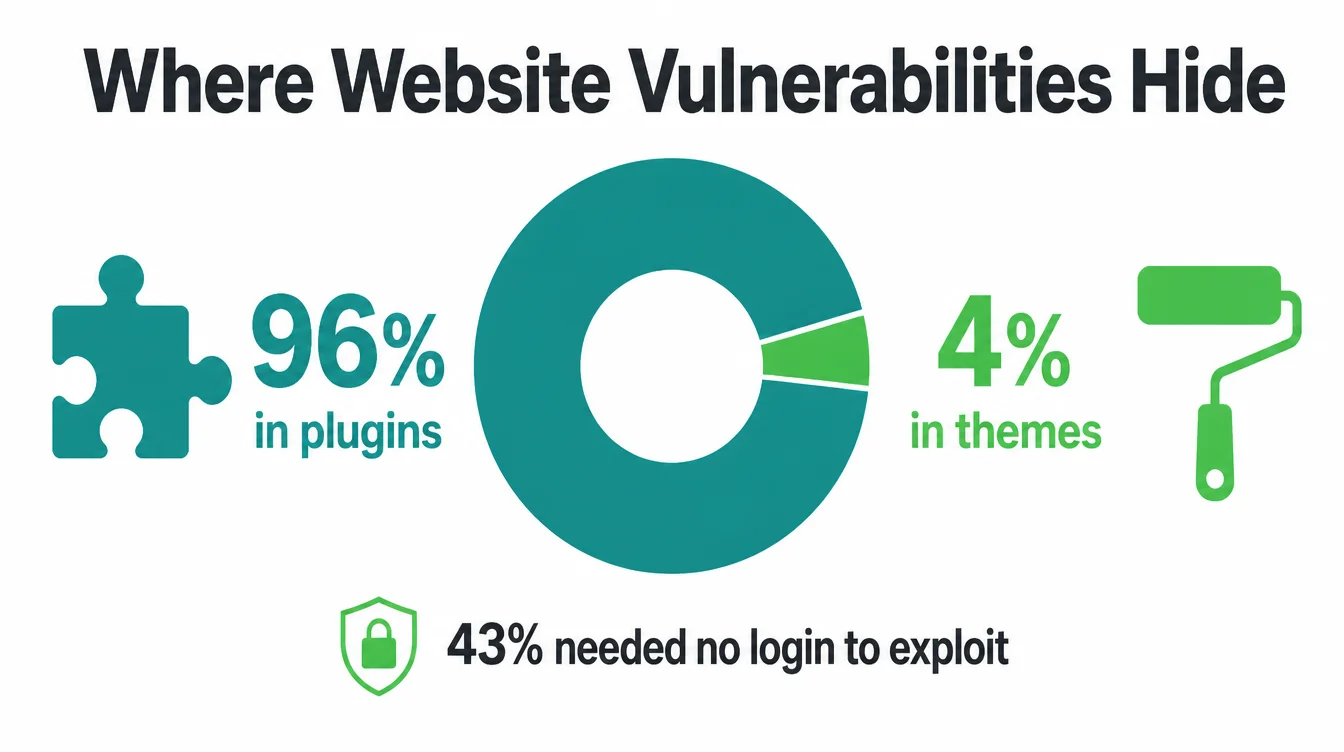
The scale is why this cannot wait. Patchstack reported that 96% of vulnerabilities were uncovered in plugins, and 4% were found in themes (Patchstack, 2025).
Furthermore, 43% of the new vulnerabilities found in 2024 did not require any login to be exploited, which means a bad actor does not even need an account to use them.
Back up first, then update, then click around to confirm nothing broke. If a plugin has not been updated by its maker in a long time, that is a red flag. Replace it. If you are deciding what platform to build on next, our guide on WordPress vs Shopify walks through the trade-offs.
5. Run a security check
Updates do the heavy lifting, but a quick scan catches what slips through. Use a security tool to scan for malware and check your warnings. Look at who has admin access and remove anyone who no longer needs it.
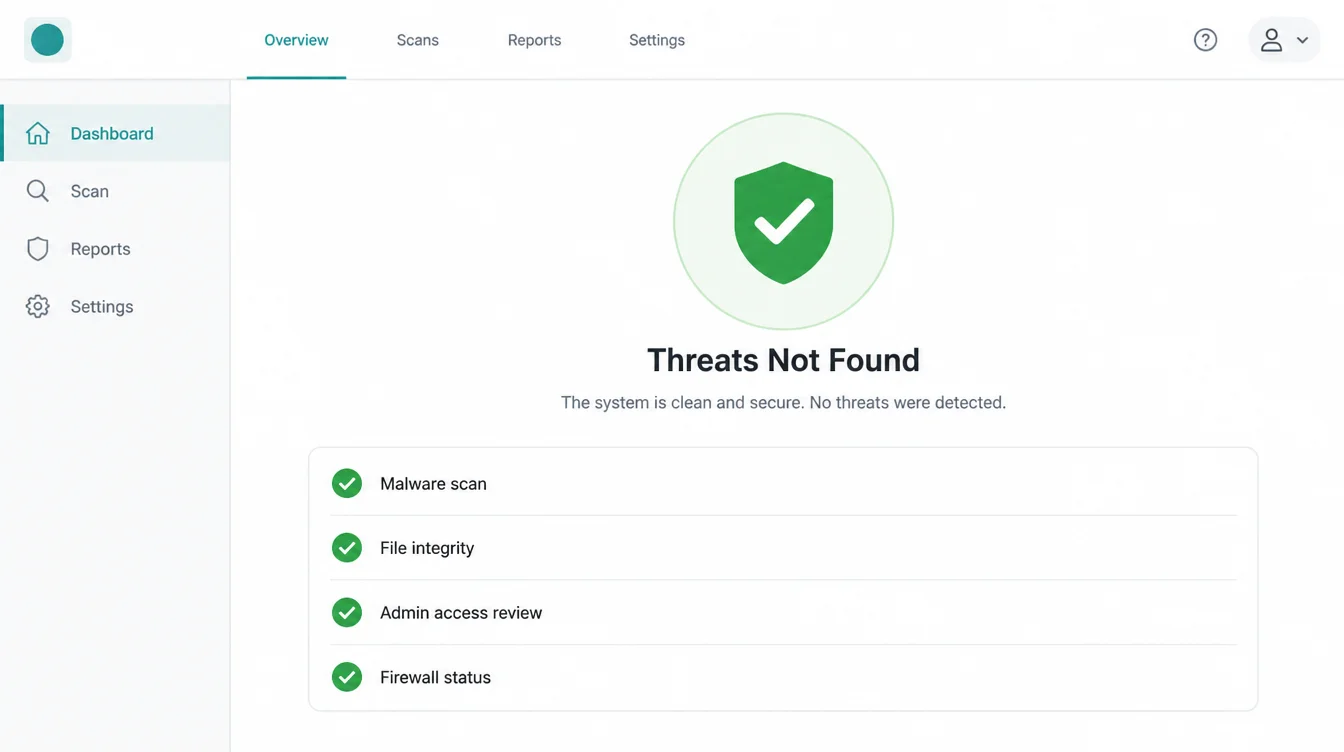
Why bother monthly? Because the threat keeps growing, and so much of it needs no login at all to exploit (Patchstack, 2025). A few small habits help a lot: strong, unique passwords, two-factor login on your admin account, and a basic firewall. None of that takes long once it is set up.
6. Fix broken links
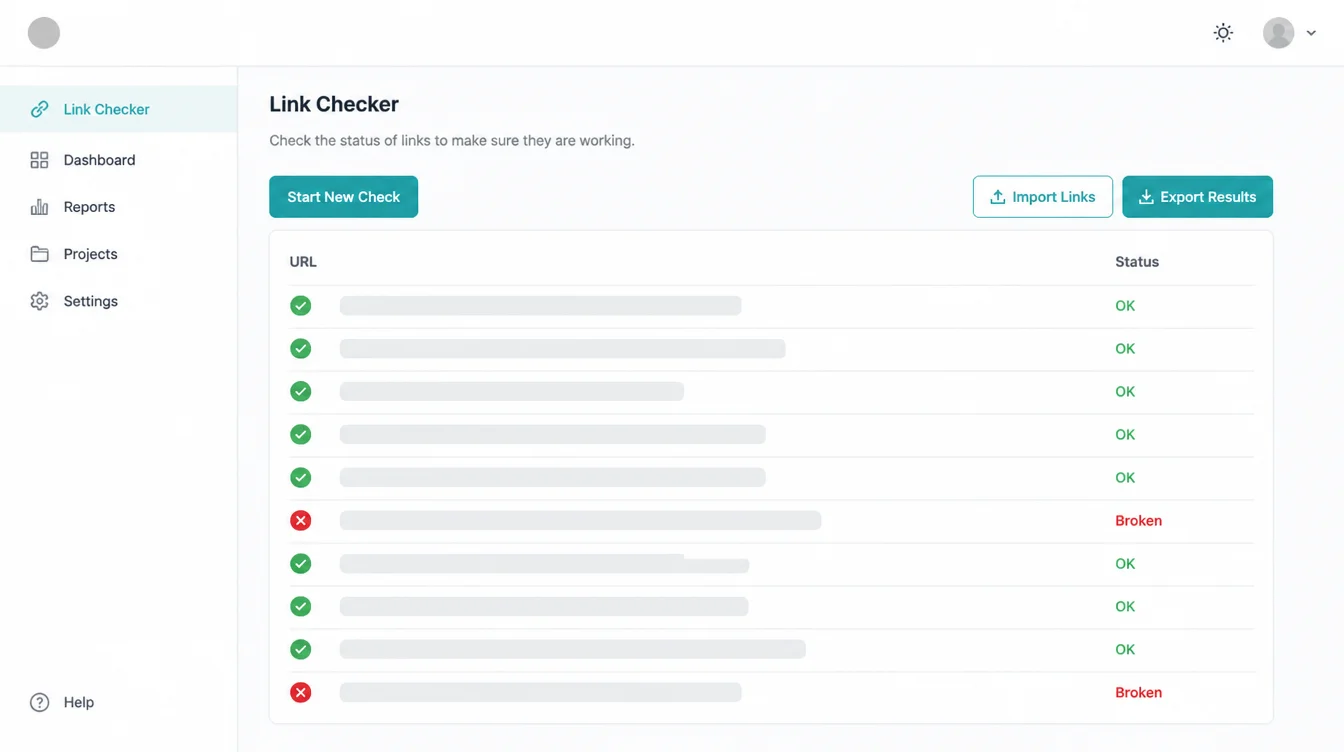
Broken links are small leaks. A dead link sends a customer to a "page not found" message, and many simply leave. Links break for ordinary reasons: you rename a page, move a file, or link to another site that disappears.
Run a free broken-link scan once a month. Fix the internal ones by pointing them to the right page, and update or remove the dead links to outside sites.
By contrast with the security tasks, this one is easy and fast, but it has a direct effect on whether a visitor reaches your offer or hits a wall. If you are planning a bigger refresh, see our notes on a website redesign.
7. Check your site speed
Speed is not a nice-to-have. It is the difference between a customer staying and a customer leaving. Google found that 53% of visits are likely to be abandoned if pages take longer than 3 seconds to load (Google, 2024). That is half your hard-won traffic gone before they see a word.
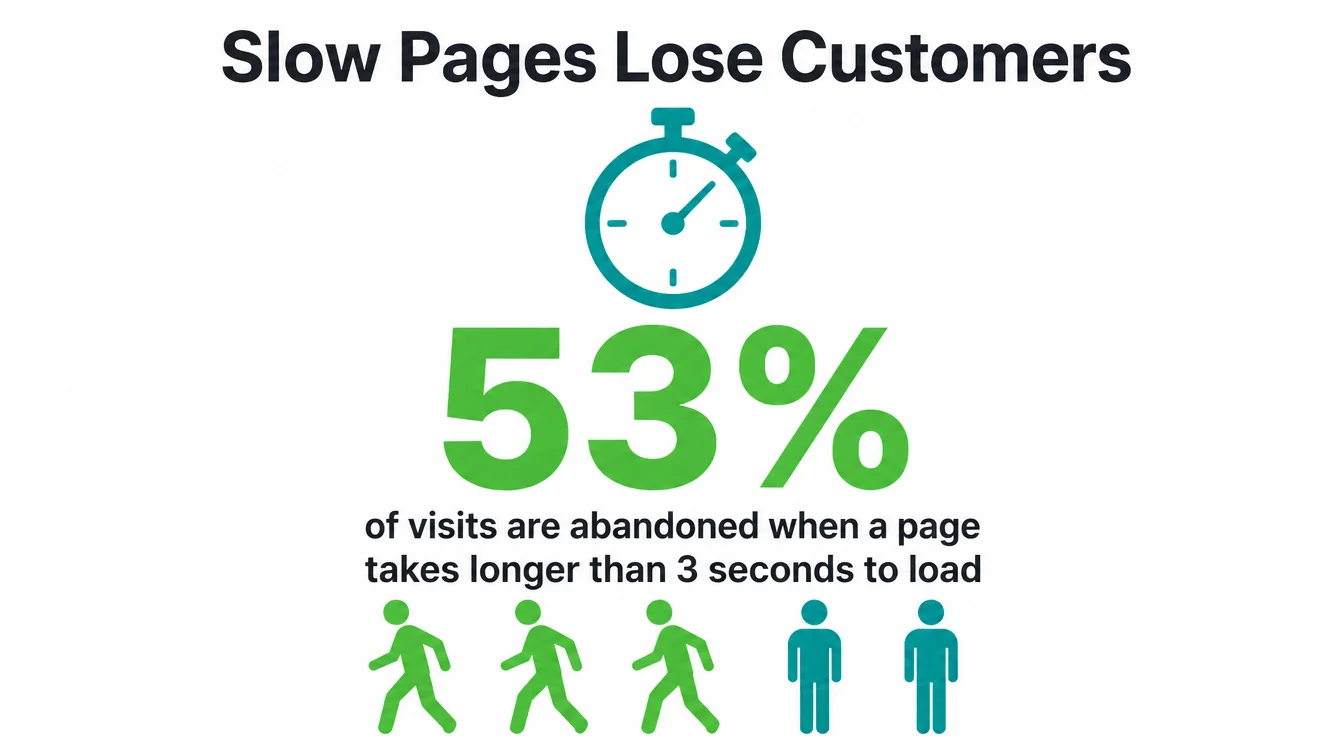
Run a free speed test on your homepage and one key page each month. Common fixes are within reach: shrink big images, remove plugins you do not use, and turn on caching.
Specifically, oversized images are the most common cause of a slow page, so start there. If speed is a deeper build problem, that is where our web design and development work comes in.
8. Test your forms and buttons
This one is quietly the most important. A broken contact form means messages from customers vanish, and you never know they tried. It can break silently after an update or a settings change, and most owners only find out weeks later.
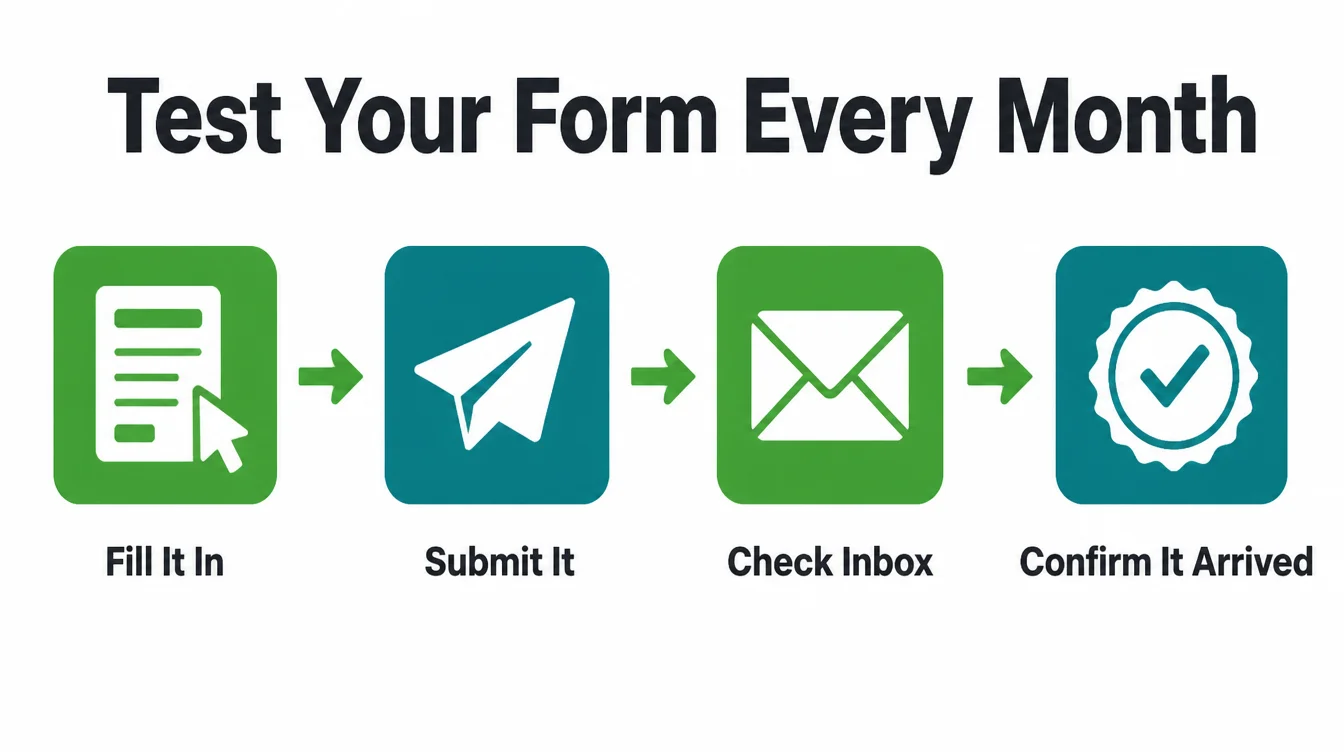
So every month, fill in your own contact form and send it. Confirm the message lands in your inbox.
Then click your main buttons, your "buy now," your "book a call," your phone number on mobile, and make sure each does what it should. A site that looks fine can still be losing you leads behind the scenes.
9. Update your content and contact details
Wrong details cost you trust and sales. Check that your opening hours, phone number, address, and prices are current. Update anything seasonal, and remove offers that have ended. A site that talks about a sale from last year tells visitors nobody is home.
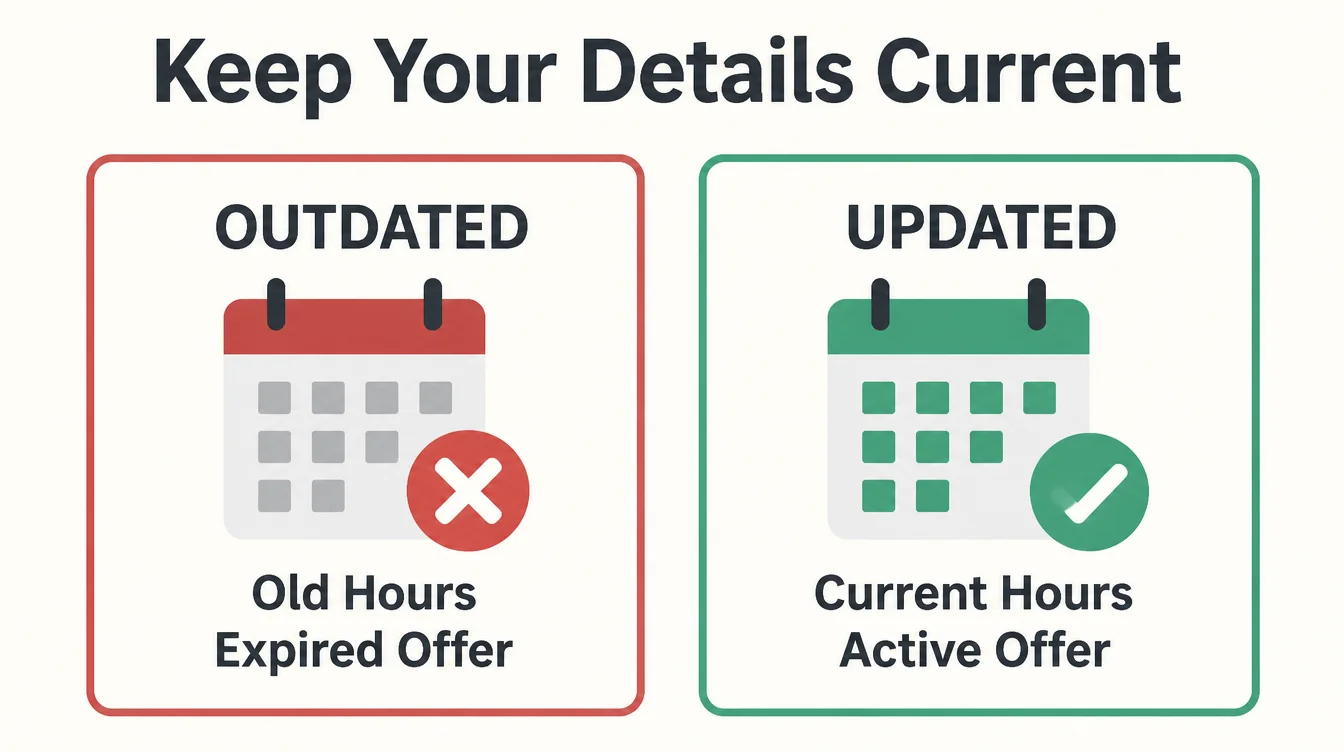
Furthermore, fresh content gives people and search engines a reason to come back. Add a new testimonial, swap in a recent photo, or publish a short post.
You do not need to write a lot. A small, steady stream of updates keeps your site feeling alive. For more on getting the basics right, read our guide to a small business website.
10. Review your analytics
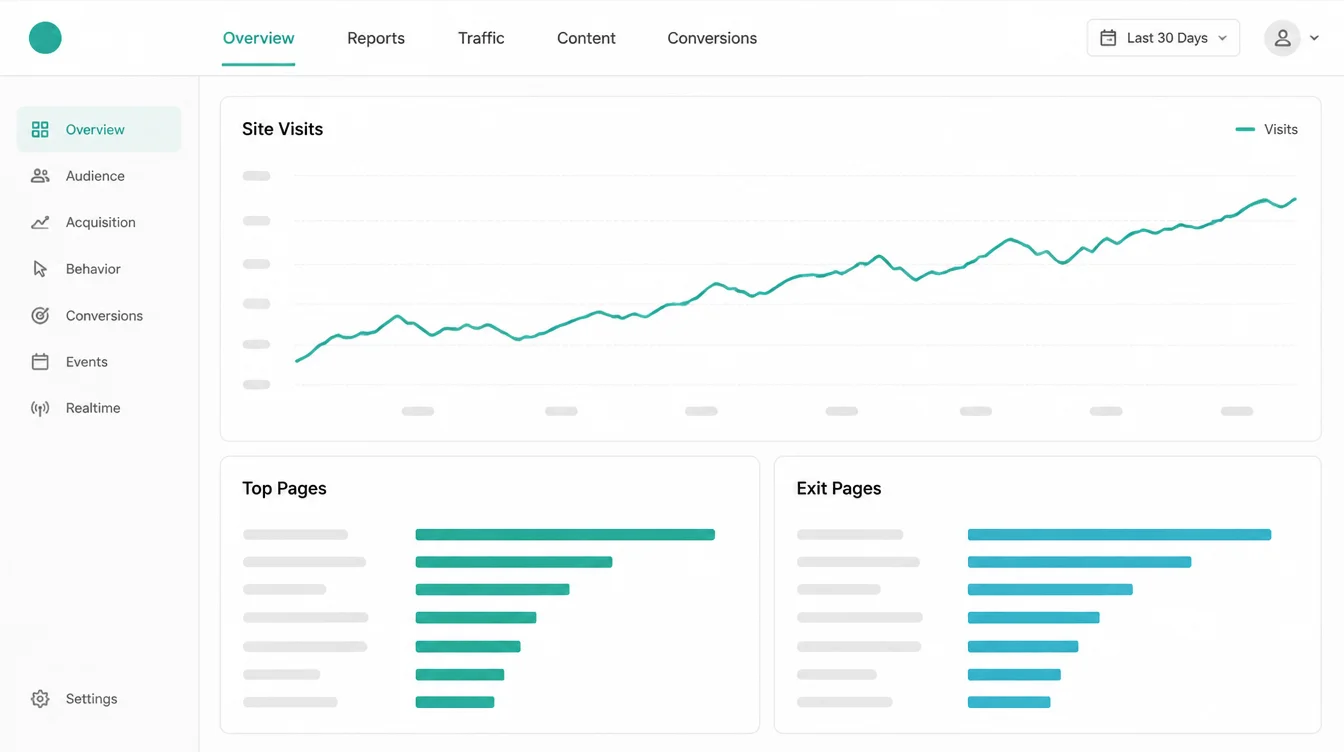
The last item tells you whether any of this is working. Open your analytics and look at three simple things: how many people visited, which pages they spent time on, and which pages they left fast. You do not need to be a data expert to spot a pattern.
For context, your numbers also flag problems you might miss. A page where everyone leaves quickly might be slow, broken, or just confusing.
Write down a couple of figures each month and compare them over time. Slow and steady growth is exactly what a healthy site looks like. Browse the full Seed Light blog for more practical guides.
11. Build it into a monthly habit
The hardest part of maintenance is not the tasks. It is remembering to do them. So make it automatic. Pick one day a month, put it in your calendar as a repeating event, and work down this checklist.
Spread across four weeks, it is light. Start each month by running the site through our free website health checker, so the list has real findings on it.
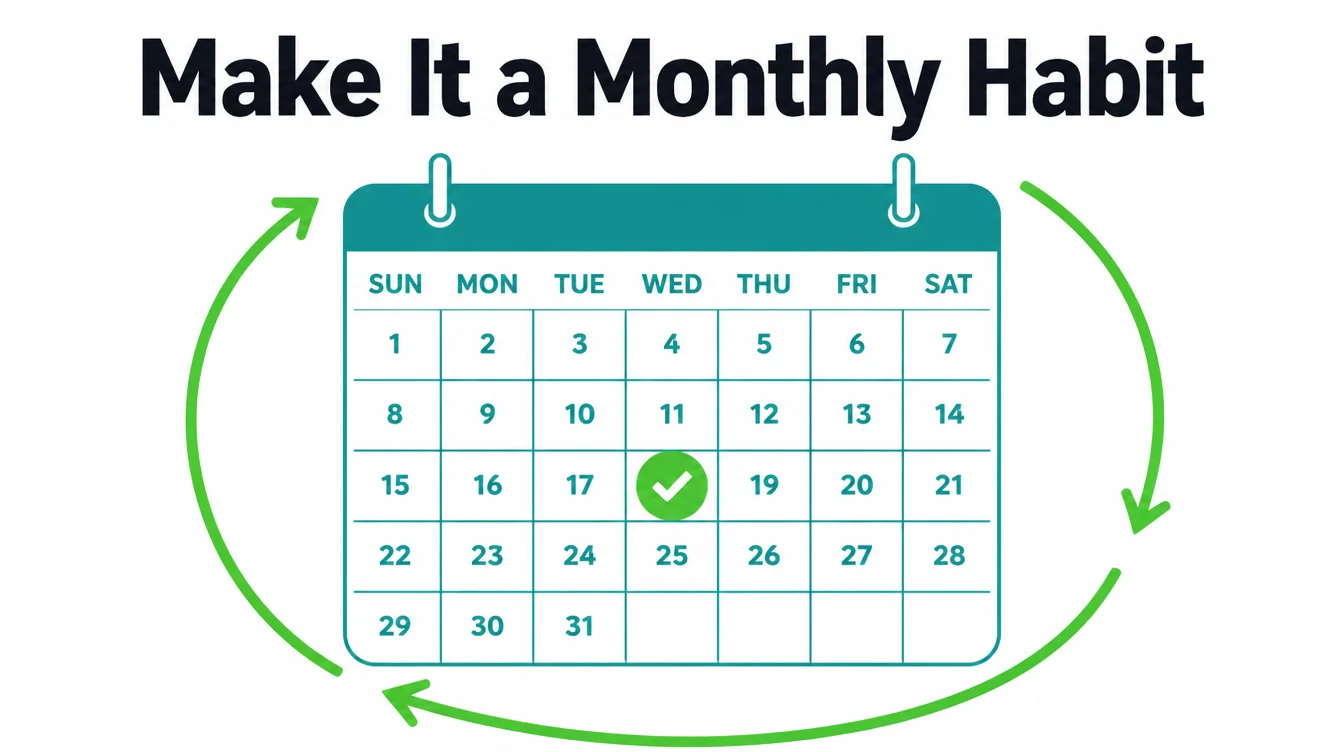
Here is a simple routine and roughly how long each task takes. However, treat the timings as a guide, not a rule.
| Monthly task | Why it matters | How long it takes |
|---|---|---|
| Confirm and test backups | Your undo button if anything breaks or gets hacked | 10 minutes |
| Run updates | Closes the holes most hacks use to get in | 15 minutes |
| Security scan | Catches malware and risky access early | 10 minutes |
| Fix broken links | Stops customers hitting dead ends | 15 minutes |
| Check speed | Keeps visitors from leaving slow pages | 10 minutes |
| Test forms and buttons | Makes sure leads actually reach you | 10 minutes |
| Update content and details | Keeps trust, hours, and prices correct | 15 minutes |
| Review analytics | Shows what is working and what is not | 15 minutes |
If even that feels like too much on top of running your business, you can hand it off. A good web design partner can keep all of this running quietly in the background, so you only hear from them when something needs your decision.
Frequently asked questions
1. What is a website maintenance checklist?
A website maintenance checklist is a short list of the regular tasks that keep your site safe, fast, and working. It usually covers backups, software updates, a security check, broken links, speed, your forms and buttons, your content, and your analytics. The point is to turn a vague worry into small tasks you can tick off once a month.
2. How often should I do website maintenance?
Once a month works well for most small business sites. A monthly pass catches updates, broken links, and slow pages before they cause real problems. Backups should run more often than that, ideally on a schedule that happens by itself. If your site changes a lot or takes orders, lean toward weekly checks instead.
3. Why does website maintenance matter for security?
Sucuri found that 39.1% of infected CMS applications were outdated at the point of infection. Verizon's 2024 DBIR found that vulnerability exploitation as an initial access step almost tripled from the previous year and accounted for 14% of breaches. Updates close known weaknesses before they are exploited.
4. Do I really need website backups?
Yes. A backup is your undo button when an update breaks the site, a plugin clashes, or someone gets in. Backdoors are common in hacked sites, with Sucuri finding 49.21% of compromised websites had at least one. A recent backup that you have actually tested lets you restore in minutes instead of losing days or losing the site for good.
5. Does website speed affect my business?
Yes, directly. Slow pages send customers away before they ever see your offer. Google found that 53% of visits are likely to be abandoned if pages take longer than 3 seconds to load. Checking speed each month, and acting on what you find, keeps more of your hard-won visitors on the page and moving toward a sale.
6. Can I do website maintenance myself?
Much of it, yes. Running updates, testing your contact form, checking for broken links, and updating your hours and prices need no code. The trickier parts are testing restores, hardening security, and fixing speed problems in the build itself. Start with the simple tasks on this checklist, and bring in help for the rest if you get stuck.
7. How long does monthly website maintenance take?
For a small business site, plan for about one to two hours a month once you have a routine. Updates and a quick security check take a few minutes each. Testing forms, fixing broken links, and reviewing your analytics take a little longer. Spread the tasks across the month so it never feels like one big job.