Website Accessibility 2026: Practical Fixes for Businesses

Website accessibility means building your site so anyone can use it, including people who cannot see well, cannot use a mouse, or rely on a screen reader. WebAIM found six failures cause 96% of errors: low contrast, missing alt text, missing form labels, empty links, empty buttons and no page language. Seed Light fixes those first.
Key takeaways
Short on time? Here is the whole picture in five lines before we break it down.
- Almost every site fails. 95.9% of home pages had detected WCAG 2 failures, with an average of 56.1 errors per page (WebAIM Million, 2026).
- This is a lot of customers. An estimated 1.3 billion people, about 16% of the world, or 1 in 6 of us, live with a significant disability (WHO, 2025).
- There is real legal risk. By the end of 2025, more than 5,000 digital accessibility lawsuits had been filed (UsableNet, 2026).
- Six problems cause most of it. Six error categories account for 96% of all errors detected (WebAIM Million, 2026). Fix those first.
- You can check it for free. WAVE and Lighthouse both show you exactly what to fix in minutes.
1. What website accessibility actually means
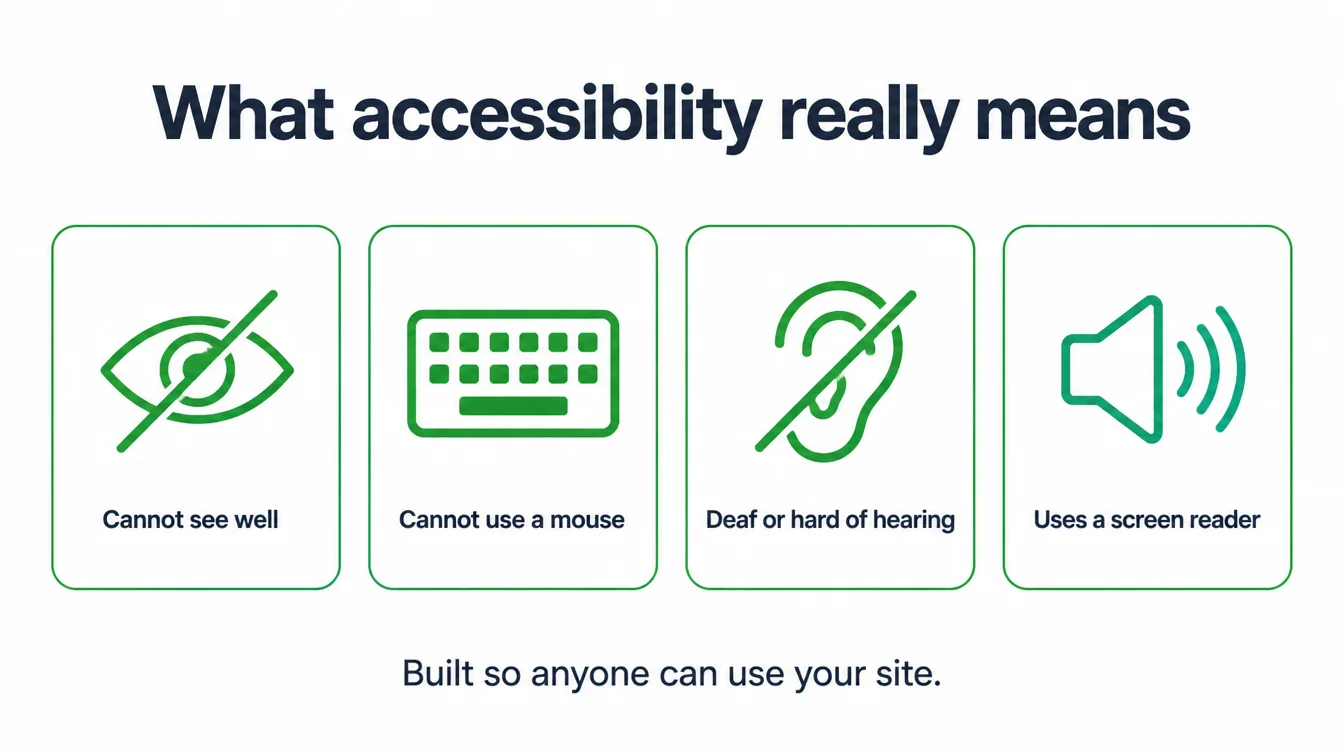
Website accessibility means building your site so anyone can use it. That includes people who cannot see well, cannot use a mouse, are deaf or hard of hearing, or rely on a screen reader to read the page out loud.
If a real person cannot complete a task on your site, that task is not accessible.
Think of it like a ramp next to the stairs at a shop. The ramp does not change what you sell. It just means more people can get through the door. Website accessibility is the same idea, applied to text, colours, images, forms, and buttons.
The rulebook for all this is called WCAG, the Web Content Accessibility Guidelines, published by the W3C Web Accessibility Initiative. You do not need to read it cover to cover. However, it is the standard that laws and testing tools measure your site against, so it is worth knowing the name.
2. Why website accessibility matters
Start with the size of the audience. An estimated 1.3 billion people experience significant disability. That is about 16% of the world's population, or 1 in 6 of us (WHO, 2025). If your site shuts even some of them out, you are turning away customers before they ever see your prices.
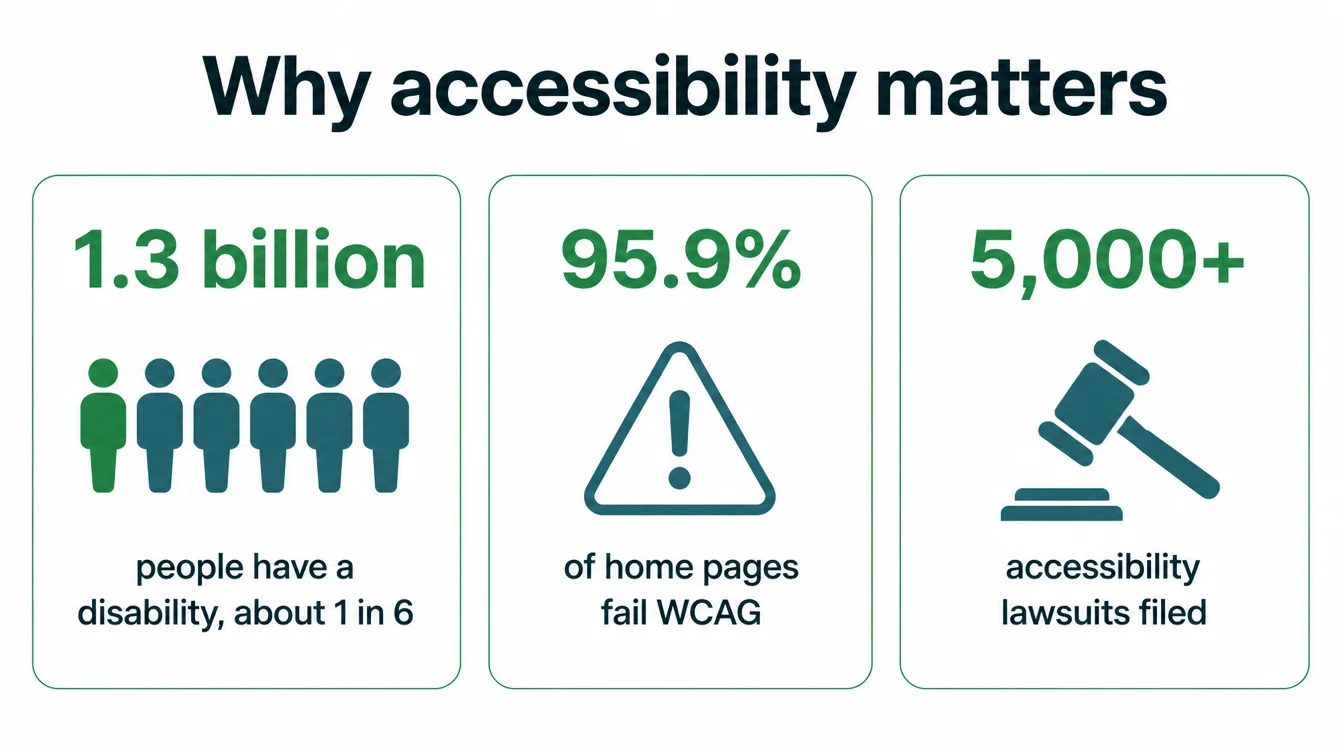
Now the uncomfortable part. The web is not doing well here. In a study of a million home pages, 95.9% had detected WCAG 2 failures, with an average of 56.1 errors per page (WebAIM Million, 2026).
In other words, this is not a rare problem you can ignore. Almost every site has it, which means fixing yours is a chance to stand out.
There is also a legal angle. Accessibility laws in many places apply to public-facing businesses, and claims are climbing.
By the end of 2025, more than 5,000 digital accessibility lawsuits had been filed, and nearly 70 percent of all of them targeted e-commerce sites (UsableNet, 2026). As a result, an inaccessible online store is both a lost-customer problem and a risk problem.
3. Do you need to worry about it?
Short answer: probably yes. If customers can reach your website, treat it as in scope. You do not have to be a giant brand to matter. Small businesses get accessibility complaints and lawsuits too, and a screen reader does not care how many staff you have.
Here is a simple test. Does your site let people learn about you, contact you, book you, or buy from you? If yes, then those tasks need to work for everyone. Meanwhile, the bigger your e-commerce footprint, the more this matters, since online stores draw the most legal attention.
For context, this is not about chasing a perfect score overnight. It is about not locking people out of the basics. Fix the obvious problems, build the habit, and you are ahead of almost every competitor.
If you are planning a build or a refresh anyway, our guide to a website redesign is a good place to fold accessibility in from the start.
4. The 6 problems behind almost every failure
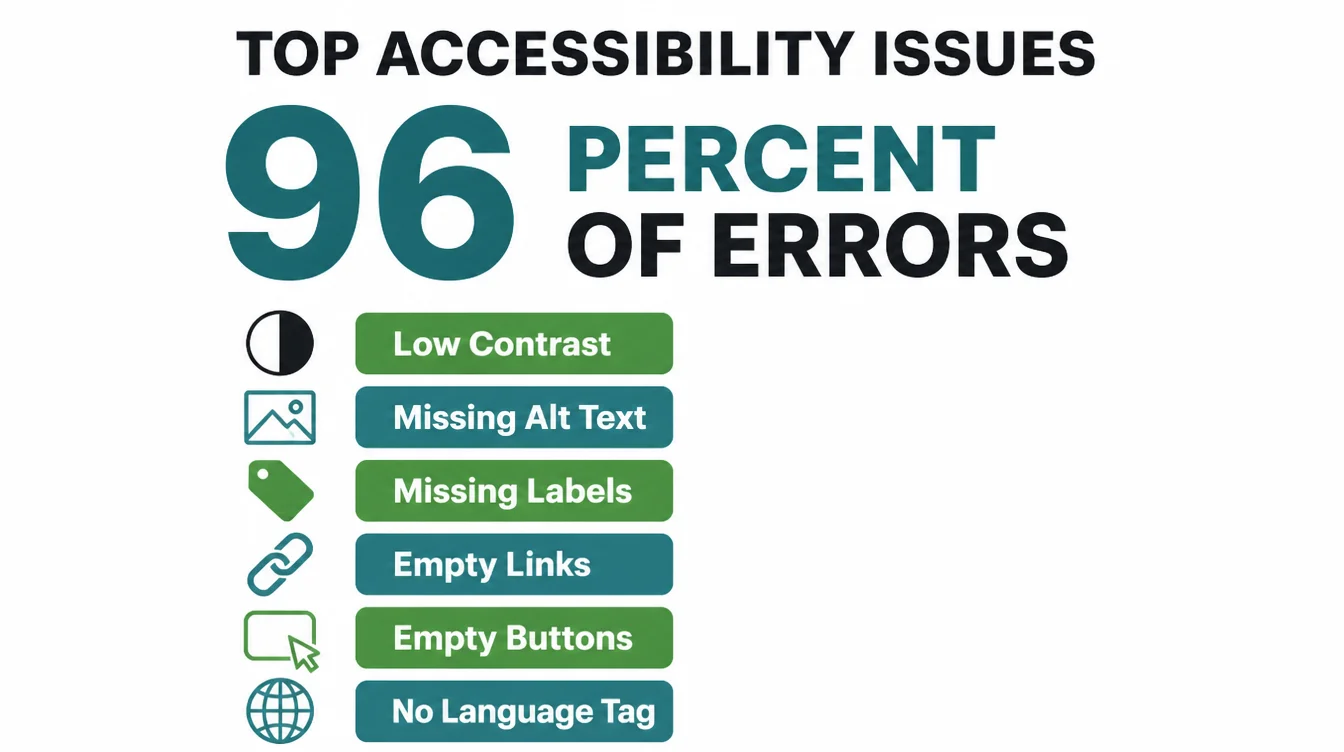
Here is the part that makes this manageable. You do not have to learn a thousand rules. Six error categories account for 96% of all errors detected across those million home pages (WebAIM Million, 2026). Fix these six and you remove the vast majority of real problems.
| The failure | What it breaks | The fix |
|---|---|---|
| Low contrast text | Text fades into the background and is hard to read for low-vision and older users | Use darker text on light, or lighter on dark, and check the contrast ratio |
| Missing image alt text | Screen readers cannot describe the image, so meaning is lost | Write a short description for every meaningful image |
| Missing form labels | Users cannot tell what a field is for, so forms fail | Give every input a clear, linked label |
| Empty links | A screen reader reads "link" with no idea where it goes | Give every link real text that says where it leads |
| Empty buttons | A button announces nothing, so it cannot be used | Give every button a clear text name |
| Missing page language | Screen readers may use the wrong accent or pronunciation | Set the page language in one line of code |
The two biggest offenders are worth naming. Low contrast text appears on 83.9% of home pages, and missing alternative text for images shows up on 53.1% of them (WebAIM Million, 2026). Specifically, those two alone are where most of the damage is done, so the next sections start there.
5. Fix 1: colour contrast
Colour contrast is the difference between your text colour and the colour behind it. Low contrast means light grey text on a white background, or pale text over a busy photo. It looks stylish to some designers. To a lot of real people, it is simply hard to read.
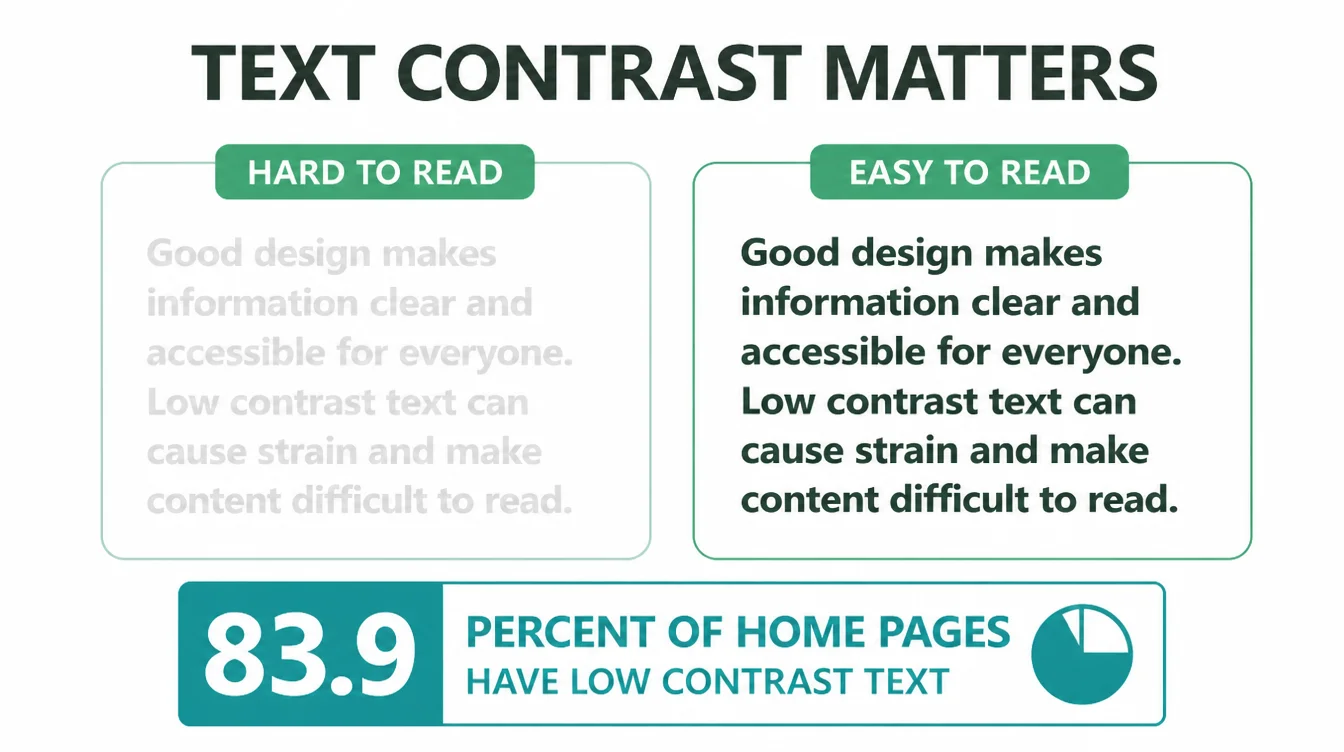
This is the single most common failure on the web, found on 83.9% of home pages (WebAIM Million, 2026). It hits people with low vision hardest, but it also affects anyone reading on a phone in bright sunlight, which is most of your visitors at some point.
The fix is straightforward. Make your body text dark enough on a light background, or light enough on a dark one. Avoid placing text directly over a photo without a solid panel behind it.
A free contrast checker will tell you in seconds whether a colour pair passes. Therefore, this is one of the fastest wins on the whole list.
6. Fix 2: image alt text
Alt text is a short written description of an image. Screen readers read it out loud, so a blind user knows what the picture shows. When it is missing, the meaning of that image simply disappears for them.
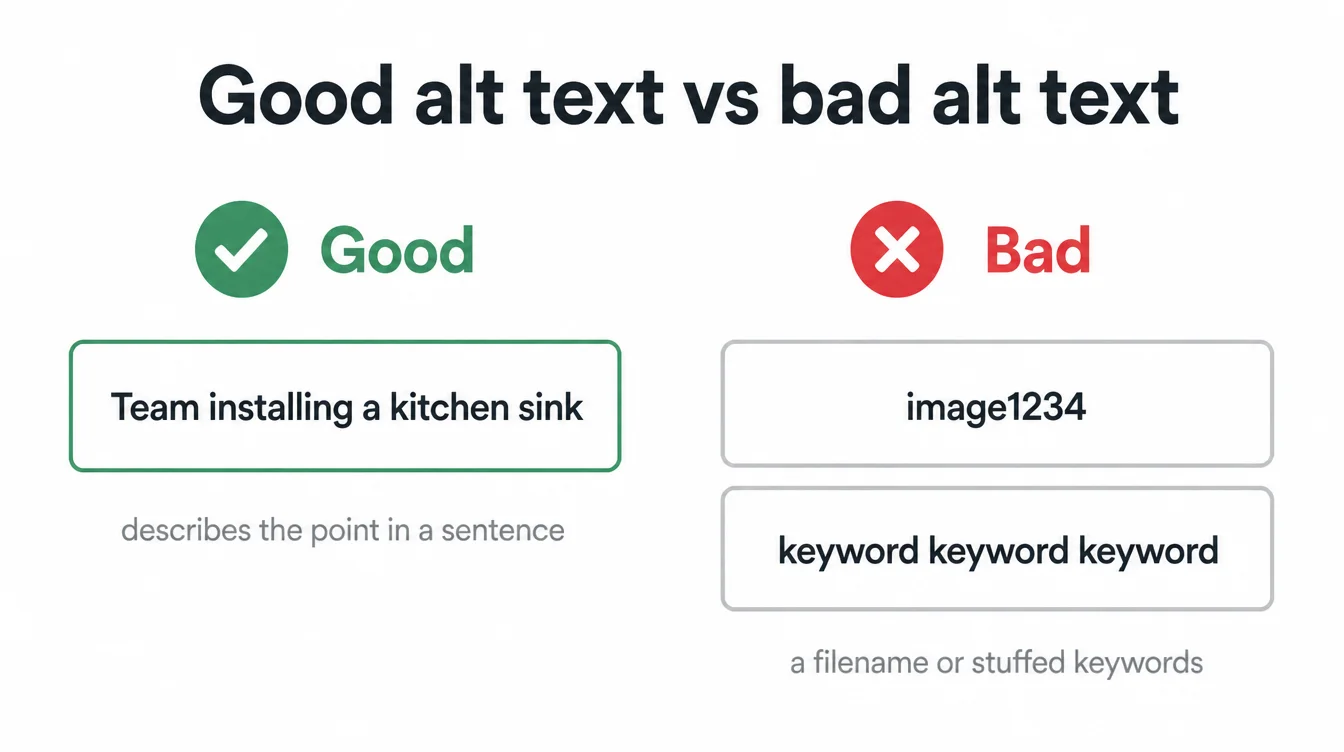
Missing alt text appears on 53.1% of home pages, making it the second most common failure (WebAIM Million, 2026). It is also one of the easiest to fix, because almost every website tool has an "alt text" or "description" box next to each image upload.
Write what the image means, in a plain sentence. "Team installing a kitchen sink" is good. "image1234" or stuffing in keywords is not.
Furthermore, if an image is purely decorative, leave the alt text empty on purpose so screen readers skip it. In addition, clear alt text helps search engines understand your images too, which ties neatly into your on-page SEO checklist.
7. Fix 3: labels, links and buttons
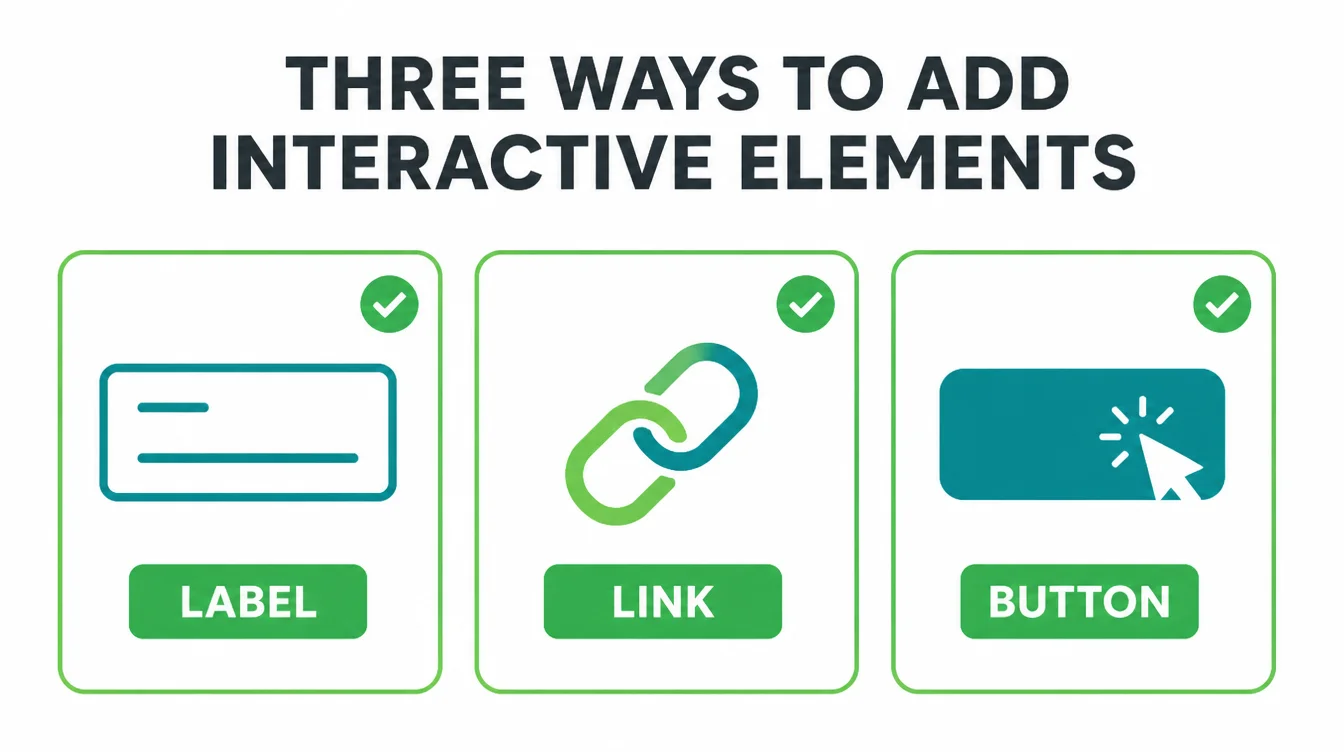
Three of the six common failures live here, so this fix covers a lot of ground. The theme is the same in each case: something on the page is unnamed, so assistive tools cannot describe it.
Form labels
Every input field needs a label that is linked to it in the code. Grey placeholder text vanishes when you start typing.
Without a real label, a screen reader user fills in a contact form blind, guessing which box is the name and which is the email. That is how you lose a customer who wanted to reach you.
Empty links
An empty link is one with no readable text, often an icon or image with nothing describing it. A screen reader just says "link" and moves on. Give every link words that say where it goes, like "Read our pricing". A bare arrow or the word "here" tells a screen reader nothing.
Empty buttons
Same problem, different element. A button with only an icon and no text name announces nothing useful.
Make sure your menu, search, and submit buttons all have a real text name in the code, even if the design only shows an icon. By contrast with the visual design, the code name is what assistive tools actually read.
8. Fix 4: keyboard and screen reader basics
Not everyone uses a mouse. Some people navigate entirely with the keyboard, pressing Tab to move and Enter to click. Others use a screen reader. So your site needs to work for both.
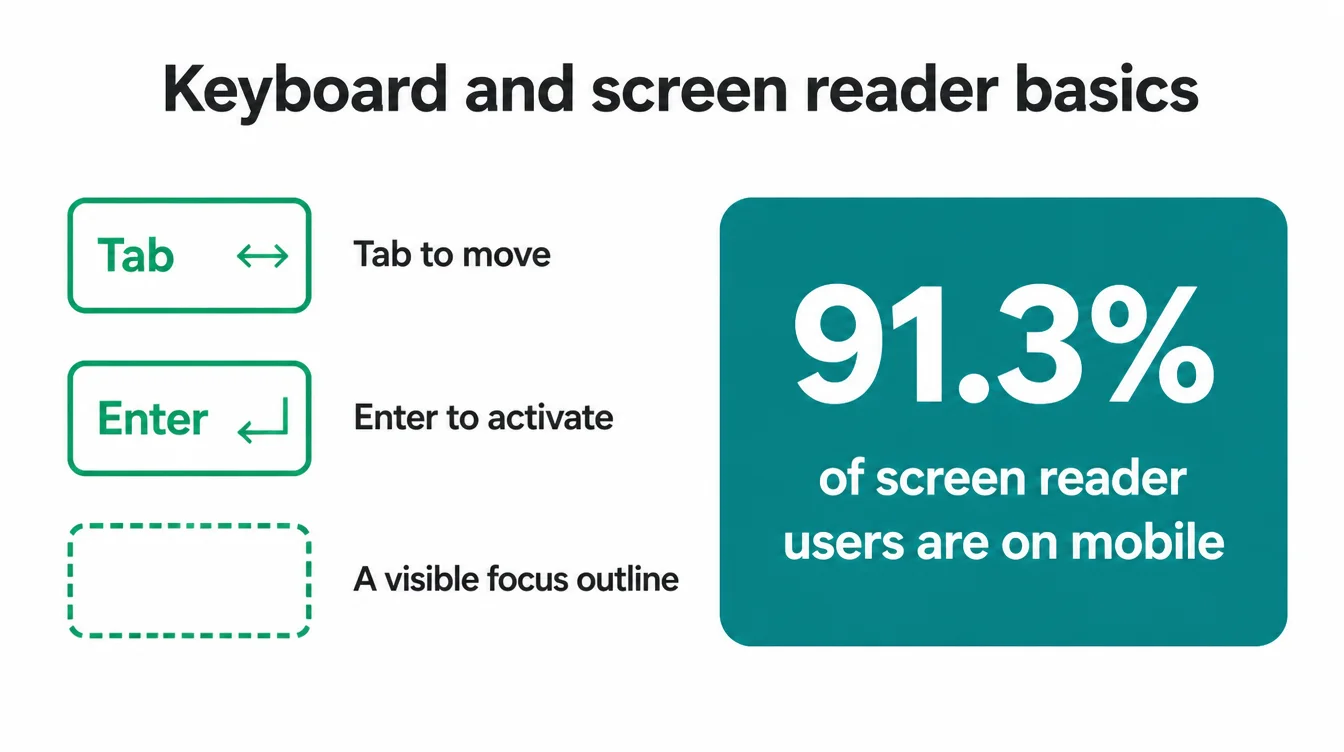
Try this yourself right now. Open your homepage, put the mouse away, and press the Tab key.
You should see a visible outline jump from link to link in a sensible order, and you should be able to reach every menu, form, and button. If the outline disappears or you get stuck, that is a real barrier for real visitors.
Screen reader use is also more mobile than many owners assume. In fact, 91.3% of screen reader users report using one on a mobile device (WebAIM Screen Reader Survey, 2024).
In that same survey, CAPTCHA was rated the most problematic item on the web, so if you use one, make sure there is an accessible alternative. This is also why a mobile-friendly site and an accessible site are really two halves of the same job.
9. Are accessibility overlay widgets the answer?
You have probably seen the ads. A pop-up tool, one line of code, instant compliance, no developer needed. These are called accessibility overlays, and the honest answer is that they do not make your site compliant.
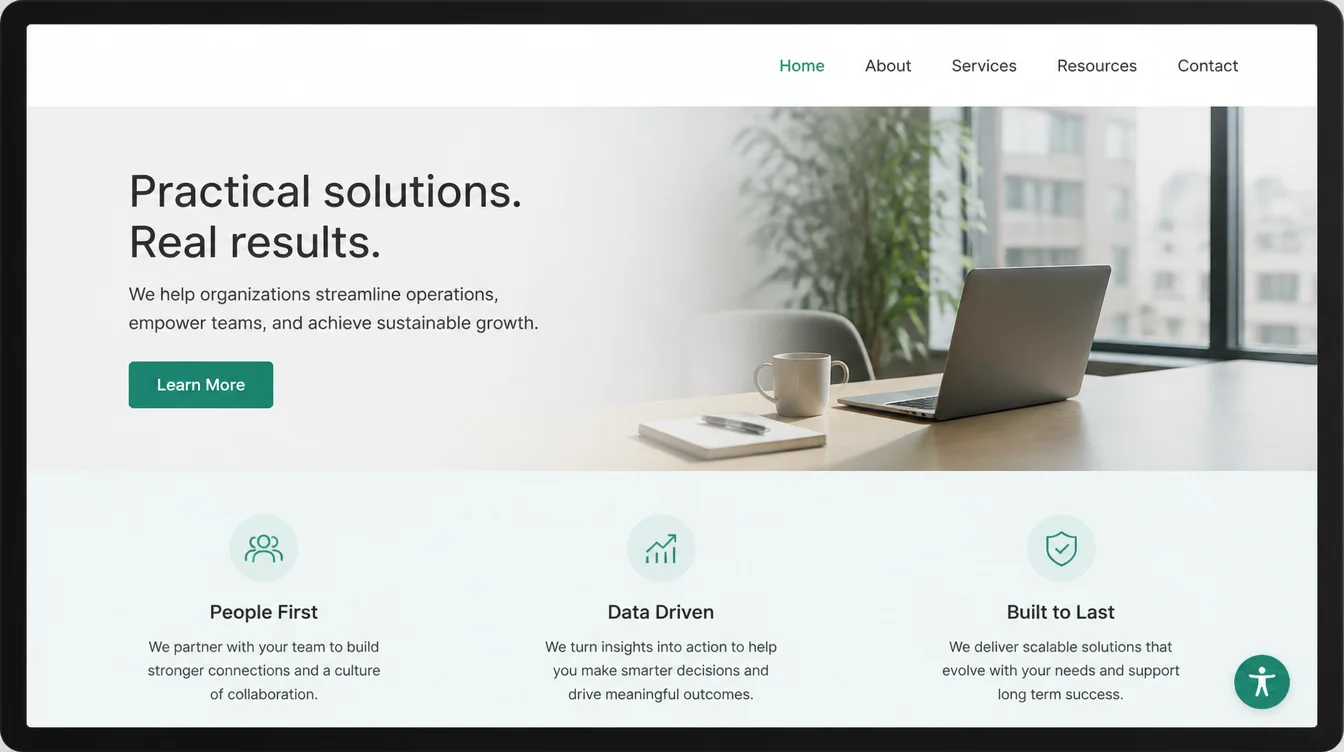
Overlays sit on top of your site and try to patch problems from the outside. They can add a few genuinely useful options, like a bigger-text toggle. However, they do not fix the broken code underneath, and they cannot fix missing alt text or unlabelled forms that only you can write properly.
More than that, many screen reader users and accessibility experts report that overlays actively get in their way, fighting with the assistive tools they already use.
Therefore, treating an overlay as your accessibility plan can leave you with the same legal exposure and a worse experience. Real accessibility comes from fixing your actual site. There is no shortcut widget.
10. How to test your site for free
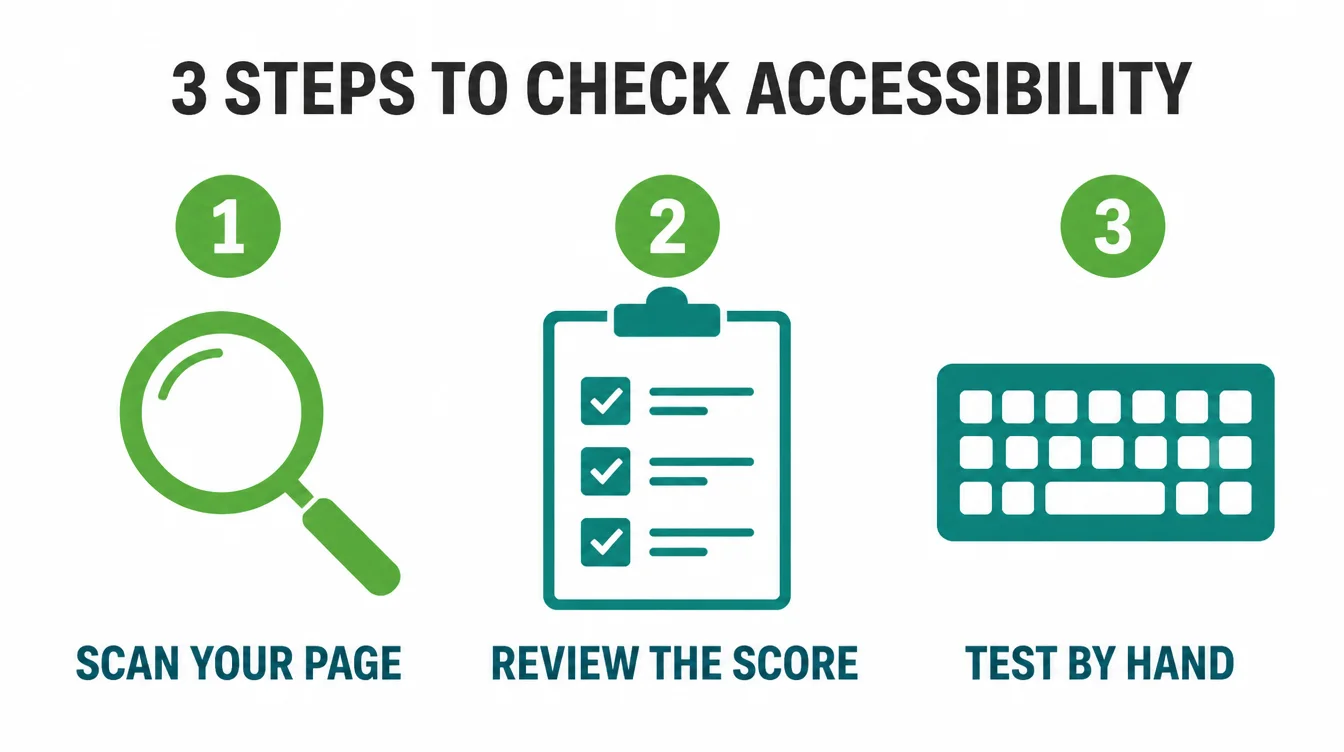
You do not need to buy anything to find your biggest problems. Two free tools do most of the work, and a few minutes of manual checking does the rest.
WAVE
WAVE, from the same team behind the research above, highlights accessibility problems visually right on your page.
Paste in your URL and it marks every contrast issue, missing alt text, and empty link with an icon, so you can see exactly where each one is. It is the fastest way to get a clear picture of what is wrong.
Lighthouse
Lighthouse is built into the Chrome browser. Open your site, open the developer tools, run the accessibility audit, and you get a score plus a prioritised list of fixes. It catches many of the same issues as WAVE and is handy for tracking progress over time as you improve.
The keyboard test
Automated tools are great, but they cannot catch everything. So finish with the manual check from earlier: unplug the mouse, press Tab through your whole site, and make sure you can reach and use everything.
In particular, test your contact form and checkout, since those are where lost customers cost you the most. For more practical guides, browse the Seed Light blog, or see how we plan a small business website and the SEO services that go with it.
Frequently asked questions
1. What is website accessibility?
Website accessibility means building your site so anyone can use it, including people who cannot see well, cannot use a mouse, or rely on a screen reader. In practice it covers things like readable colour contrast, text descriptions for images, proper labels on forms, and a site you can fully operate with a keyboard. The goal is simple: nobody gets locked out of using your business online.
2. Do small businesses need to be accessible?
Yes. Around 1 in 6 people live with a significant disability, so an inaccessible site quietly turns away a large share of customers. There is a legal side too, because accessibility laws in many places apply to public-facing businesses regardless of size. The safe approach is to treat any website that customers can reach as in scope, and to fix the obvious problems first.
3. Can I get sued over an inaccessible website?
Lawsuits over inaccessible websites do happen, and the numbers are rising. By the end of 2025, over 5,000 digital accessibility lawsuits had been filed, with e-commerce sites making up nearly 70 percent. Small businesses are also exposed, and fixing common failures costs far less than defending a claim.
4. What is WCAG?
WCAG stands for the Web Content Accessibility Guidelines. It is the international standard, published by the W3C, that explains how to make web content usable by people with disabilities. Most accessibility laws and testing tools measure your site against WCAG. You do not need to memorise it, but it is the rulebook your designer or developer should be building to.
5. What are the most common accessibility problems?
Most failures come down to six issues: low contrast text, missing image descriptions, missing form labels, empty links, empty buttons, and a missing page language setting. In one large study these six categories accounted for 96% of all errors detected across a million home pages. The good news is that they are also the easiest things to fix once you know what to look for.
6. Do accessibility overlays make my site compliant?
No. Overlay widgets are the pop-up tools that promise instant compliance with one line of code. They can add a few helpful options, but they do not fix the underlying problems in your code, and many accessibility experts and screen reader users report that they make things worse. Real accessibility comes from fixing your actual site, not from bolting a widget on top of it.
7. How do I test my website for accessibility?
Start with two free tools. WAVE highlights accessibility problems visually right on your page, so you can see exactly where contrast, alt text, or label issues are. Lighthouse, built into Chrome, gives you an accessibility score and a list of fixes. Then try using your site with only the keyboard. Automated tools catch a lot, but a few minutes of manual testing catches the rest.