Google Tag Manager Explained

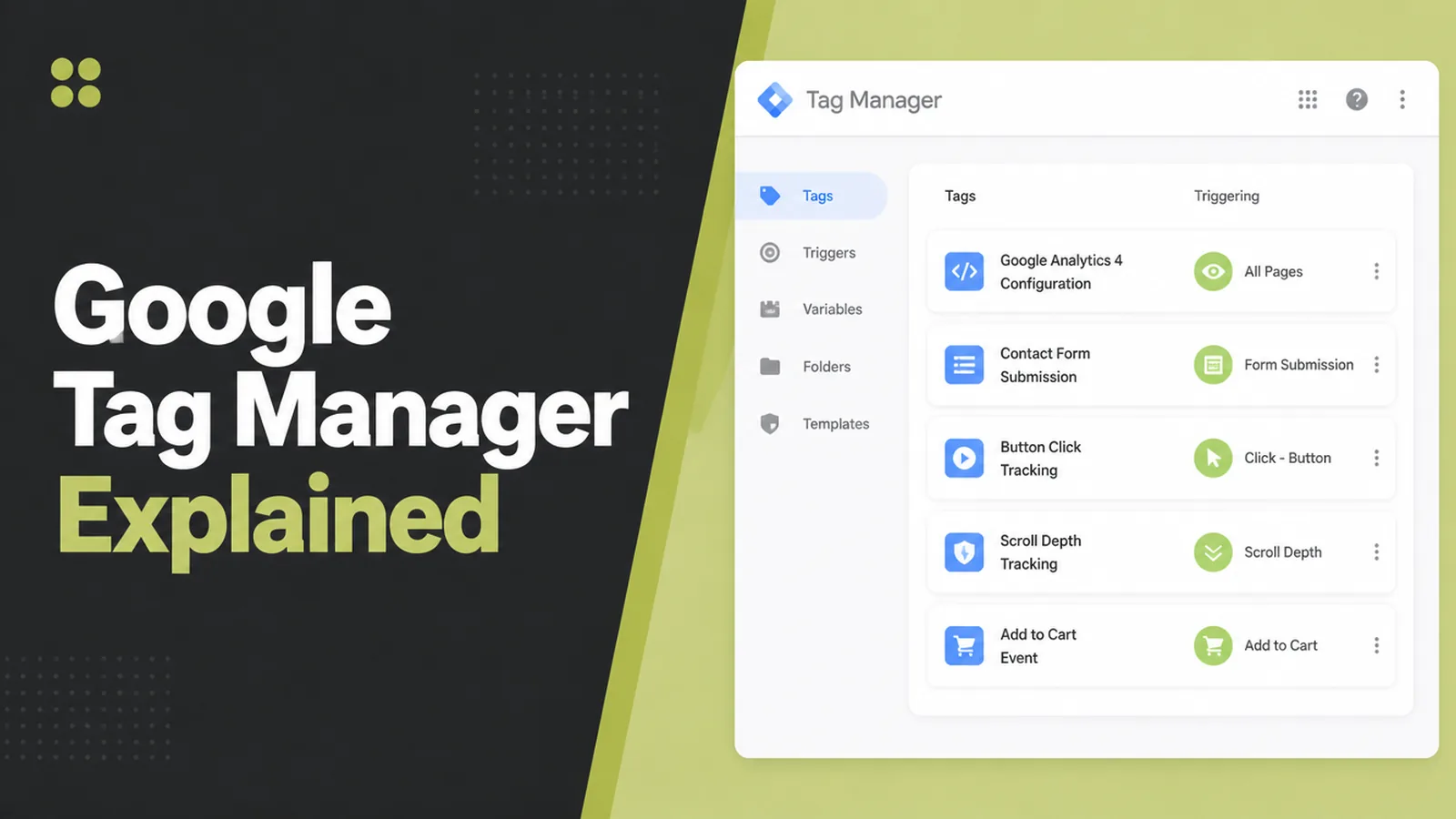
Google Tag Manager is a container you add to your site once, then use to add and change tracking without editing the site again. Seed Light sets it up with three parts: a tag that does something, a trigger that says when, and a variable that supplies a detail, previewed before every publish.
Google Tag Manager has a reputation for being technical, and it is mostly a naming problem.
Three things called a tag, a trigger and a variable turn out to mean something does a job, something says when, and something fills in a detail. The hard part is not the concept, it is deciding what is worth knowing in the first place.
This guide covers what each part does, why it beats pasting code into your site, and the preview step people skip.
By the end you will know which three actions to track and how to check they are being recorded before anything goes live.
Key Takeaways
- Install the container once. Every change after that is a setting rather than a code edit.
- Three parts only. A tag does something, a trigger says when, a variable supplies a detail.
- Preview before publishing. Google's preview and debug mode shows which tags fired.
- Name your versions. A version is a snapshot, and it is how you undo a bad publish.
- Track decisions, not everything. Three real actions beat forty events nobody reads.
Tag manager setups go wrong in the same two ways: nothing is previewed, and far too much is tracked. Both are habits rather than skills.
What A Tag Manager Does
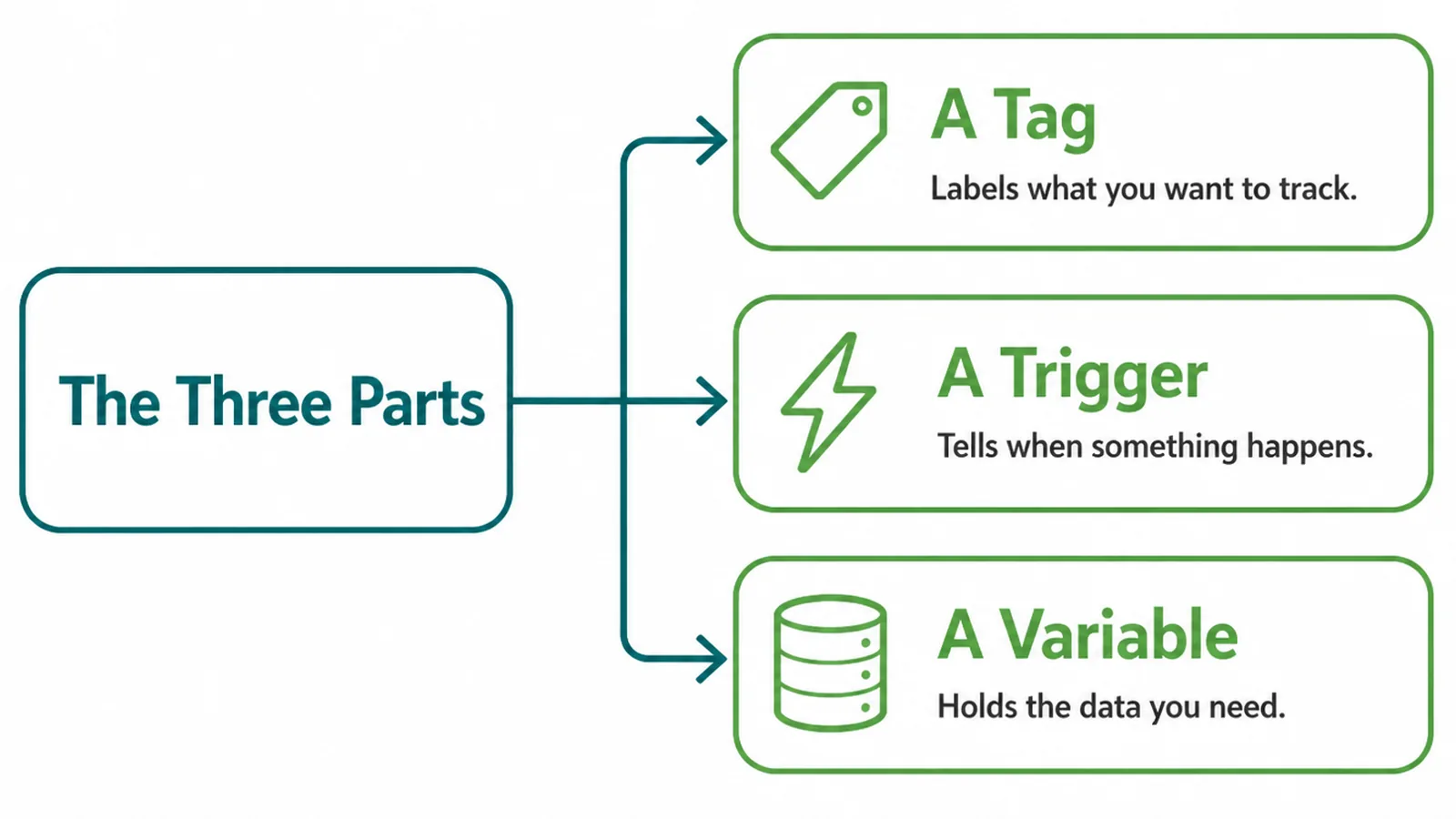
A container is a small piece of code on your site that can load other pieces of code on demand. Everything else is configuration.
- A tag. The thing that happens: send a page view, record an enquiry, fire a conversion.
- A trigger. The condition that fires it: a page loads, a button is clicked, a form is submitted.
- A variable. The detail it needs: which page, which button, which measurement account.
Read as a sentence it is easy. When a form on the contact page is submitted, send an enquiry event to the analytics account.
That is the whole model. A complex setup is many of those sentences, not a different idea.
The container itself is installed once, usually by whoever built your site, and then left alone. Everything after that happens in a web interface. That is the entire point of the thing.
Why Not Paste Code Into The Site
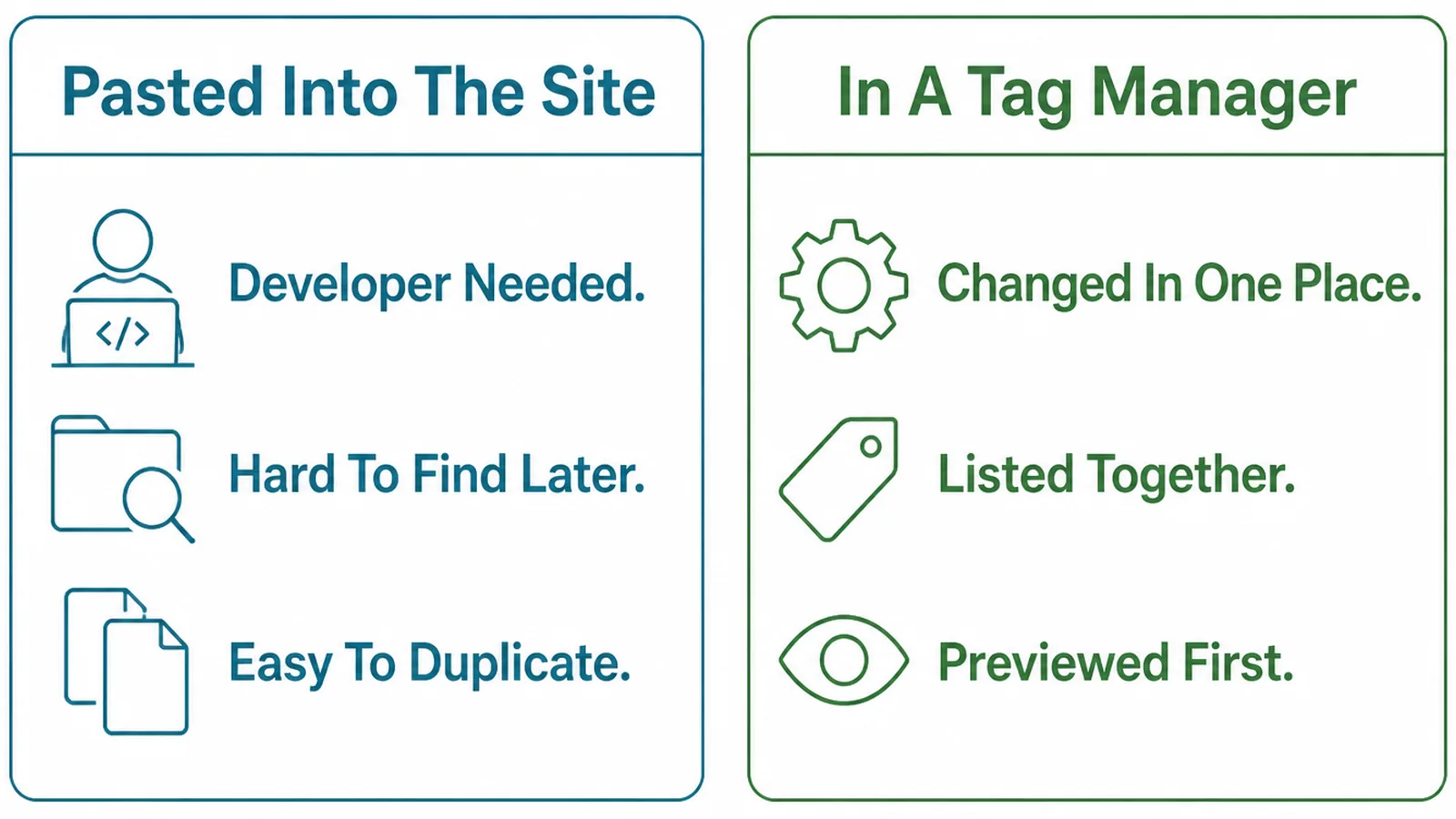
You can paste tracking code straight into a theme or a template, and plenty of small sites do.
It works until something changes. Then the code is in a file somebody has to find, in a theme that will be updated, with no record of who added it or why.
The common result is a site carrying three generations of tracking at once, two of them for tools nobody uses any more, each one slowing the page down slightly.
A container gives you one place to look, a list of what is loading, and a way to turn something off without touching the website. For a business that runs advertising, that difference compounds quickly.
It also separates the jobs. Your developer owns the site, you own what is measured on it, and neither waits for the other.
The cost is that the container becomes its own thing to maintain. An abandoned container is as untidy as an abandoned theme file, just somewhere you look less often.
How To Set Up Your First Tag
Three steps, in this order. The third is the one that stops a mistake becoming a month of missing data.
1. Decide What You Need To Know
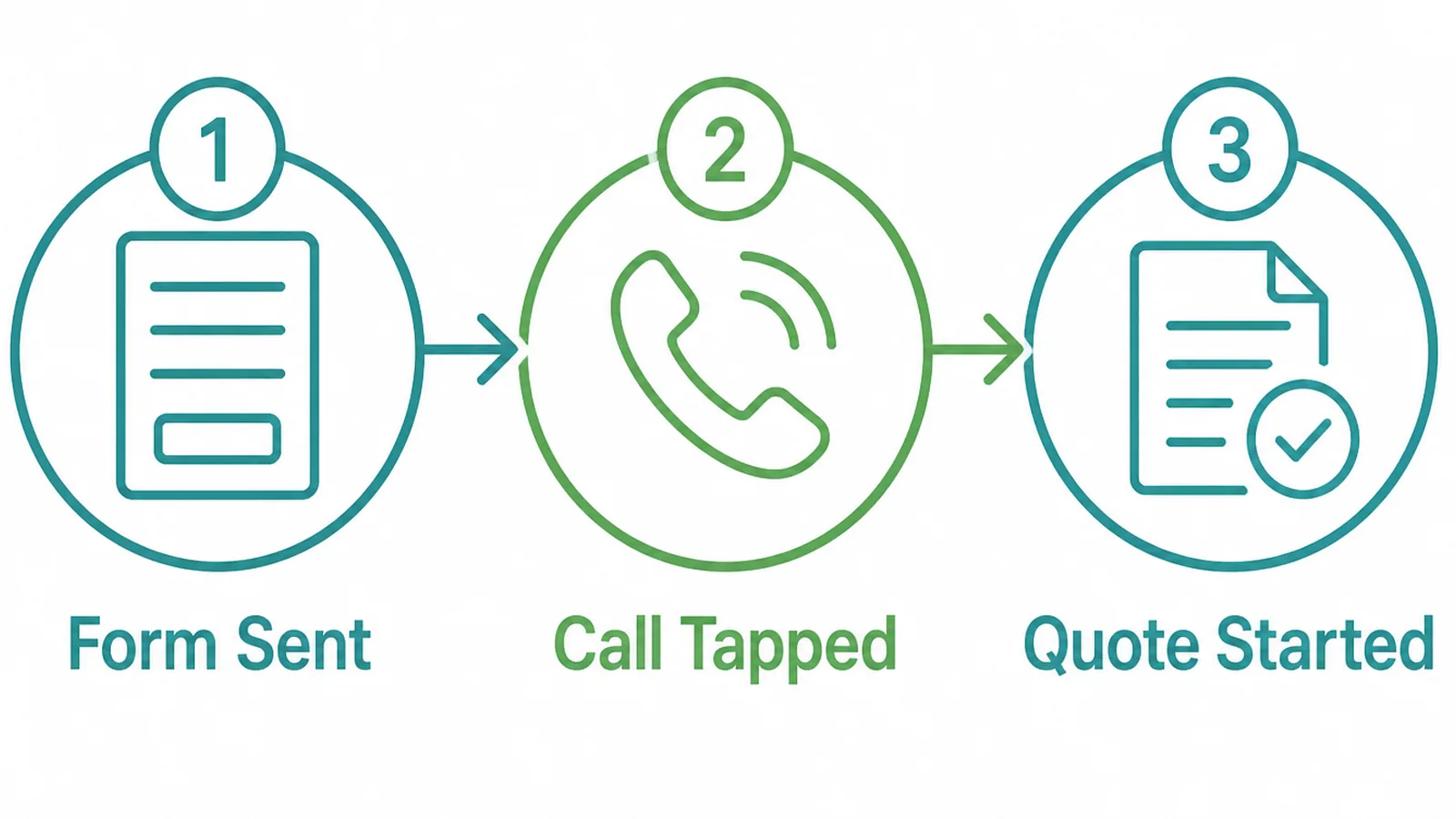
Start with the actions that would change a decision, not with what is technically possible to capture.
- Form sent. Someone submitted an enquiry. For most service businesses this is the only number that matters.
- Call tapped. Someone tapped the phone number on a mobile. These are the enquiries you never see in an inbox.
- Quote started. Someone reached the page where buying begins, which tells you whether the problem is traffic or persuasion.
Three is plenty to begin with. Write them down in plain words before you open the tool, because a list written inside the interface tends to become a list of things the interface makes easy.
Agree the names at this point too, with whoever reads the reports. An event called something obvious six months from now is worth more than a precise one nobody recognises.
2. Build The Tag
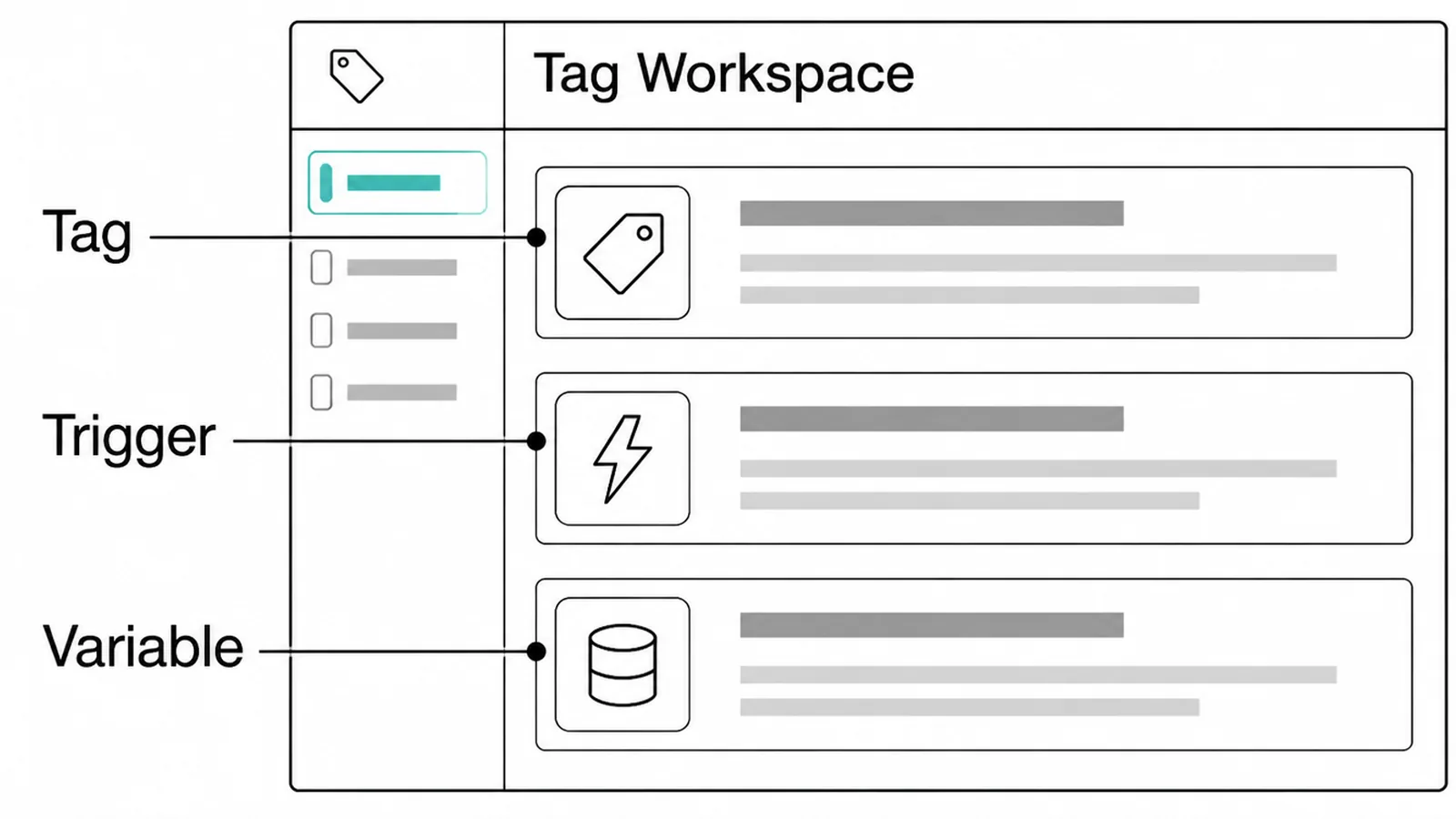
Each action becomes one tag with one trigger. Build them one at a time and name them so a stranger could read the list.
A naming habit that survives contact with reality: what it sends, then where it sends it, then when. "Enquiry sent to Analytics on contact form submit" tells you everything without opening it.
Keep the trigger as specific as the action. A trigger that fires on every click anywhere will eventually count something you did not mean, and you will not notice until the numbers look odd.
Variables are where the detail comes from, and the built-in ones cover most cases. Reach for a custom one only when the information genuinely is not already available.
Build one tag, check it, then build the next. Three tags built at once and previewed together is how you end up unable to tell which of them is the one misfiring.
3. Preview Before Publishing
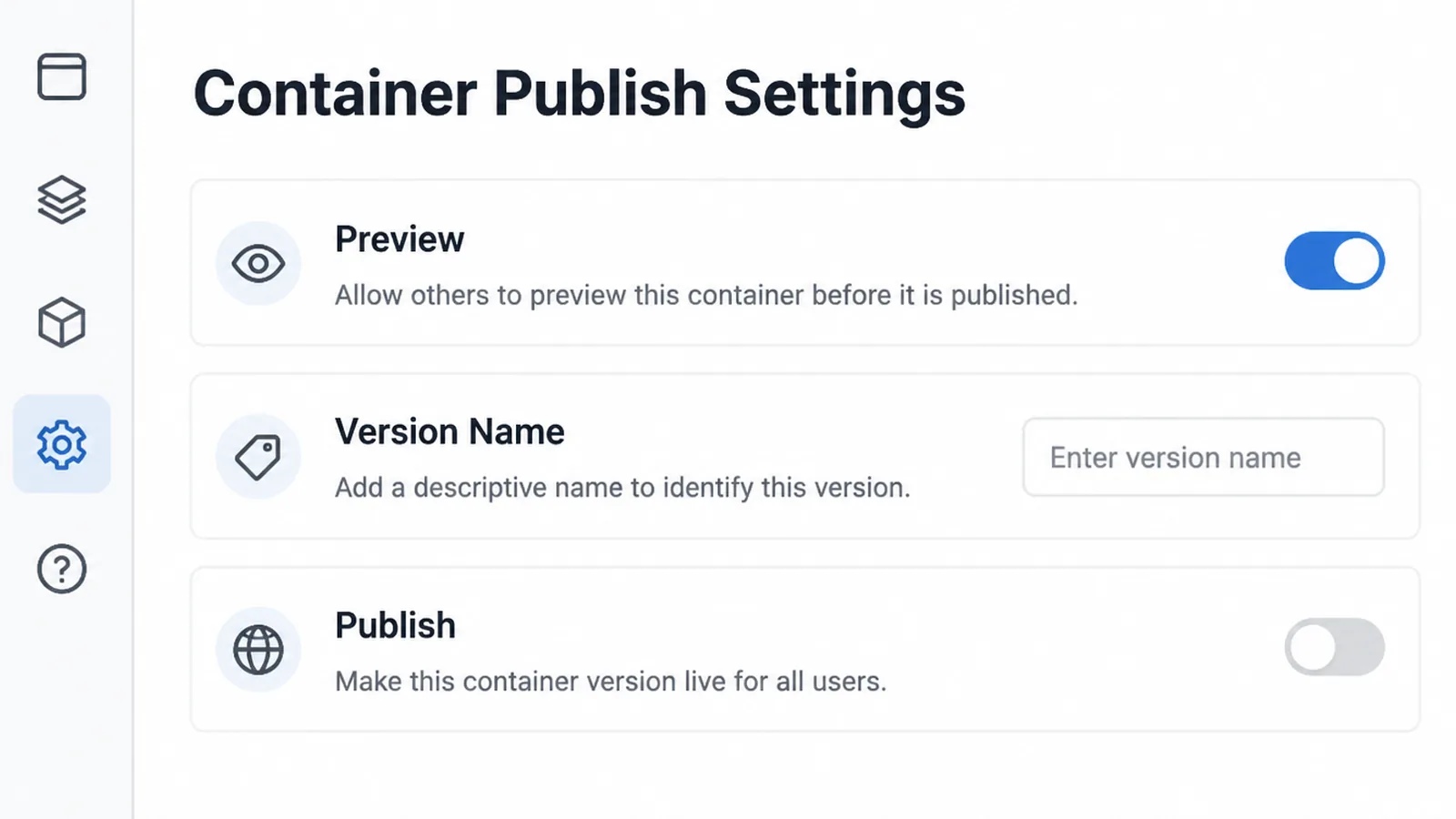
This is the step that separates a working setup from a hopeful one, and it takes two minutes.
Google describes preview and debug mode as a way to browse a site as if the current container draft were deployed, so you can test a configuration before it is published. The previewed site connects to Tag Assistant so you can inspect which tags fired and in which order, and the debug view is not visible to ordinary visitors.
So do the thing. Submit your own form, tap your own phone number, and watch whether the tag fires once, twice, or not at all.
Test it on a phone as well as a laptop. A tap target that works with a mouse can behave differently on a small screen, and mobile is where most enquiries start.
Then name the version before you publish. Google says a version is a snapshot of a container configuration at a particular time, that versions can make it easier to recover from mistakes, and that a version is recorded every time a container is published.
A named version is the difference between rolling back in a minute and reading through five anonymous snapshots trying to remember which one was the good one.
What Is Worth Tracking
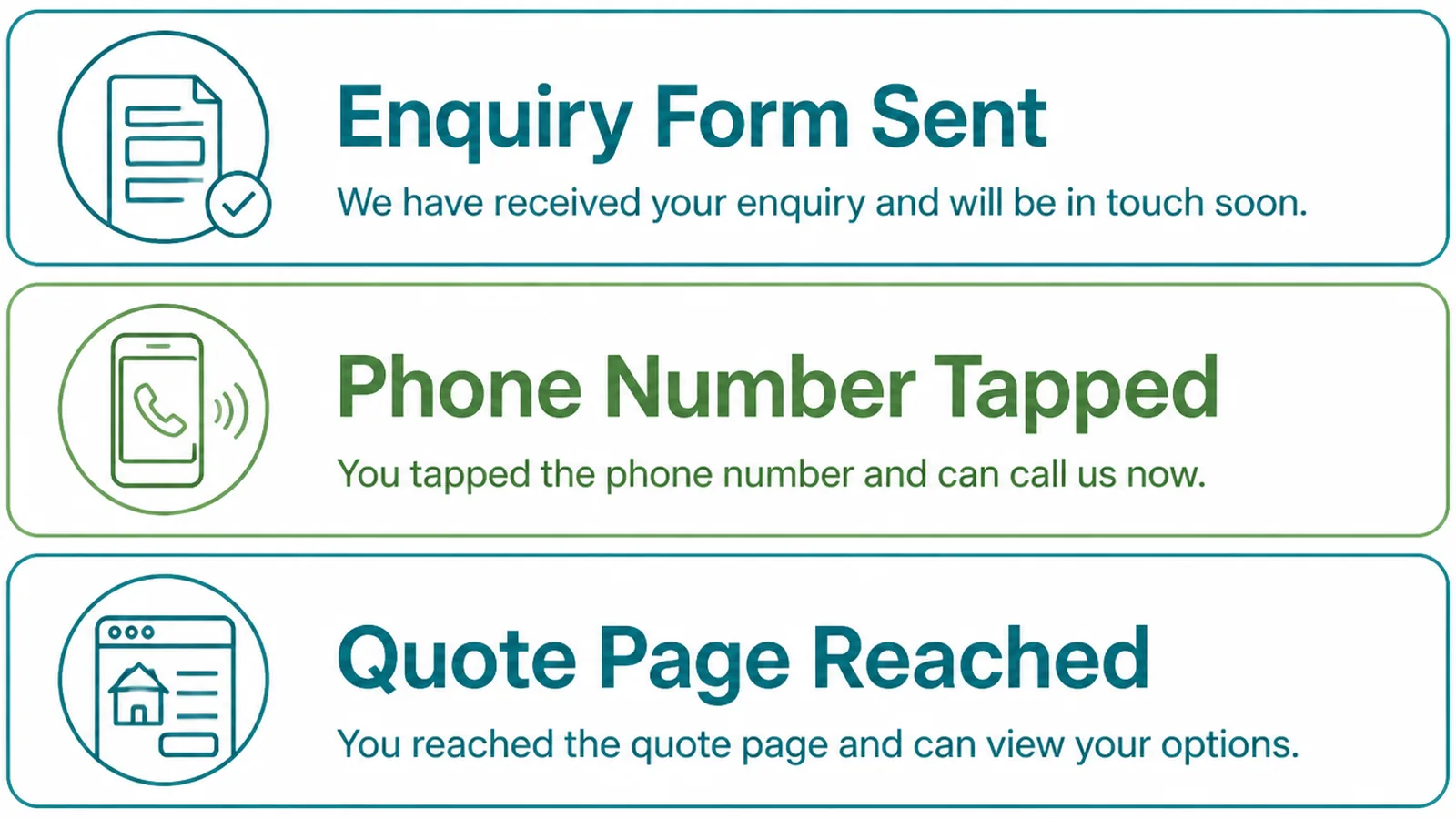
The test for any event is simple: if this number moved, what would you do differently?
- Enquiry form sent. The one that tells you whether marketing is working at all.
- Phone number tapped. Usually a large share of enquiries from mobile, and invisible without it.
- Quote page reached. The gap between this and an enquiry is where your page is losing people.
Scroll depth, time on page and video plays are interesting and almost never decisive. They tend to be tracked because they are easy, then reported because they were tracked.
Once these three are reliable, the reporting side is worth setting up properly. Setting up Google Analytics 4 is the natural next step, because the container only delivers; the reports live there.
Tag Manager Tools
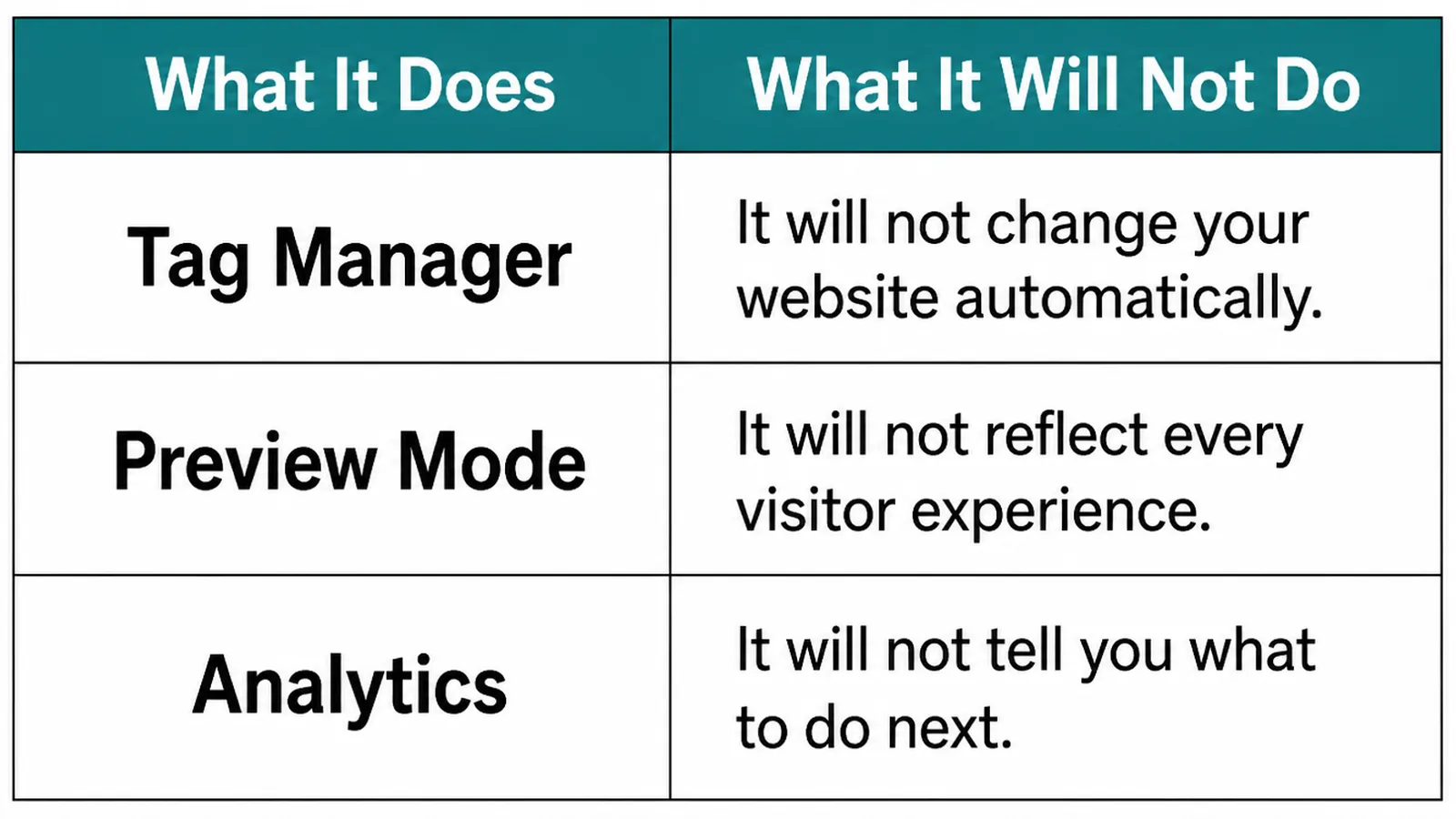
Three pieces, and each one leaves the interesting decision with you.
| What it does | What it leaves to you |
|---|---|
| Tag Manager delivers and organises the tags | Deciding which actions are worth measuring |
| Preview mode shows which tags fired and in what order | Actually performing the action you want to test |
| Analytics reports on what arrived | Reading it against what you spent |
There is a fourth thing to be aware of rather than install: consent. Whatever you load through a container is still subject to the rules and expectations about tracking visitors.
Decide that question deliberately, with whoever handles your privacy policy, rather than discovering it in a complaint.
Tag Manager has settings that help with it, but it cannot make the decision for you. What you load, and on whose agreement, stays a business question.
Common Tag Manager Mistakes
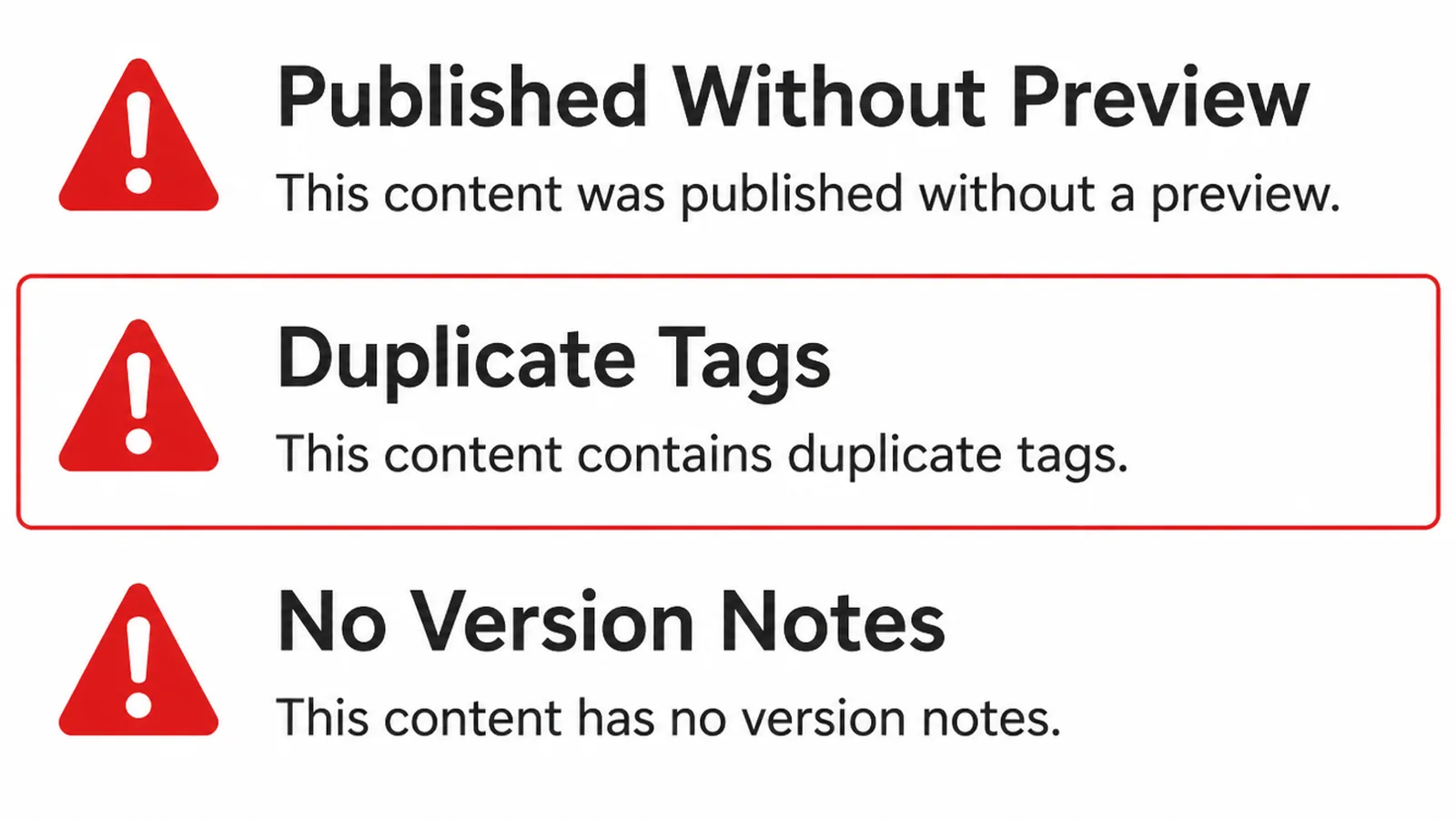
- Published without preview. The tag fires nowhere, and nobody notices until a report looks empty.
- Duplicate tags. The same measurement loaded twice, so every number is quietly doubled.
- No version notes. Five snapshots named after dates, and no idea which one to roll back to.
Duplicate tags deserve a special mention because they are so easy to create. A measurement added in the container and also left pasted in the theme will both fire, and the inflated figure looks like good news.
Check for it the slow way: preview the page and read what fired. That is the only method that sees both copies.
It is worth doing a pass over an inherited container before you trust anything in it. Open the tag list, ask what each one is for, and pause whatever nobody can name.
Pausing is safer than deleting. A paused tag stops firing and stays in the list as a record of what was once thought worth measuring.
FAQs
Do I need Google Tag Manager at all?
Not if you have one tracking tool and never change it. It earns its place the moment you have several, or you want to track specific actions, because every later change becomes a setting in the container rather than a request to whoever maintains your website.
Is it the same as Google Analytics?
No. Analytics is where the reports live; Tag Manager is the delivery mechanism that decides what gets sent and when. You can run Analytics without Tag Manager, and you can use Tag Manager to deliver tags that have nothing to do with Analytics.
What does preview mode actually do?
Google describes it as browsing your site as if the current draft were deployed, so you can test a configuration before it is published. The debug interface then shows which tags fired and in what order, and regular visitors do not see any of it.
What happens if I publish a mistake?
You roll back to an earlier version. Google records a version every time a container is published and describes versions as a snapshot of the configuration that makes it easier to recover from mistakes. So naming them matters more than it seems.
Conclusion
Google Tag Manager is one container, three kinds of thing, and a habit of previewing before you publish.
Pick the three actions that would change a decision, build one tag each, watch them fire in preview, then name the version. That setup answers more questions than most businesses ever ask of it.
If you would rather have the tracking built and checked for you, see how we approach digital marketing, or get in touch and we will look at what your site is currently recording.