What Is a CMS? How Content Management Systems Work

What is a content management system? It is software that lets you add and change a website's words, photographs and pages without writing code. You log in, type and publish. W3Techs put WordPress at 39.5 per cent of all websites on 29 October 2026. Seed Light builds on one so owners can edit their own site.
Key Takeaways
- A CMS lets you edit your own site. Log in, type, publish, no code involved.
- Most of the web runs on one. Roughly two thirds of sites use a known system.
- WordPress is the largest by a distance. Nothing else is close.
- The catch is upkeep. Software, plugins and backups, permanently.
- The risk sits in the add-ons. Not usually in the platform itself.
What Is A Content Management System
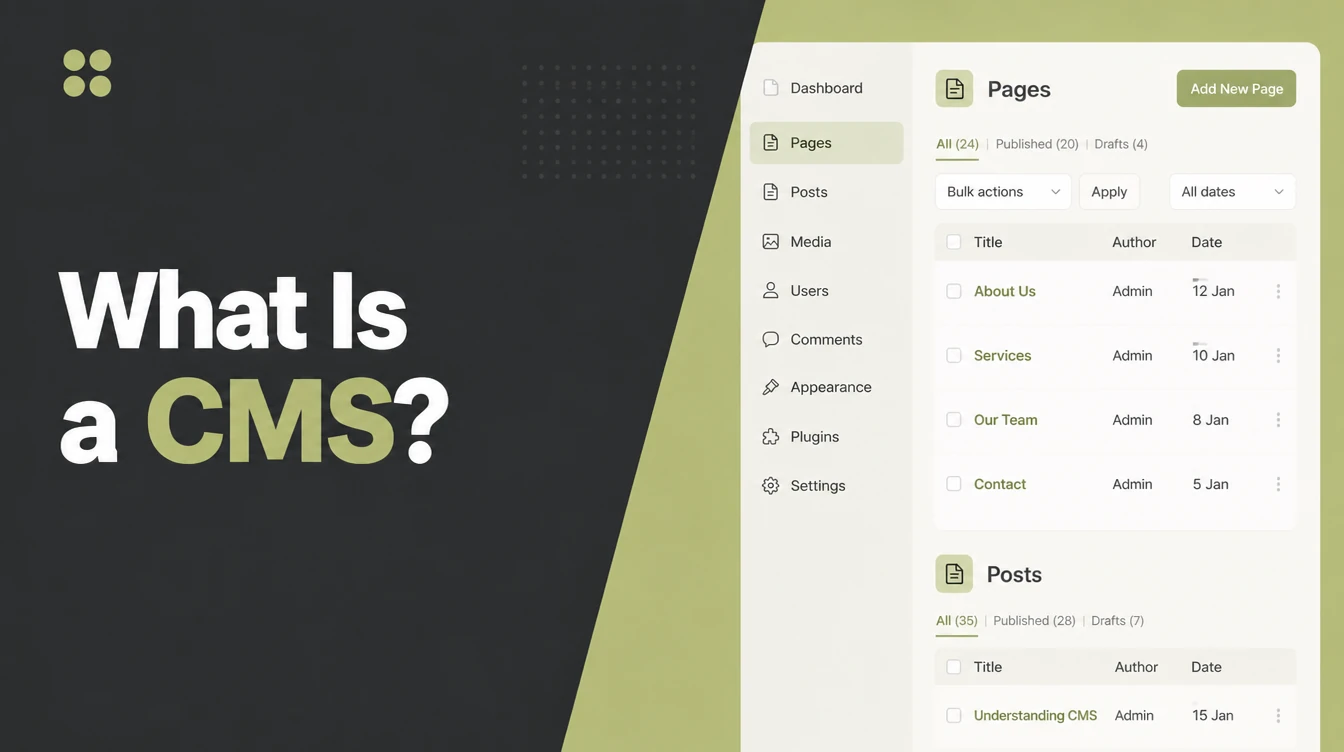
A content management system is the layer that lets you change a website's words, photographs and pages without writing any code.
The question what is a content management system usually arrives at a specific moment: somebody wants to change a price and discovers they cannot.
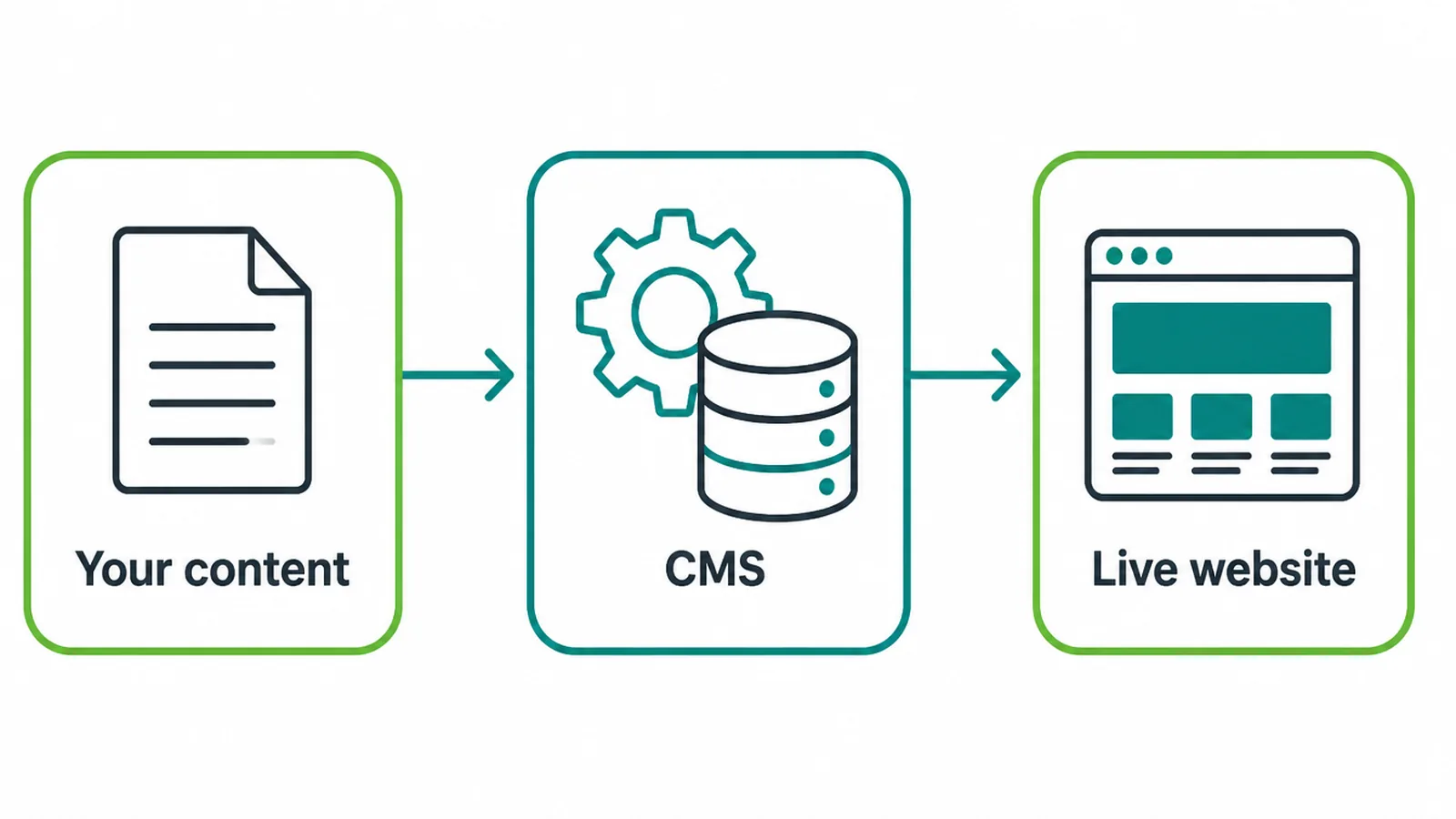
You log in, you type, you press publish. Somebody else's software handles turning that into a web page, storing it safely and serving it to every visitor who asks for it.
That is genuinely all a content system is, underneath the terminology people wrap around it.
Before this existed, changing a price meant editing a file and uploading it. A CMS is the difference between owning your website and renting access to whoever built it.
That is the whole content management system meaning, and everything else in this post is detail about which one and what it costs you in upkeep.
How It Actually Works
Three parts, and knowing what each one does makes every later decision easier to reason about.
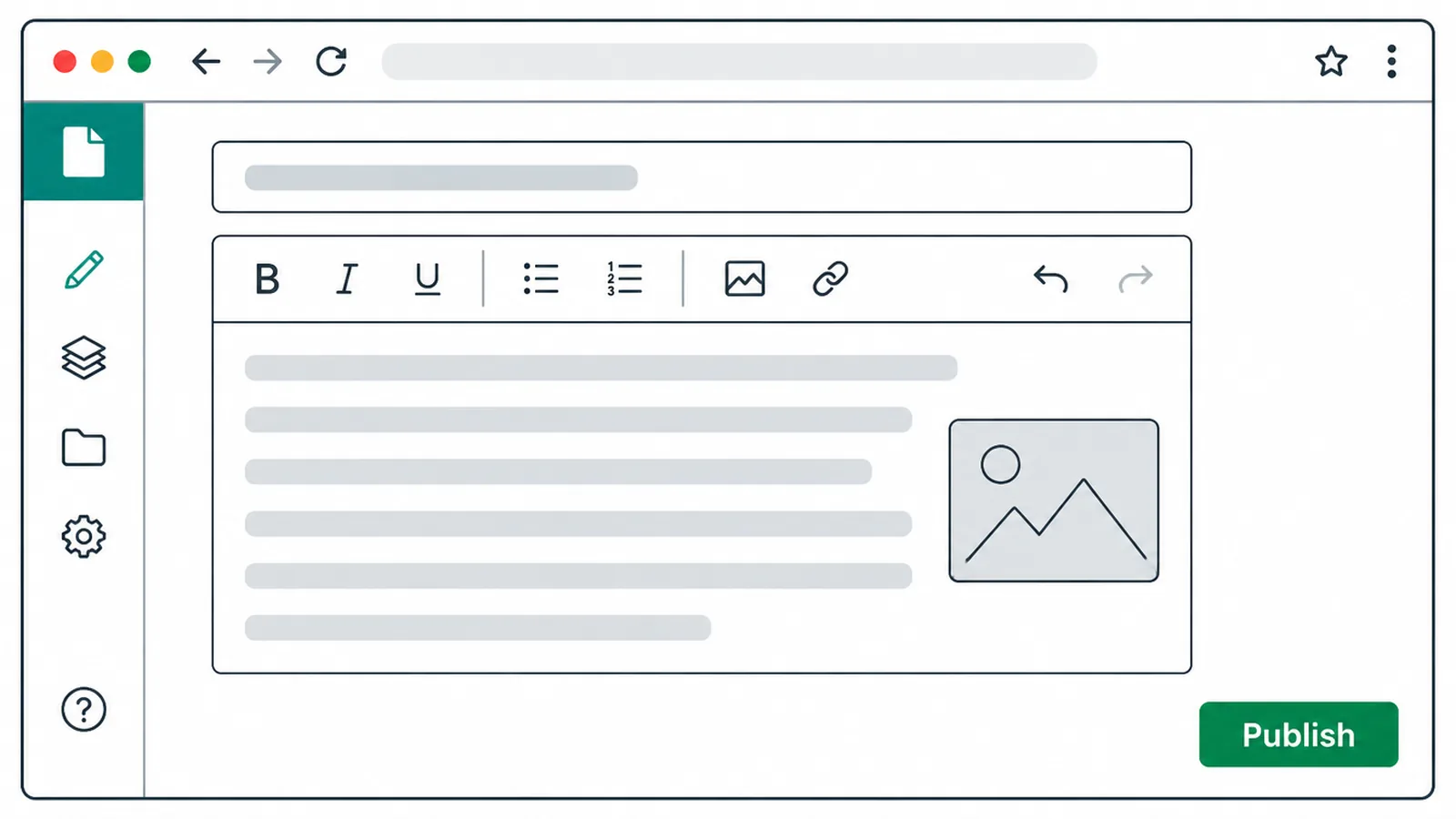
There is a database, which stores your words and the structure around them. There is an editor. That is the screen you log into, and the only part most owners ever see. And there is a template layer, which decides how the stored content looks when somebody visits.
The useful consequence of that separation is that design and content change independently of each other.
You can redesign the site without retyping a word of it, and publish fifty posts without touching the design. Before content systems existed, neither of those was true, and both were expensive.
It also means your content is portable in principle. Moving between systems is work, but it is not starting again from a blank page.
Most systems can export what you have written, and most can import somebody else's export. The parts that do not travel well are the design and anything an add-on was doing.
That is a quiet argument for keeping both simple. A site held together by fourteen plugins is a site that cannot easily move anywhere.
The Work, In Order
Three decisions, and most people make the third one by accident rather than on purpose.
1. Decide whether you need one
Not every site genuinely does, though most benefit, and the test takes about a minute to apply honestly.
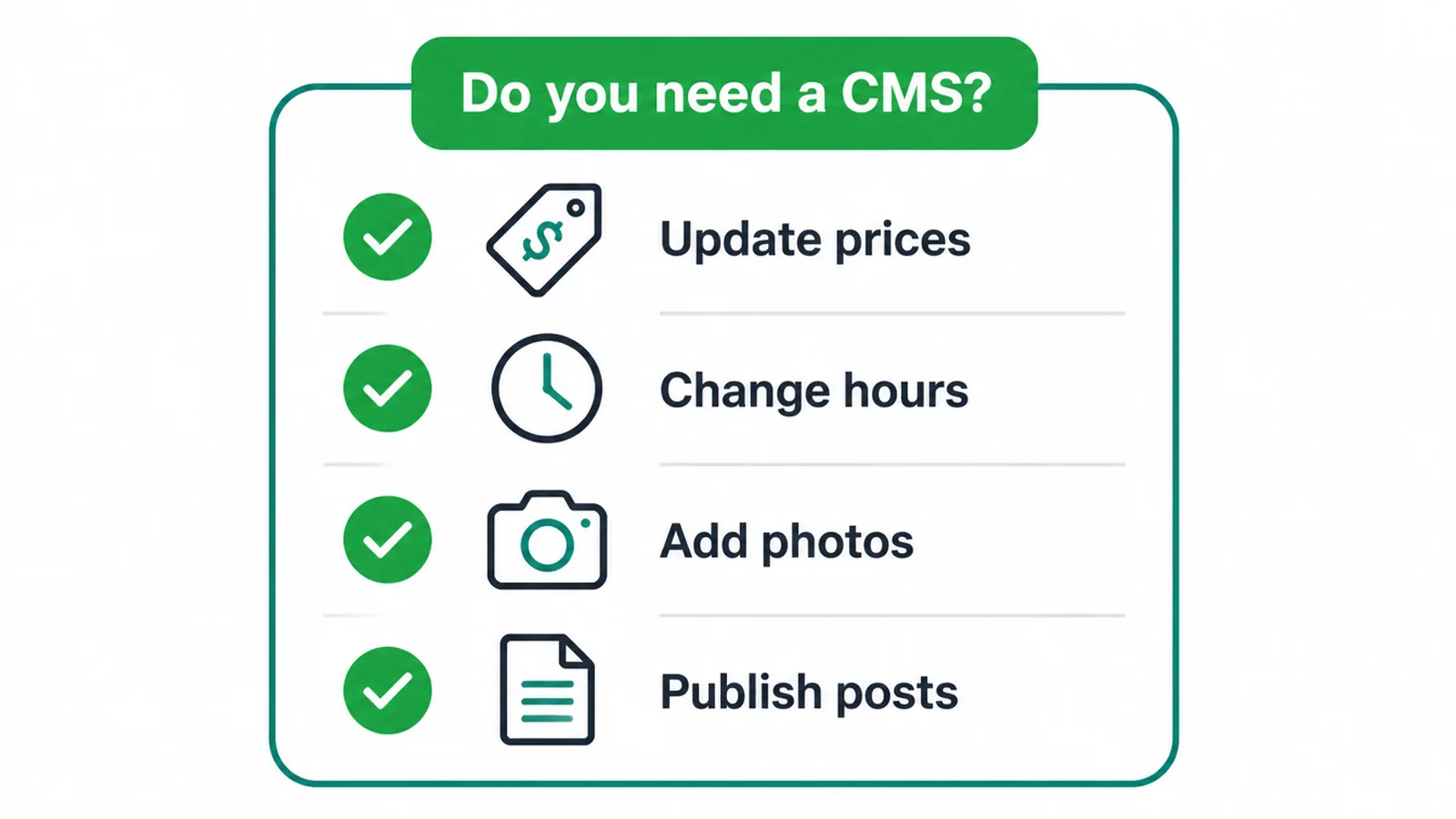
- Do prices change? Then you need to edit without calling anybody.
- Do opening hours move? Holidays alone make this worth it.
- Do you add photographs? New work, new rooms, new stock.
- Do you publish anything? Posts, news, updates of any kind.
One yes is usually enough to justify the choice. A five-page site that genuinely never changes can be plain static files, and it will be fast and nearly free to host.
The question worth asking honestly is who will be making the changes. If the answer is you, a system you can use beats a system that is technically better and that you avoid opening.
Almost nobody is genuinely in that category. Most people who believe their site never changes have simply stopped changing it, because changing it was difficult enough to not be worth it.
2. Pick the kind, then the product
The categories matter more than the brand names here, because the category decides what you are actually signing up to maintain.
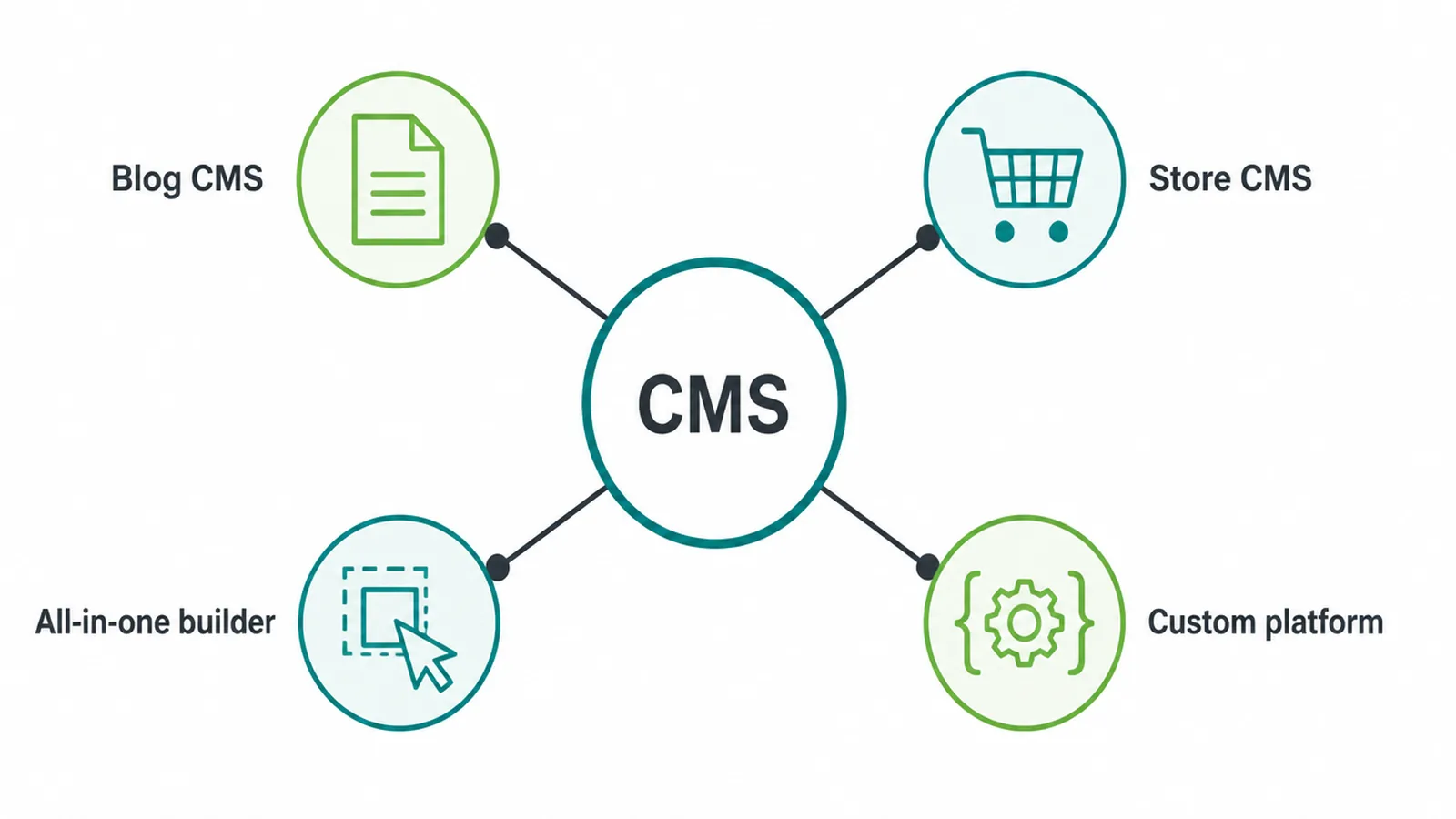
According to W3Techs, read on 29 October 2026, 32.1 per cent of websites use none of the systems it monitors, which puts roughly two thirds on a known CMS.
WordPress is the largest by a wide margin at 39.5 per cent of all websites and 58.3 per cent of those using a CMS. Shopify follows at 5.3 per cent of all sites, then Wix at 4.2 per cent and Squarespace at 2.4 per cent.
Those shares move, so treat them as the current picture rather than a fixed fact. The ordering has been stable for years.
Share is a poor reason to choose, though. It tells you how easy it will be to find somebody who knows the system and how many add-ons exist, which matters, and nothing at all about whether it fits your site.
Asking what is a content management system good for in your particular case is the better question, and the answer usually starts with what kind of site it is.
3. Budget for the upkeep
This is the decision most people make by not making it at all, and it is reliably the one that causes trouble a year or two later.
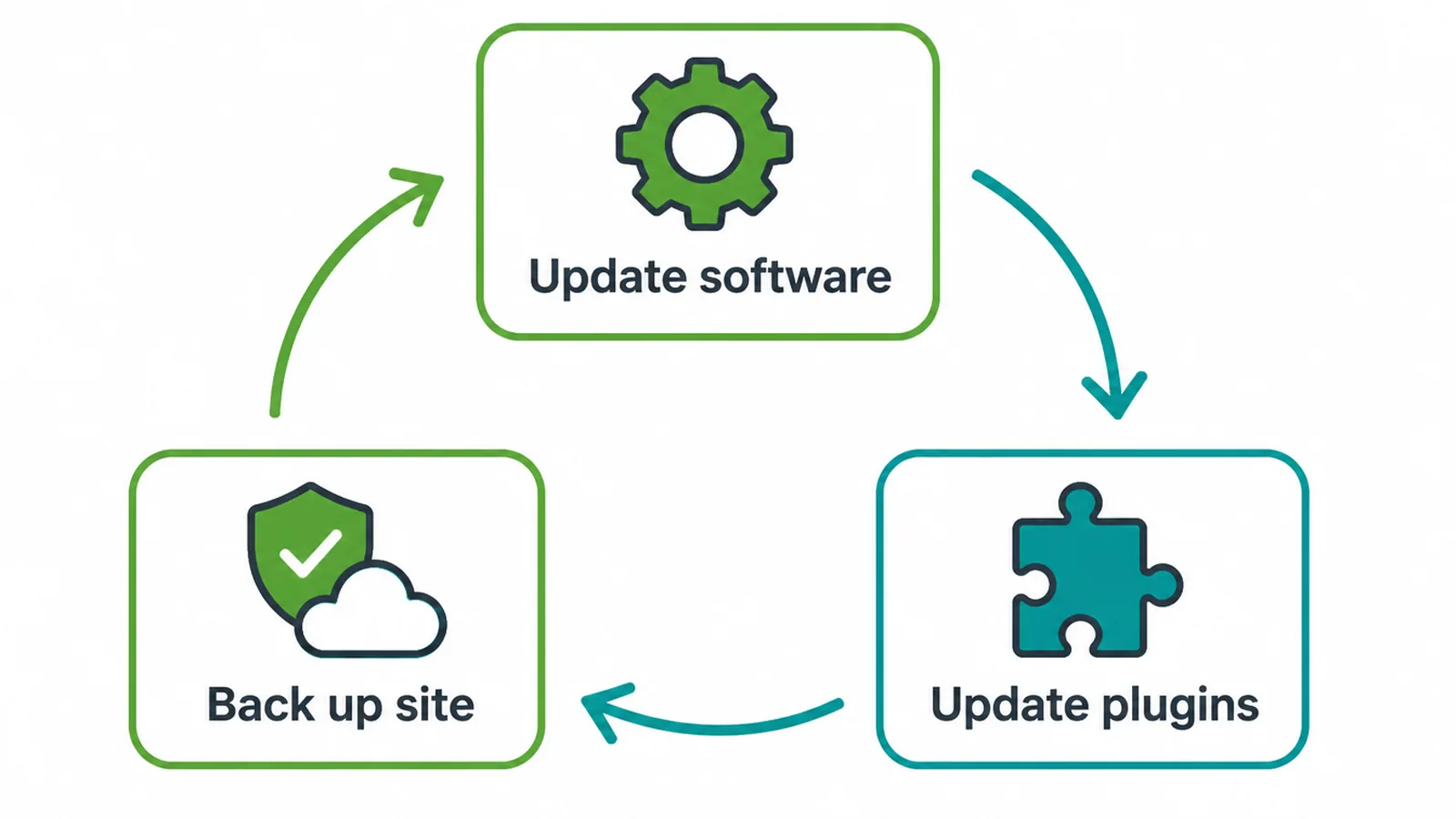
A self-hosted CMS needs its software updated, its add-ons updated, and backups taken that somebody has actually tested restoring.
- Core updates. Monthly at minimum, and promptly for security releases.
- Plugin updates. The same, and the larger job of the two.
- Tested backups. Automatic, offsite, and restored once to prove it works.
- A staging copy. Somewhere to try an update before it hits the live site.
None of that is difficult on its own. It is simply recurring, and recurring work is a different kind of problem from hard work.
The jobs that never finish are the ones that quietly stop being done. Put the updates in a calendar or pay somebody to do them, because intention has a poor record here.
The security picture here is specific and unusually clear, and it points at the add-ons rather than the platform.
Patchstack recorded 11,334 new WordPress vulnerabilities in 2025, a 42 per cent rise on the year before, with 91 per cent of them in plugins rather than the core software. In 2024 the figures were 7,966 and 96 per cent.
The platform is rarely the weak spot. What you bolt onto it is, which makes "how many plugins does this need" a real question rather than a technical quibble.
Builder, CMS Or Static
Three routes, and which one is right depends less on the site than on who will be maintaining it afterwards.
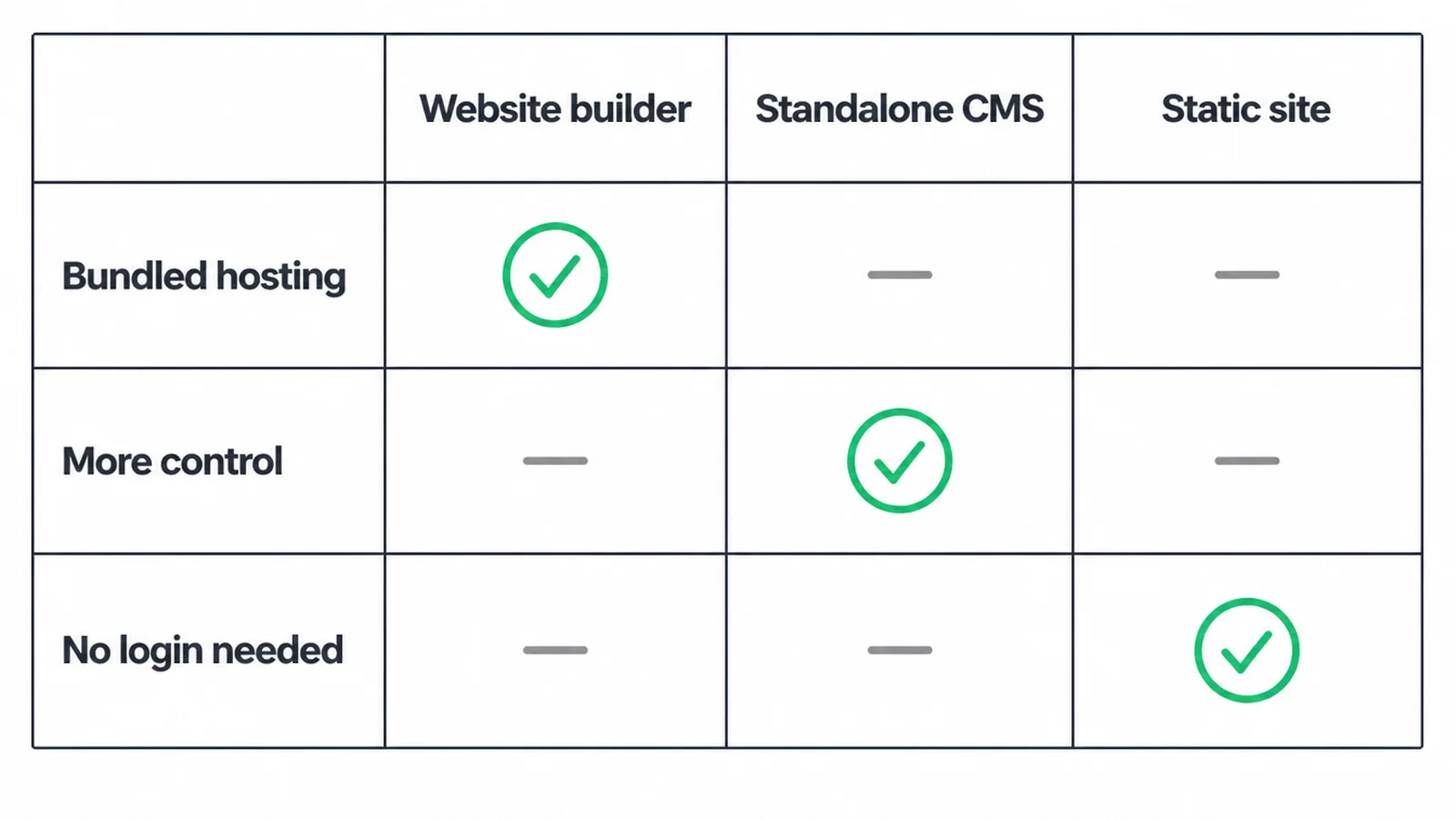
| Route | Upkeep | Control | Suits |
|---|---|---|---|
| All-in-one builder | Handled for you | Limited | Simple sites you edit yourself |
| Self-hosted CMS | Yours | Full | Sites that will grow |
| Static files | Almost none | Needs a developer | Sites that never change |
A builder trades control for convenience, and for a great many small businesses that is the right trade. You pay monthly and somebody else handles the updates, the security and the hosting.
The limit arrives when you want something the builder simply does not do. At that point you are rebuilding rather than adjusting.
That is worth knowing at the start rather than two years in, and it is a reasonable question to ask any builder before committing: what happens when I outgrow this.
A self-hosted system gives you everything and hands you the maintenance with it. Choose it when you want the control, then actually do the upkeep rather than intending to.
Static files are the forgotten third option, and they genuinely suit some sites. No login, nothing to update, nothing to be broken into. The cost is needing a developer for every change.
That is precisely the problem a CMS was invented to solve. It is also why most businesses end up on one eventually, usually after a year of waiting three days to change a phone number.
Common Mistakes
Three, and the first one tends to create the other two over the following year.
Choosing by brand rather than category. People pick the name they have heard of, then discover it was built for a different job entirely.
Decide what kind of site you are running first: a brochure, a shop, a publication. The category narrows the list to two or three, and at that point the brand choice is easy.
Installing plugins without counting them. Each one is code written by a stranger, running with access to your site, and the vulnerability figures above point squarely at this.
Install what you genuinely need, and remove what you stopped using. A deactivated plugin still sitting on the server is still a file somebody can reach.
Never testing a backup. A backup nobody has restored is a belief rather than a safety net.
Restore one to a test site, once. It takes about an hour, and it converts an assumption into a fact.
That is a reasonable trade for an hour, and the alternative is finding out during the week you can least afford it.
FAQs
What is a CMS in simple terms?
A content management system is software that lets you add and change the words, photographs and pages on your website without writing code. You log in, type, and press publish. It separates what your site says from how your site looks, so either can change without the other.
Is WordPress a CMS?
Yes, and the largest one. W3Techs recorded it at 39.5 per cent of all websites and 58.3 per cent of sites using a known CMS, read on 29 October 2026. It handles blogs, brochure sites and full online stores, and those shares move, so check the current figure.
What are some examples of a CMS?
WordPress is the biggest, Shopify is built for online stores, Wix and Squarespace bundle design, hosting and editing into one tool, and Drupal and Joomla suit larger custom projects. The category you need matters more than the brand name you recognise.
What is the difference between a CMS and a website builder?
A builder bundles hosting, design and editing into one subscription and handles updates for you, at the cost of control. A self-hosted CMS gives you full control and hands you the maintenance: software updates, plugin updates and backups. Neither is better; they suit different situations.
Do I need a CMS for my website?
If your prices, hours, photographs or posts ever change, yes. One of those is usually enough to justify it. A site that genuinely never changes can be plain static files, which are fast and cheap to host, but very few businesses are actually in that position.
Conclusion
Decide what kind of site you are running, pick the category that fits, then plan the upkeep before you need it.
Most of what goes wrong with a CMS is not the software. It is the plugins nobody counted and the backup nobody tested.
See how we approach web design, or get in touch and we will pick one with you.