Render-Blocking Resources: Fix What Delays First Paint

Render-blocking resources are the CSS and JavaScript files a browser must finish before it can paint anything. They delay first paint and push up Largest Contentful Paint. Inline critical CSS, defer your scripts, and use a font-display swap setting. Seed Light untangles blocking files so pages paint sooner.
Key takeaways
- What they are: CSS and JavaScript the browser has to finish before it can paint anything on screen.
- Why it matters: they delay your first paint, which pushes up your Largest Contentful Paint. Aim for an LCP of 2.5 seconds or less, and remember 53% of mobile visitors leave a page that takes longer than 3 seconds to load.
- The CSS fix: put critical styles in the HTML, load the rest in the background, and trim what you do not use.
- The JS fix: add
deferas your safe default, useasyncfor standalone scripts, and keep non-essential scripts out of the head. - Fonts count too: use a swap setting so text shows at once, and preload only the fonts near the top of the page.
1. What does render-blocking actually mean?
Render-blocking resources are files the browser treats as must-have before it draws your page. With CSS, the browser avoids rendering any more content until it has finished downloading and processing that CSS.
JavaScript blocks the parser too, unless you mark it with async or defer. A blocking file in the head stops all your page content from showing.
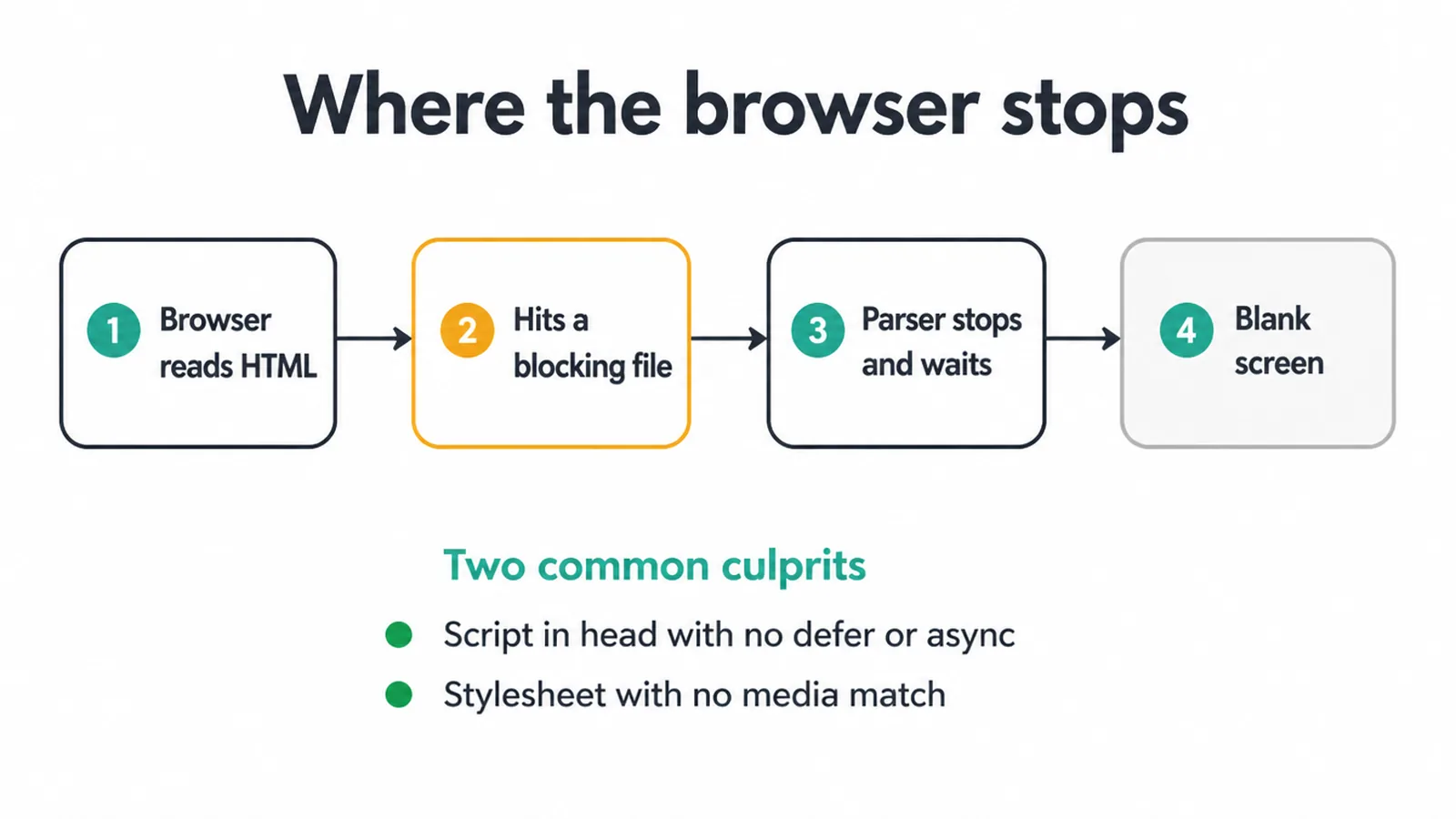
Think of the browser like a careful reader working down a checklist. Every line of your HTML is a step. When a step says "go fetch this stylesheet", the reader puts everything else on hold and waits for it to arrive.
Only then does it carry on. The more of these stops you stack near the top, the longer the blank screen lasts.
PageSpeed flags two common culprits. The first is a script tag in the head with no defer or async. The second is a stylesheet with no media match telling the browser when it actually applies. Both sit right in the path to your first paint.
2. Why do render-blocking resources slow your site down?
Render-blocking resources slow you down because they delay the first thing a visitor sees. Chrome notes that render-blocking requests may delay LCP, and that deferring or inlining can move these network requests out of the critical path. A late first paint means a late Largest Contentful Paint, and that is the metric Google watches.
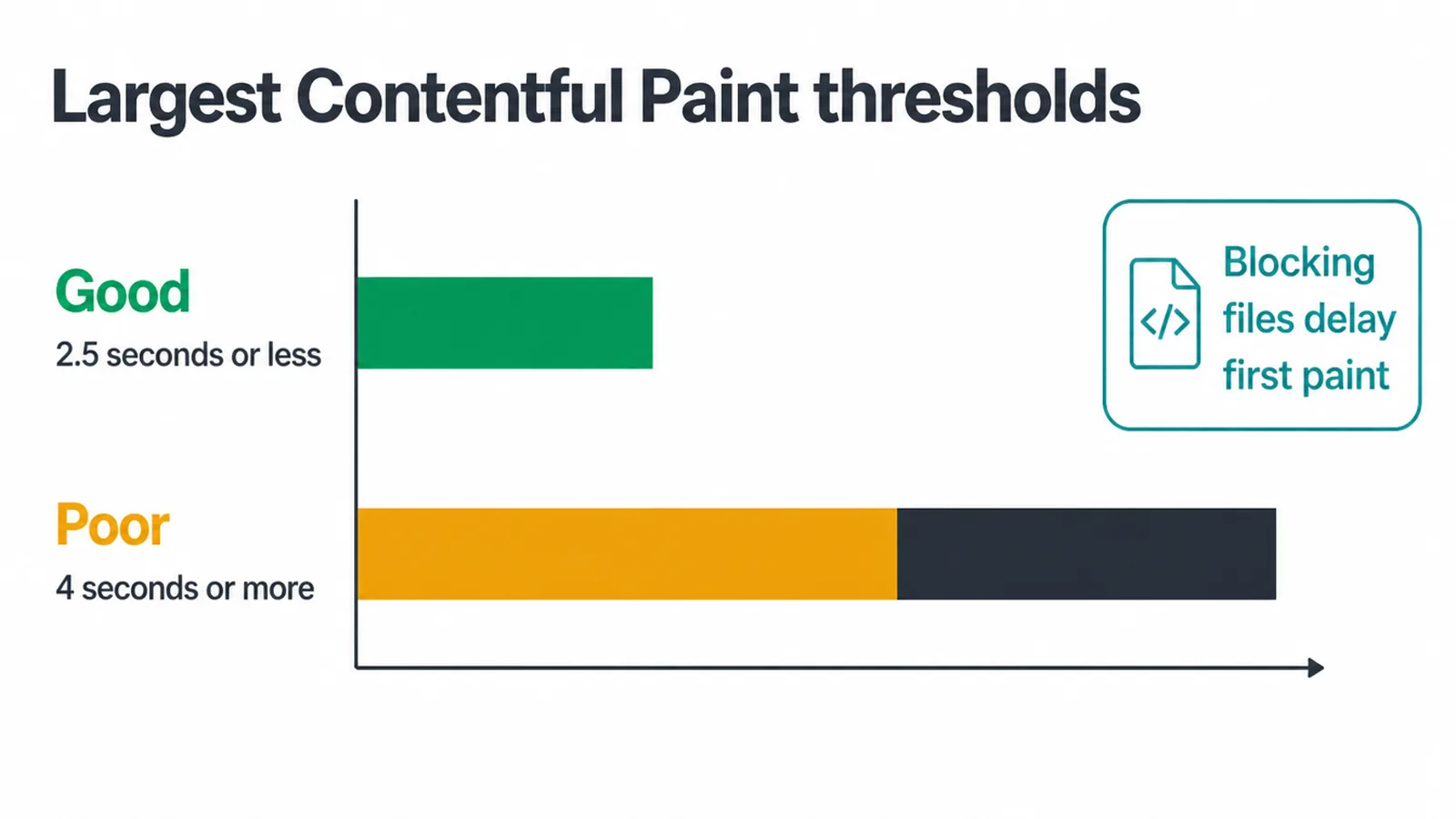
The target is clear. An LCP of 2.5 seconds is the good threshold and 4 seconds is poor, with 2.5 seconds described as consistently achievable. Miss it and you are in slow territory.
Slow pages lose people. As load time climbs from 1 second to 10 seconds, the chance a mobile visitor bounces rises by 123%. Every extra second of blank screen is a chance for someone to give up.
Render-blocking is one part of a three-part speed story. Your server response time, the very first byte, is covered in our guide to improving time to first byte.
The bigger picture of how Google scores speed sits in our plain guide to Core Web Vitals. This post owns the middle slice: the files that block your first paint.
3. How do you fix render-blocking CSS?
You fix render-blocking CSS by giving the browser only what it needs to paint the top of the page first, then loading the rest quietly. The styles needed for the first view are called critical CSS. Put that small slice straight into your HTML so the page can draw at once.
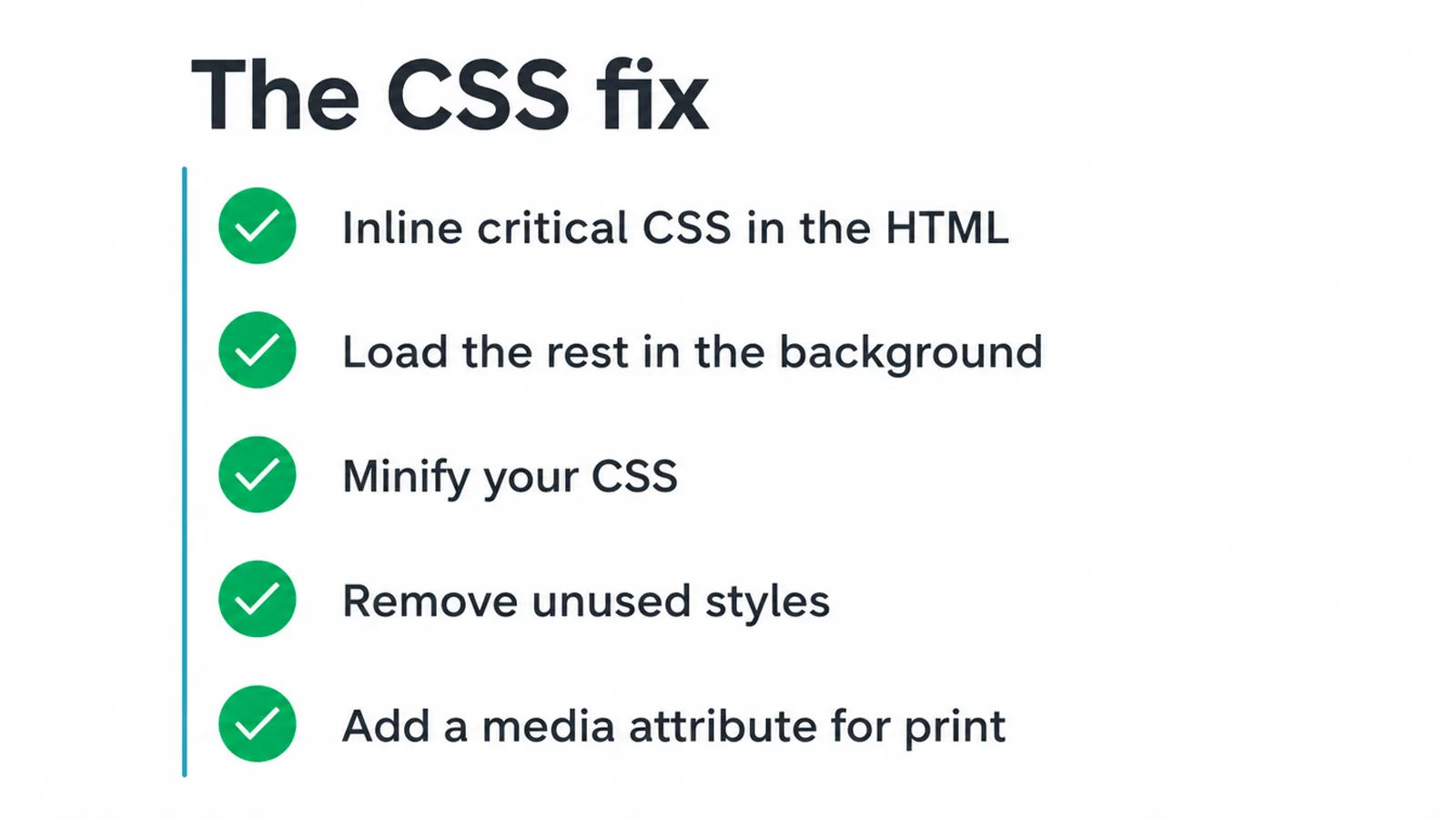
From there, a few simple moves help. Load the rest of your stylesheet in the background instead of blocking on it. Minify your CSS so the file is smaller.
Remove styles you no longer use, since old themes and plugins leave plenty behind. Add a media attribute to stylesheets that only apply in certain cases, such as print, so the browser knows it can skip them for the first paint.
You do not have to hand-write critical CSS. Most build tools and WordPress optimisation plugins can generate it for you. The point is the same either way: show something fast, finish the styling after.
4. How do you fix render-blocking JavaScript?
You fix render-blocking JavaScript by telling the browser it does not have to wait. A plain script tag in the head blocks the parser. Two small attributes change that, and the right one depends on the script.
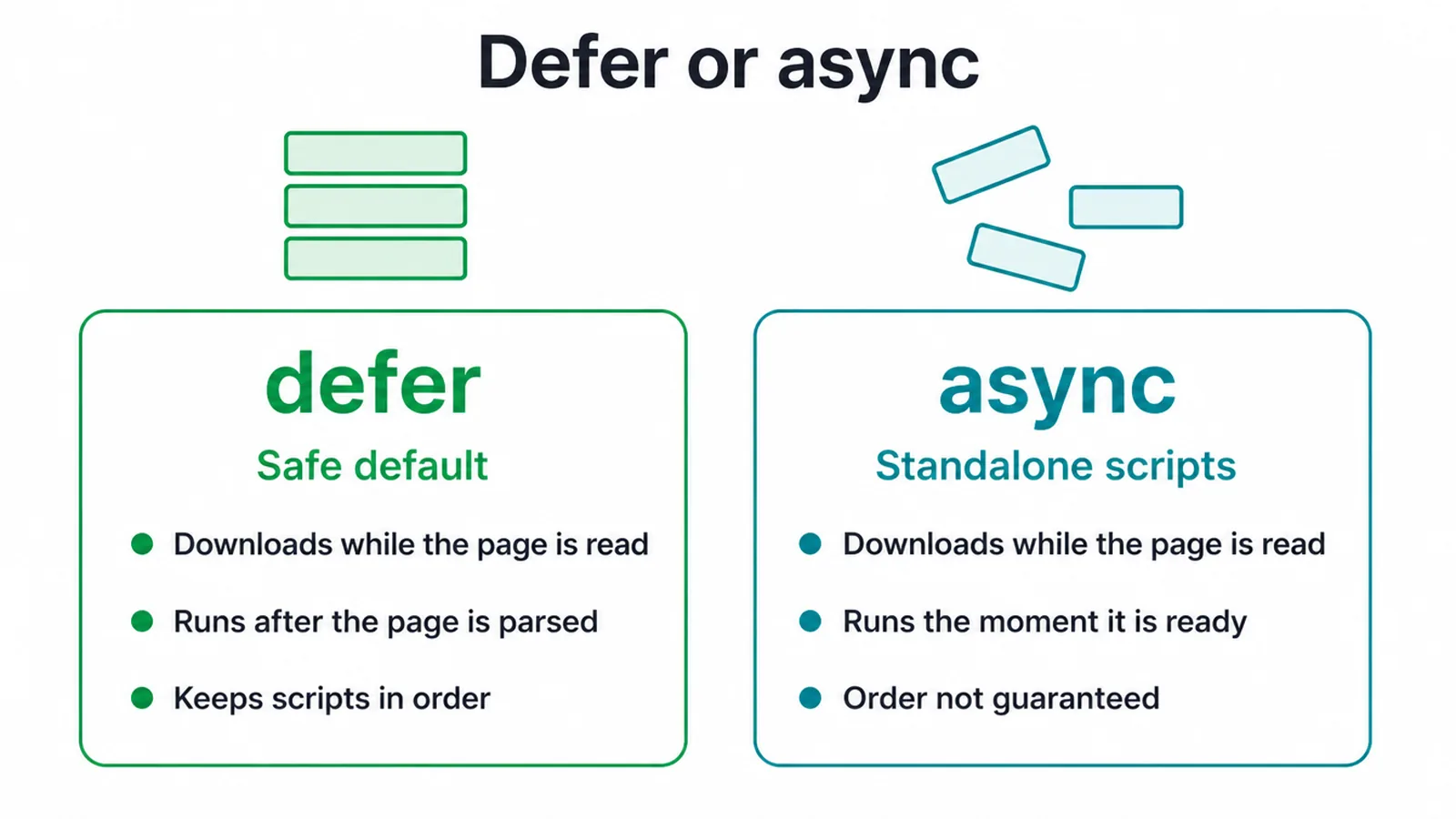
Use <script defer> as your safe default. The browser downloads the script in the background while it keeps reading the page, then runs deferred scripts in order once the page is parsed. That ordering matters when one script depends on another.
Use <script async> for standalone scripts that do not depend on anything, like an analytics tag. Async lets each script run the moment it is ready, in any order. Beyond that, move non-essential scripts out of the head entirely. Here is the quick problem-and-fix view.
| Problem | What it does | Fix |
|---|---|---|
| Plain script in the head | Stops the parser until the script downloads and runs | Add defer, or move it before the closing body tag |
| Scripts that depend on order | Run in the wrong order if loaded async | Use defer so they run in order after parsing |
| Independent third-party script | Blocks the page for no good reason | Use async so it runs when ready |
| Blocking stylesheet | Holds all content until the CSS is processed | Inline critical CSS, load the rest in the background |
| Print or conditional CSS | Blocks paint even when it is not needed yet | Add a media attribute so the browser can skip it |
5. Do not forget your fonts
Fonts can be render-blocking too, and they are easy to miss. If the browser waits for a font file before it shows any text, your visitor gets a page with no words on it. That is the worst kind of blank screen, because the layout is ready but nothing reads.
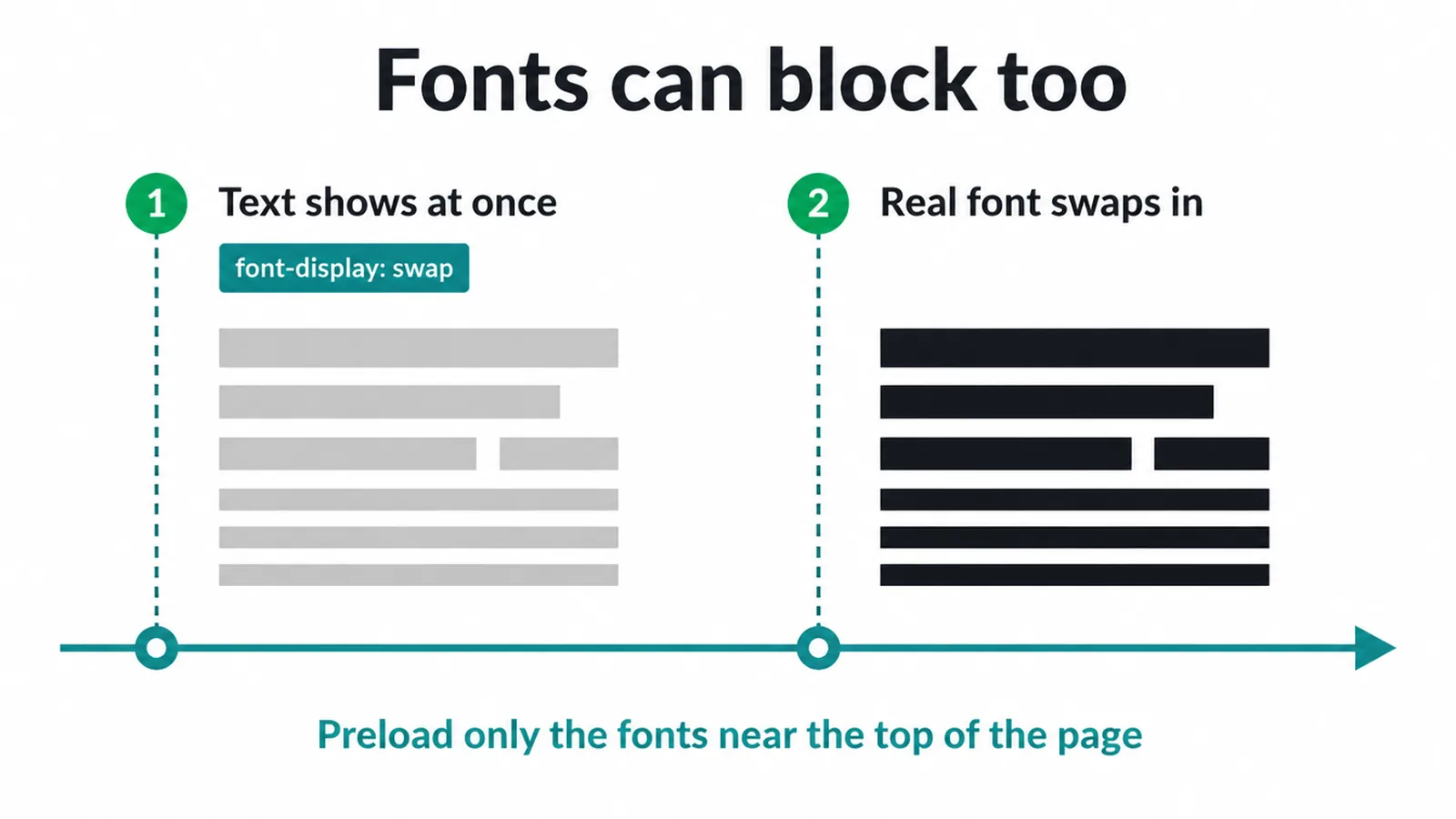
The fix is a setting called font-display: swap. It tells the browser to show your text in a fallback font straight away, then swap to your real font once it has loaded. The visitor reads from the first moment instead of waiting.
One more tip. Preload only the fonts used near the top of the page. Preloading every font is a common mistake that just adds more files to the early queue. Pick the one or two that show first and leave the rest to load on their own.
6. What tools find render-blocking resources?
The tools that find render-blocking resources are free and quick to run. Start with PageSpeed Insights or Lighthouse.
Both list the exact files holding up your first paint, with an estimate of how much time you could save by fixing each one. Our free website speed checker runs the same test and lists the biggest fixes first.
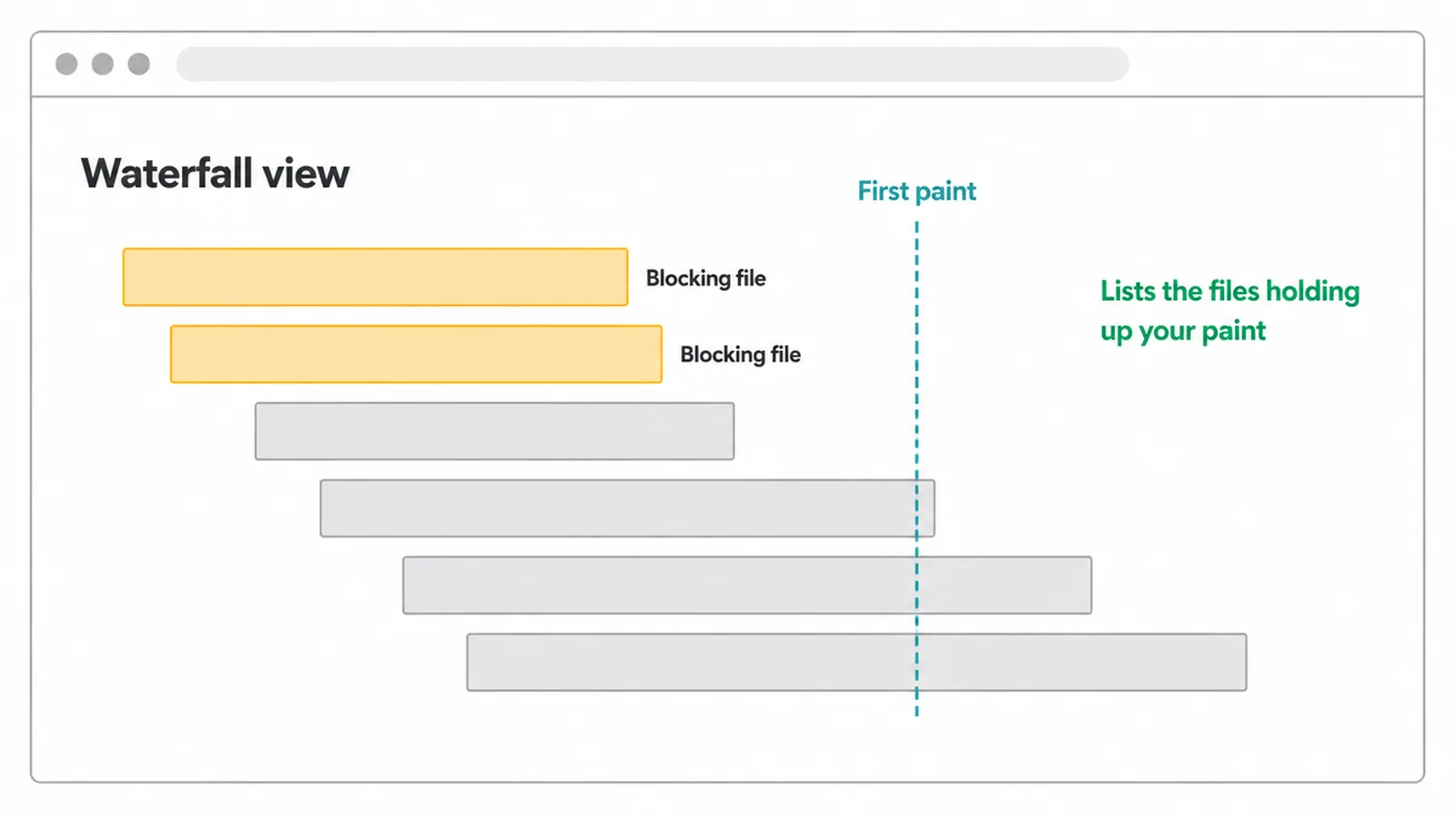
For a live look, open the Performance panel in your browser DevTools and record a page load. You will see which files block and how long the browser waits.
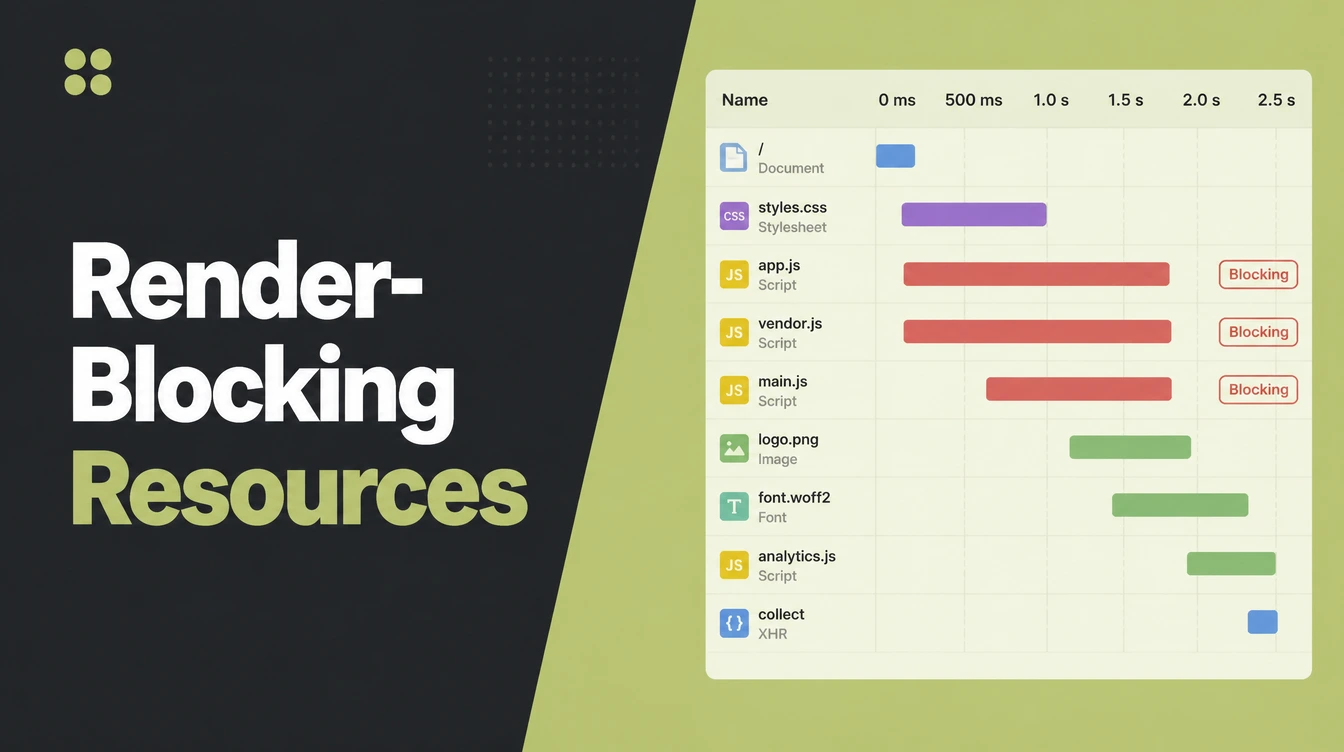
WebPageTest gives you a waterfall chart, a row-by-row view of every request in order, so you can spot the file at the front of the queue that everything else waits behind.
Render-blocking is one item on a longer list of speed and crawl checks. If you want the full picture of what to test, our guide to technical SEO walks through how these pieces fit together.
7. Do you need a developer to fix this?
Not always. The honest answer depends on how your site is built. On WordPress, a good caching and optimisation plugin handles most render-blocking work for you. It can generate critical CSS, defer your scripts, and clean up extra files.
Turn the settings on a few at a time and check your site after each one, because over-aggressive options can break a layout or stop a feature working.
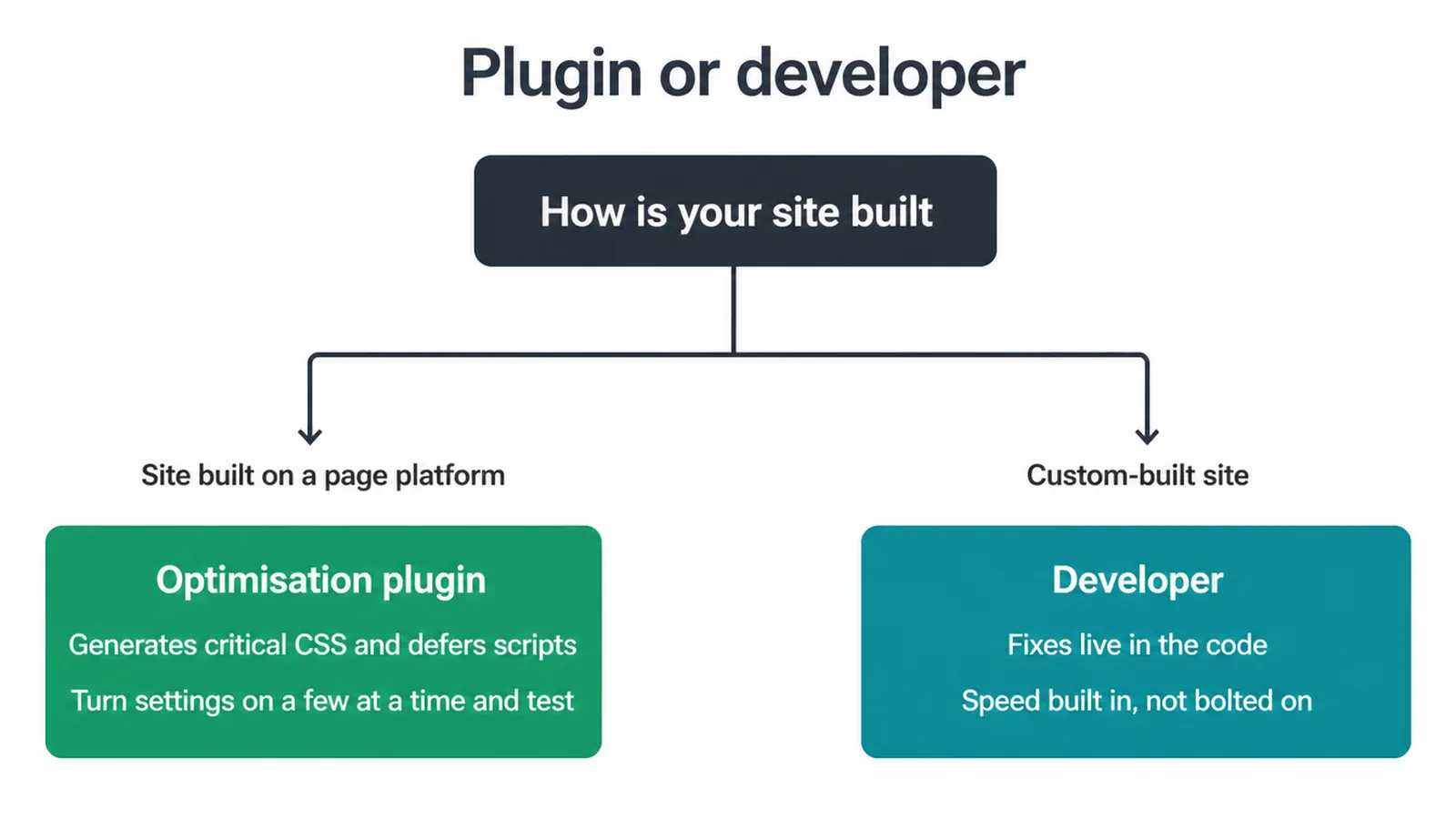
On a custom-built site, the fixes live in the code, and a developer does them properly without the guesswork. That is the kind of work we handle in our web development service, where speed is built in from the start rather than bolted on later.
If your site already runs and you just want it kept fast and tidy over time, our website maintenance plans cover the ongoing testing and tuning. Either way, you do not have to learn the code yourself to get a faster page.
Frequently asked questions
1. What are render-blocking resources?
Render-blocking resources are CSS and JavaScript files the browser must download and read before it can paint your page. The browser reads your HTML from top to bottom, and when it hits one of these files in the head, it stops and waits. Until that file is done, the visitor sees a blank screen.
2. Why does PageSpeed say eliminate render-blocking resources?
PageSpeed flags files that sit in the path between request and first paint. It usually means a stylesheet with no media match, or a script in the head with no defer or async attribute. The tool is telling you those files are holding up your first paint and you should move them out of the way.
3. What is the difference between defer and async?
Both let the browser keep reading the page while the script downloads. Defer waits until the page is parsed and then runs scripts in order, which makes it the safe default. Async runs each script the moment it is ready, in any order, which suits independent scripts like analytics that do not depend on anything else.
4. What is critical CSS?
Critical CSS is the small slice of styles needed to draw the part of the page a visitor sees first. You put that slice directly in the HTML so the page can paint at once, then load the rest of your styles in the background. It means the visitor sees something fast instead of staring at a blank screen.
5. Do render-blocking resources affect SEO?
Yes, indirectly. They slow your first paint, which pushes up your Largest Contentful Paint, one of the Core Web Vitals Google measures. A slow page also loses visitors before they read anything. Fixing render-blocking files helps both your speed scores and the experience real people get.
6. Are web fonts render-blocking?
Web fonts can block rendering. If the browser waits for a font file before showing any text, your visitor sees nothing. Using font-display: swap tells the browser to show a fallback font straight away and switch once your font loads. Preloading only the fonts used near the top also helps.
7. Do I need a developer to fix render-blocking resources, or can a plugin do it?
On WordPress a good caching and optimisation plugin handles most of it, including critical CSS and deferring scripts. Test your site carefully after turning settings on, because over-aggressive options can break layouts. On a custom-built site a developer does the job properly, and you avoid the guesswork.
8. What tools find render-blocking resources?
Start with PageSpeed Insights or Lighthouse, which list the exact files holding up your paint. The Performance panel in browser DevTools shows you the same thing live. WebPageTest gives you a waterfall view so you can see which file blocks which, and in what order.