How to Use Google Search Console: Find SEO Problems Faster

Google Search Console is Google's free report on how your site performs in search. Verify the site, submit a sitemap, then read the reports that matter: which queries bring clicks, which pages are indexed, and what is broken. Seed Light uses it to find pages sitting just off the first page.
Key takeaways
Short on time? Here is how to use Google Search Console in five lines before we break it all down.
- It is free, and it is Google's own data. Search Console helps you monitor, maintain, and troubleshoot your site in Google Search (Google, 2026).
- Setup takes minutes. Add your site, pick a Domain or URL-prefix property, and verify ownership.
- Five reports matter most. Performance, Pages, URL Inspection, Sitemaps, and Core Web Vitals.
- The data is a strong sample, not the full picture. One study found 46.08% of clicks go to hidden terms (Ahrefs, 2024).
- Do three things with it. Find quick wins, fix not-indexed pages, and request indexing after you make changes.
1. What Google Search Console is (and that it is free)
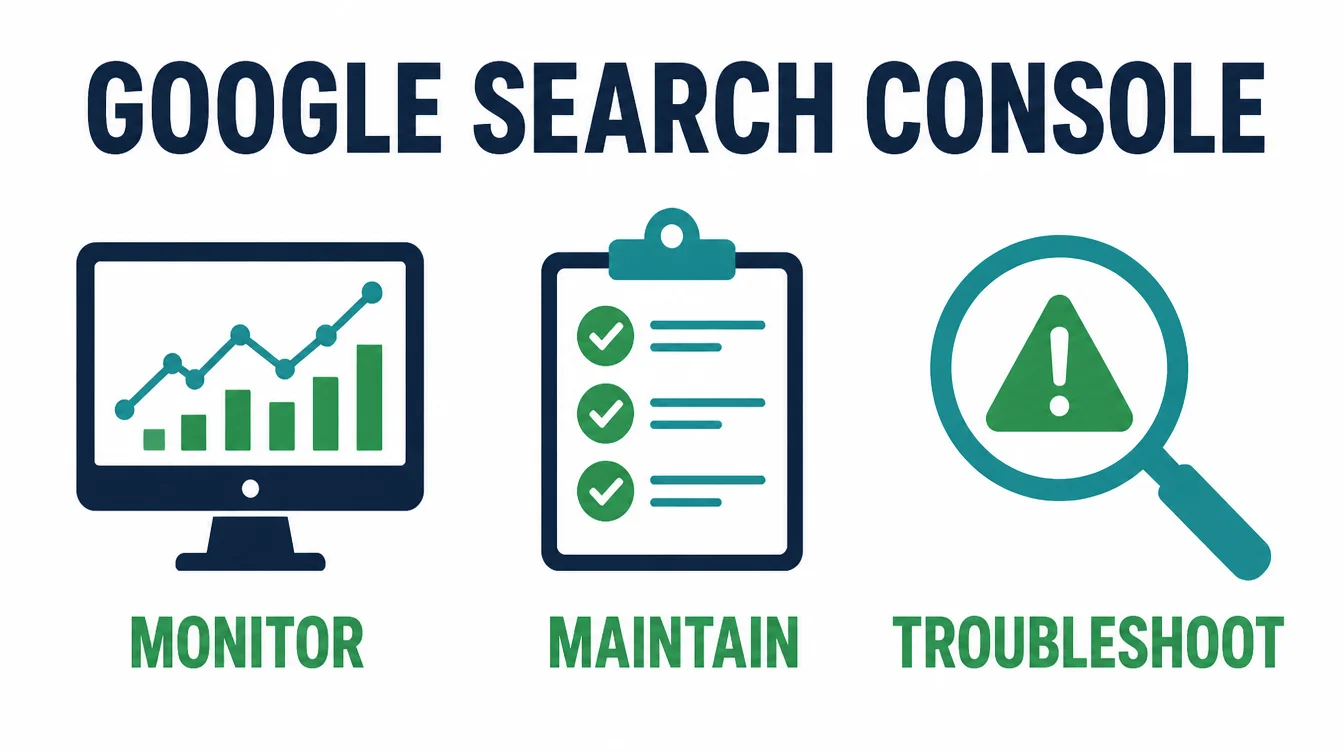
Google Search Console is a free tool from Google that shows you how your site is doing in search. In Google's own words, it helps you "monitor, maintain, and troubleshoot your site's presence in Google Search results" (Google, 2026). Think of it as the report card Google hands you for nothing.
First, the price. There is no paid tier, no trial, and no card needed. You sign in with a Google account and you get everything. Furthermore, this is Google's own data, not a third-party guess, so it is the most trustworthy view you can get of your search traffic.
One thing to clear up early. You do not need this tool to rank. Google states that you "don't have to sign up for Search Console to be included in Google Search results" (Google, 2026). Google finds and indexes sites on its own.
However, without Search Console you are flying blind. If you are still wondering why your pages are missing, our guide on why your website is not showing on Google pairs well with this one. For the bigger picture, start with what SEO is.
2. How to set it up and verify (Domain vs URL-prefix)
Setup is quick. Go to the Search Console site, sign in with a Google account, and click to add a property. Then you face one choice that confuses most beginners: Domain or URL-prefix.
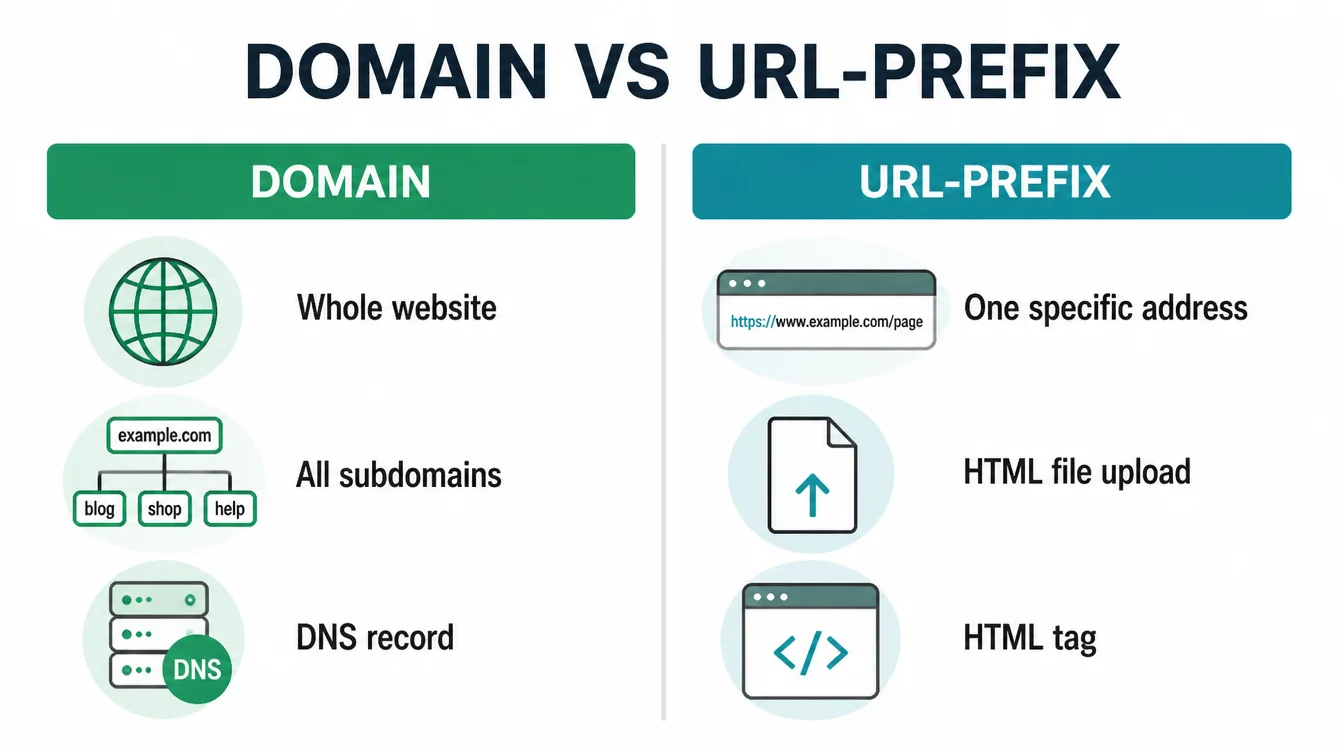
Domain property
A Domain property covers your whole site at once. That means every subdomain and both the http and https versions, all in one place. You verify it by adding a DNS record at your domain provider. It is the cleanest option, so pick it if you can log in and edit your DNS.
URL-prefix property
A URL-prefix property covers only one exact address, such as the https version of your home page. The upside is easier verification. You can verify by uploading a file, adding a tag, or using Google Analytics or Tag Manager. As a result, it is a good fallback if DNS feels scary.
Which should a beginner pick?
For most small businesses, choose the Domain property once you can edit your DNS, because it captures everything and you only set it up once. Otherwise, the URL-prefix option works fine to start. Either way, verifying ownership is the gate. Until you verify, no data shows up.
3. The Performance report (clicks, impressions, CTR, position)
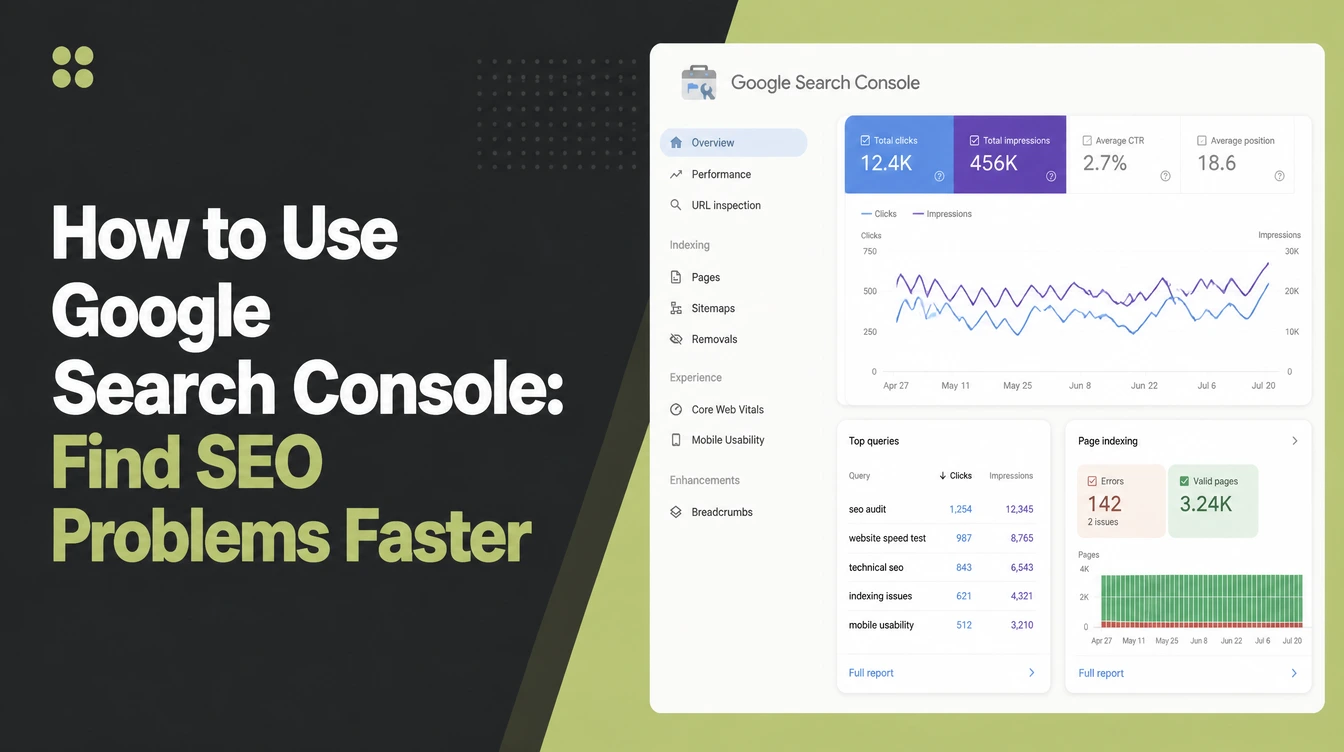
The Performance report is the one you will open most. It shows four numbers, and Google defines each plainly (Google, 2026). Learn these four and the rest of the tool clicks into place.
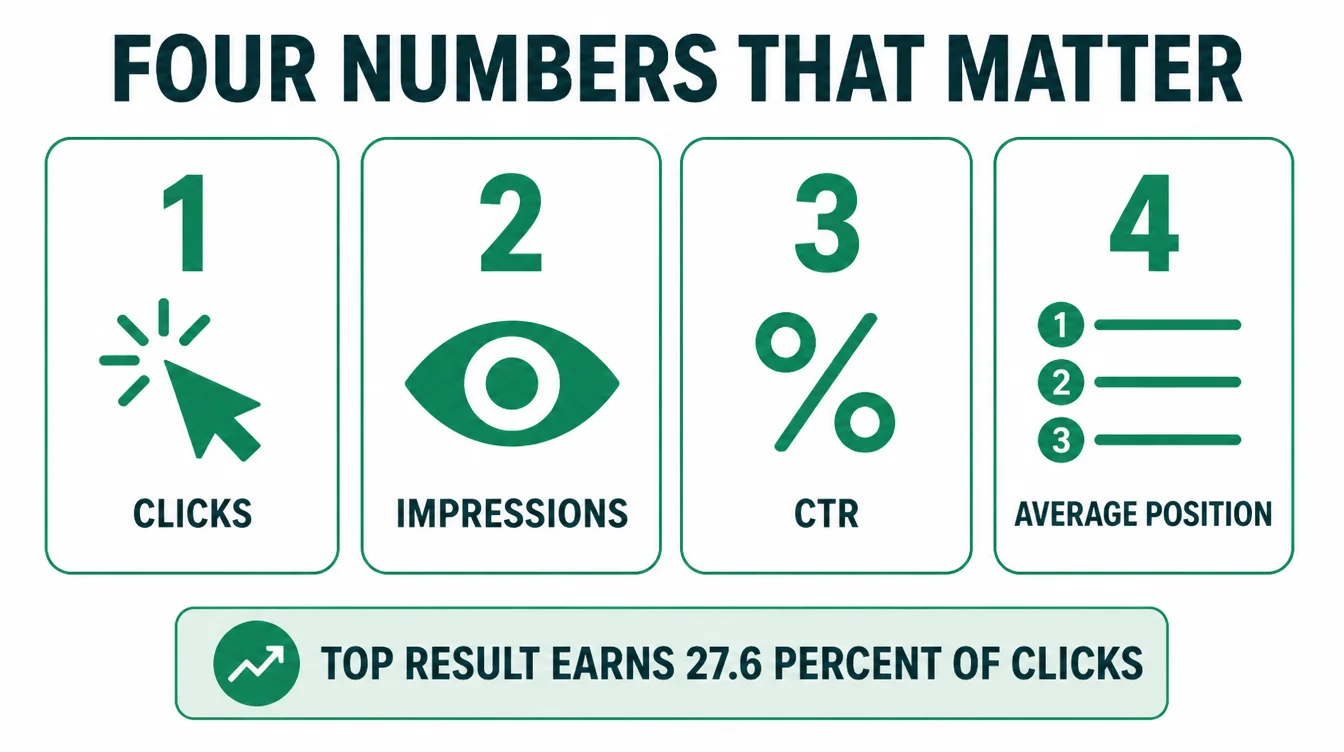
- Clicks. How many times someone clicked through to your site from Google.
- Impressions. How many times a link to your site appeared in search results, whether or not it was clicked.
- CTR (click-through rate). Clicks divided by impressions, shown as a percentage.
- Average position. Where your link typically ranked for those searches.
Here is how to read them together. Lots of impressions but few clicks means people see you but do not pick you, often because your title or your average position is weak. Position matters more than owners think.
According to one large study, the number one result earns a 27.6% click-through rate, and the top three results get 54.4% of all clicks (Backlinko, 2023). That is Backlinko's analysis, not Google's data, but it shows why creeping up a few spots pays off.
4. The Pages / indexing report
The Performance report only shows pages Google already shows in search. The Pages report tells you which of your pages Google has indexed and, more usefully, which it has not. This is where you catch the silent problems.
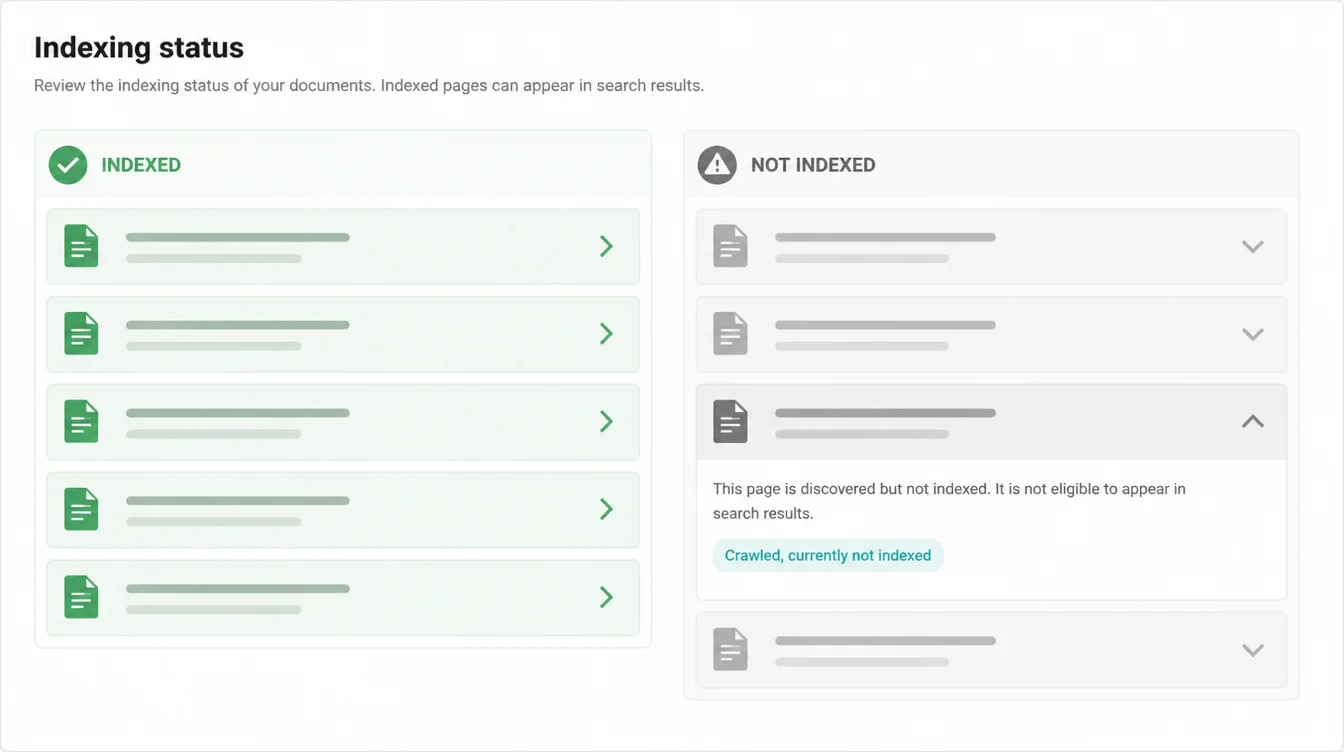
Open the report and you see two groups: indexed pages and pages that are not indexed. Click into the not-indexed group and Google lists the reasons, such as "Crawled, currently not indexed," "Discovered, currently not indexed," "Page with redirect," or "Excluded by noindex tag." Each reason is a clue.
Some reasons are normal and fine. A redirect or a tag page often should not be indexed. Others are warning signs. If a key service page sits in "Crawled, currently not indexed," Google saw it but decided it was not worth listing, which usually points to thin or duplicate content.
Fixing that is on-page work, and our on-page SEO checklist walks through it. You can also confirm what is listed by searching Google for site: followed by your domain name (Google, 2026).
5. URL Inspection and requesting indexing
The URL Inspection tool checks one exact page. Paste any address from your site into the search bar at the top of Search Console and it tells you whether that page is on Google, when it was last crawled, and whether it can be indexed.
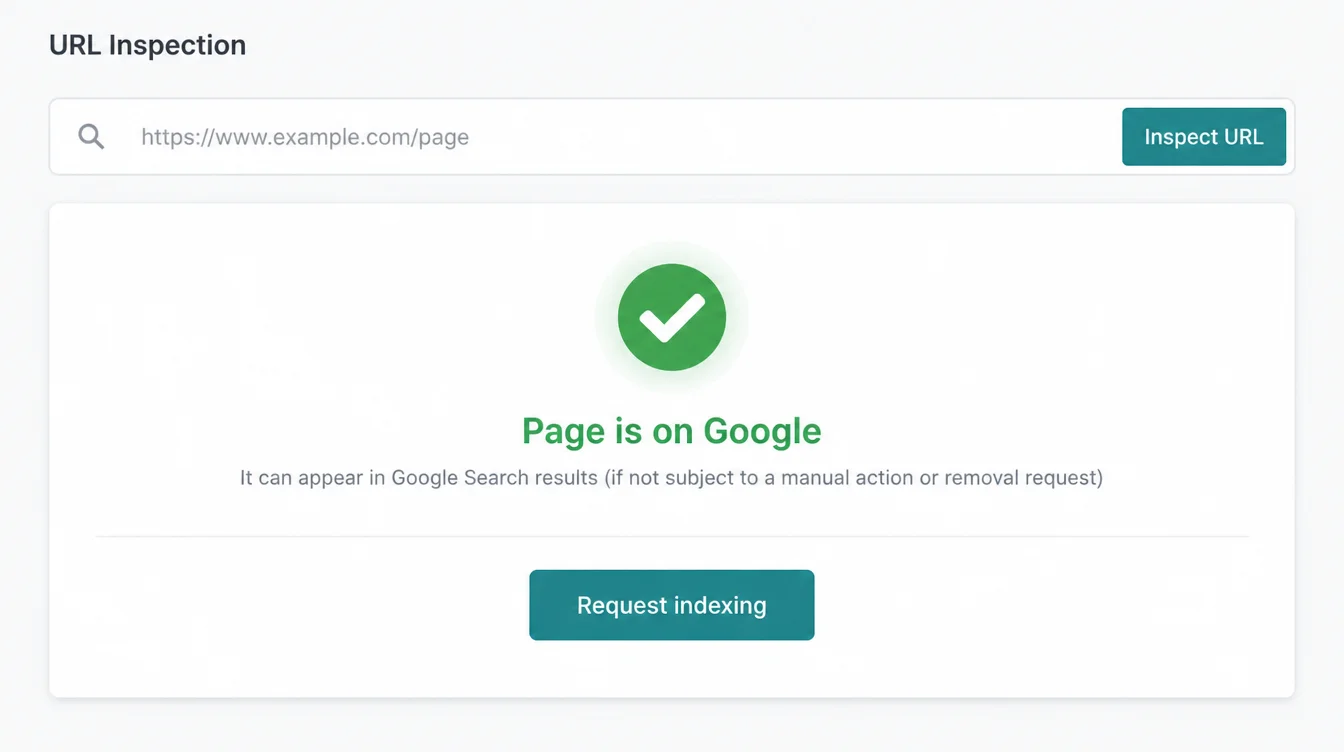
This tool earns its keep in two moments. First, when you publish a new page, inspect it and click "Request indexing" to nudge Google to come look sooner. Second, when you make a big change to an existing page, inspect it again and request indexing so the fresh version gets picked up.
One caution: be patient. Requesting indexing is a nudge, not a command. Google advises you to "allow at least a week after submitting a sitemap or a submit to index request before assuming a problem" (Google, 2026).
So inspect, request, and then leave it alone for a week. If you want realistic timelines for SEO overall, see how long SEO takes.
6. Sitemaps and Core Web Vitals reports
Two more reports round out the beginner set. Both are quick to read once a month.
The Sitemaps report
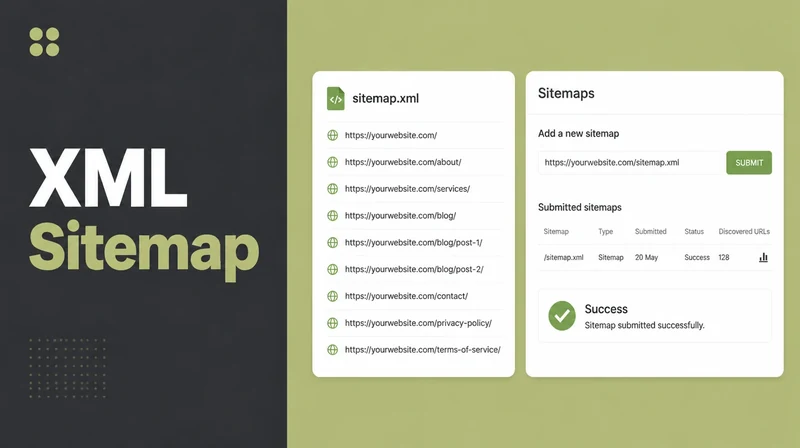
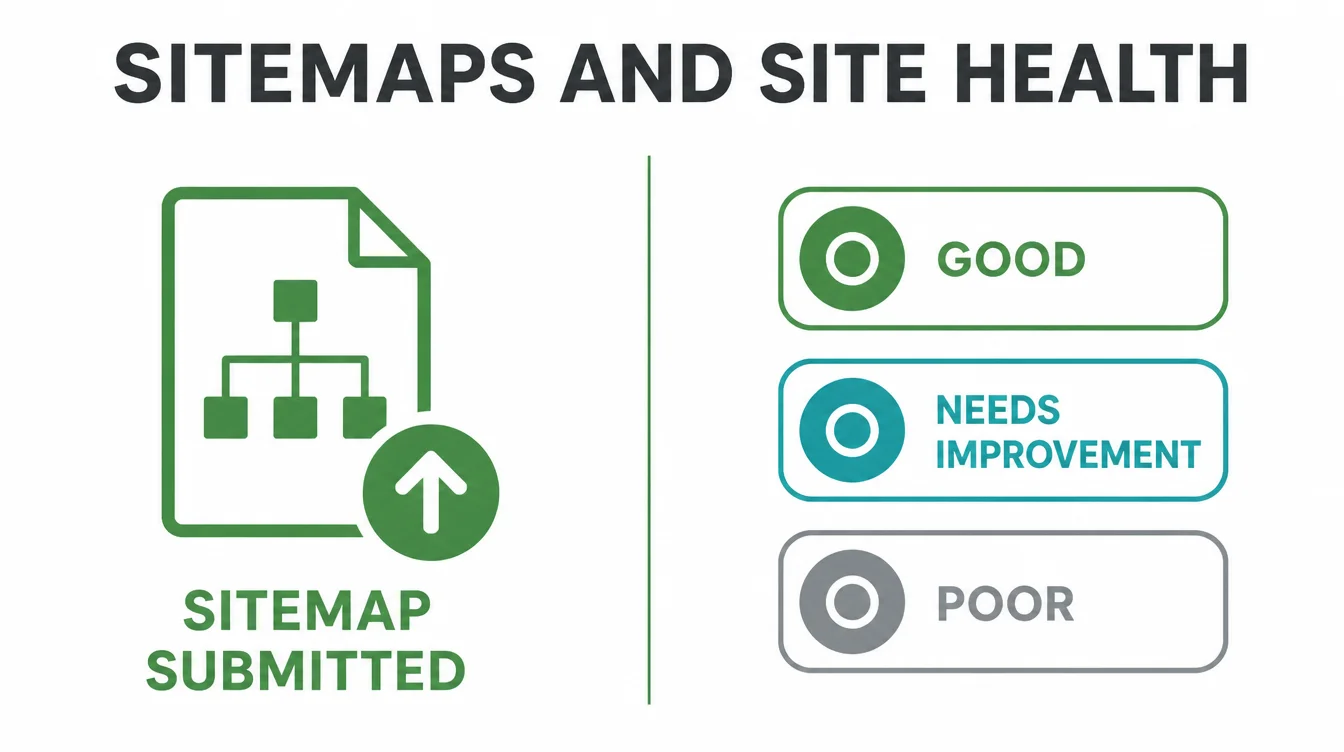
A sitemap is a file that lists your important pages so Google can find them all. Most modern sites generate one automatically at /sitemap.xml. In the Sitemaps report, paste that address and submit it once.
After that, the report shows whether Google read it and how many pages it found. If your sitemap shows errors, that is a build issue worth flagging to whoever made your site.
The Core Web Vitals report
Core Web Vitals measures how your pages feel to real visitors: loading speed, responsiveness, and visual stability. The report buckets your pages into Good, Needs improvement, or Poor.
You do not need to obsess over it, but a sea of red is a clear sign your site is too slow on phones. That is usually a design and build problem, which is why speed is part of how we build sites.
7. 3 things to actually DO with it
Reading reports is nice. Acting on them is the point. Here are the three highest-value things to do with your data, in order.
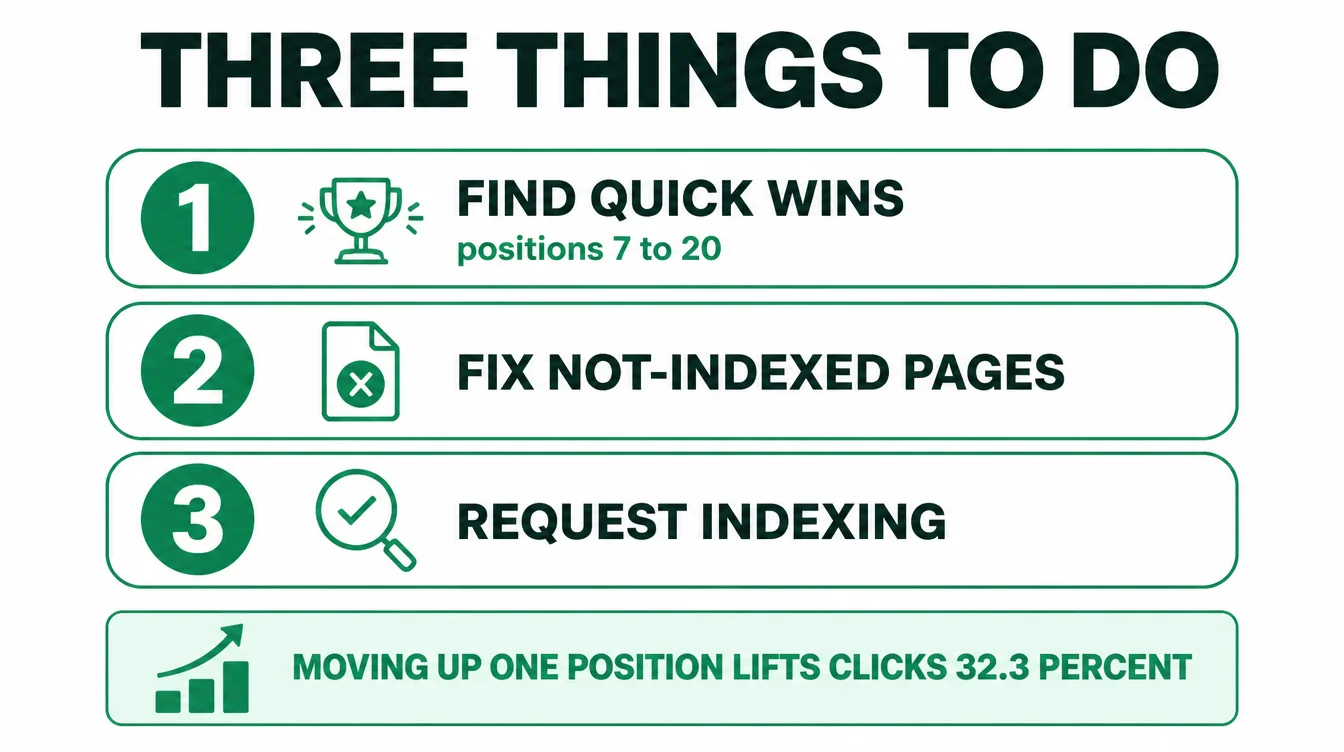
1. Find positions 7 to 20 for quick wins
In the Performance report, look for queries where your average position sits between roughly 7 and 20. These are pages on the edge of page one. A small push, like a better title or a stronger paragraph, can move them up fast.
And small moves pay: one analysis found that moving up one position increases relative click-through rate by 32.3% (Backlinko, 2023). To find more terms like these, pair this with keyword research.
2. Fix not-indexed pages
Open the Pages report, sort by the not-indexed reasons, and tackle the ones that hurt. A buried service page stuck in "Crawled, currently not indexed" usually needs more substance and clearer internal links. Fix the page, then move to step three.
3. Request indexing
After you publish or improve a page, run it through URL Inspection and click "Request indexing." This tells Google to recrawl sooner so your work counts faster. Then wait a week before you judge it.
8. What the data does NOT show you
Search Console is honest data, but it is not complete data. Knowing the gaps stops you from drawing the wrong conclusions.
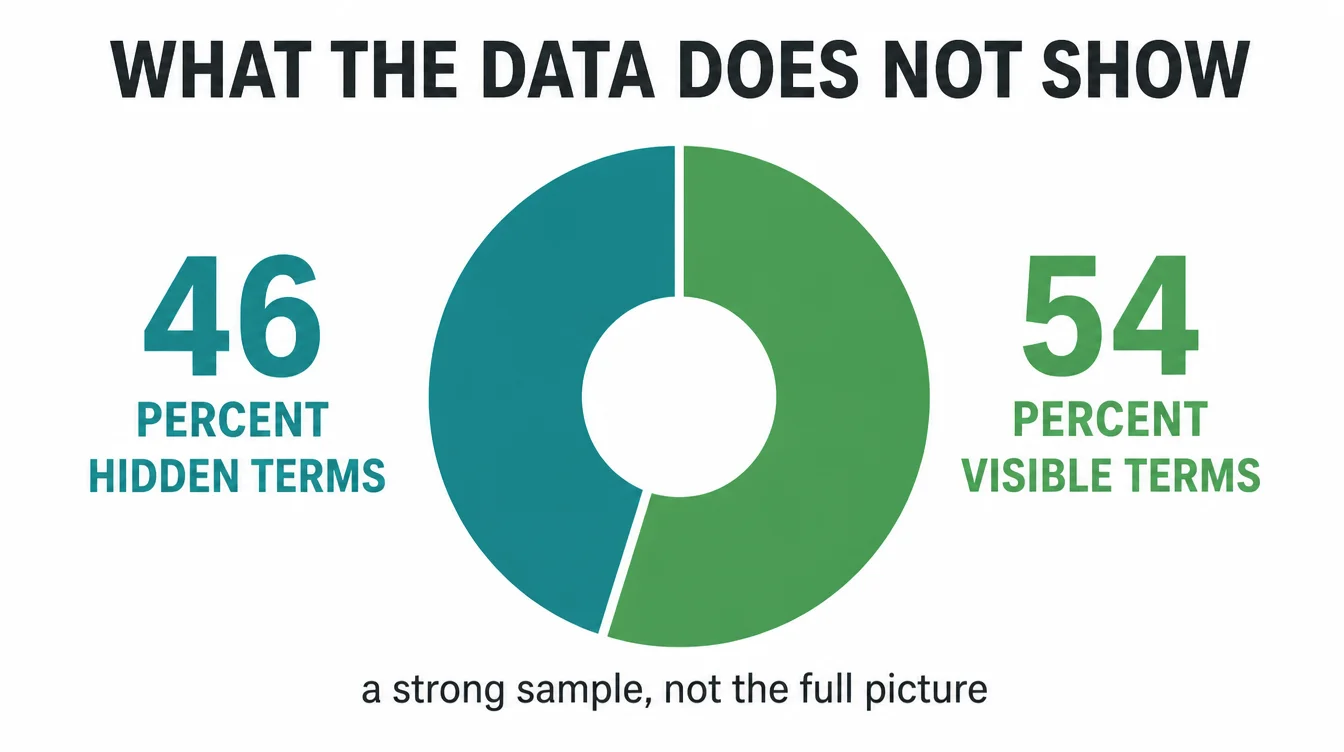
First, the query list is incomplete. Google hides many searches to protect user privacy. In one independent study, 46.08% of all clicks went to anonymized or hidden terms (Ahrefs, 2024).
So nearly half of your real search traffic never shows up by keyword. Treat the report as a strong sample, not the whole truth.
Second, it does not tell you why people did or did not buy. Search Console stops at the click. What happens on your site after that, whether visitors call or leave, is a job for analytics and a well-built page.
Third, it does not show your competitors. For that you need other tools. Used within its limits, though, Search Console is the most reliable free view you have.
9. A monthly Search Console routine
You do not need to live in this tool. A short monthly habit catches the important stuff and saves you from chasing daily noise. Set aside fifteen minutes once a month and run the checks below.
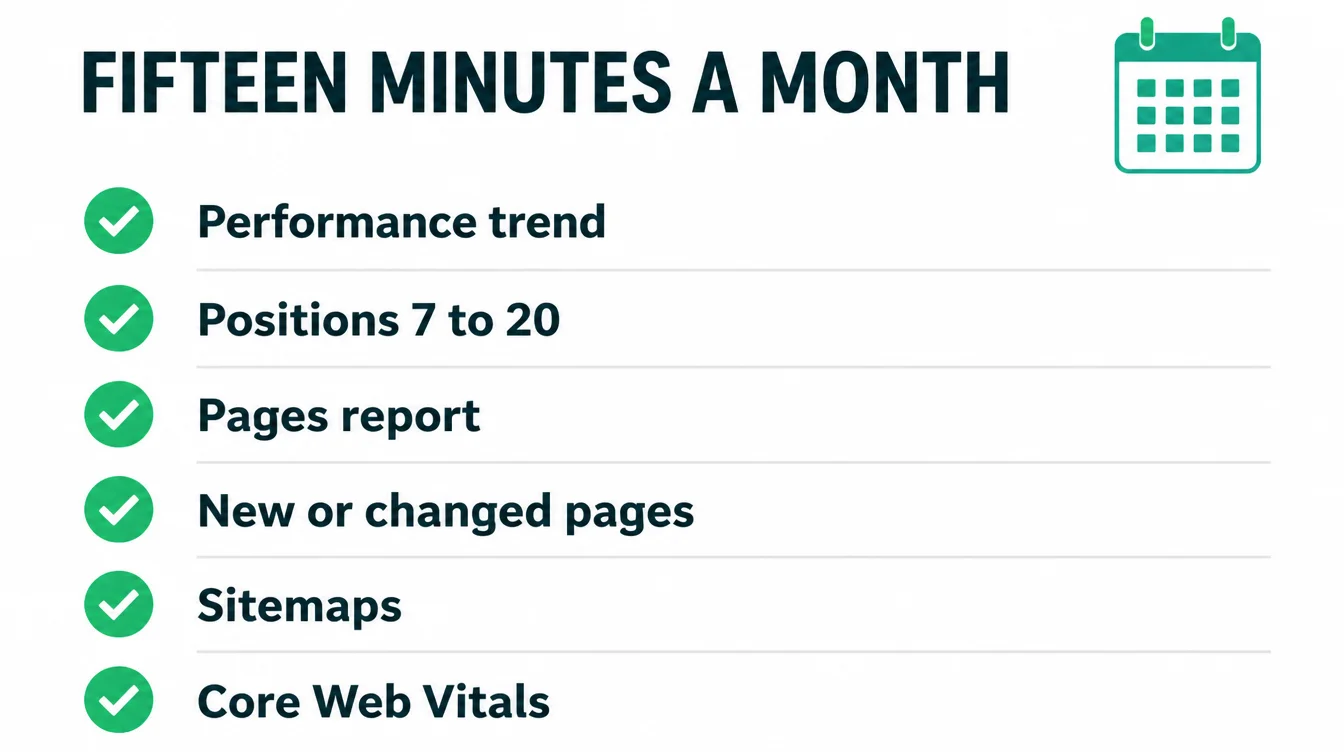
| Check | What you are looking for |
|---|---|
| Performance trend | Are clicks and impressions rising, flat, or falling over the last three months? |
| Positions 7 to 20 | Queries on the edge of page one that a small edit could push up |
| Pages report | Any new not-indexed pages, especially important ones stuck in "Crawled, not indexed" |
| New or changed pages | Inspect them and request indexing if they are not yet on Google |
| Sitemaps | Submitted, read without errors, and page count looks right |
| Core Web Vitals | Any sudden jump in Poor or Needs improvement pages on mobile |
That is the whole habit. Do it monthly, write down the trend, and act on the one or two clearest opportunities. If you serve local customers, pair this routine with our Google Business Profile optimization checklist so your listing works as hard as your site. For more practical guides, browse the Seed Light blog.
Frequently asked questions
1. What is Google Search Console used for?
Google Search Console is a free service that helps you monitor, maintain, and troubleshoot your site's presence in Google Search results. You use it to see which searches bring people to your site, check which pages Google has indexed, fix indexing problems, submit a sitemap, and ask Google to recrawl a page after you change it. In short, it is the report card Google gives you for free.
2. Is Google Search Console free?
Yes. Google Search Console is completely free. There is no paid tier, no trial that ends, and no credit card. You sign in with a Google account, verify that you own your site, and you get the full set of reports. It is the one essential SEO tool that costs nothing, which is why it is the first thing we set up for any small business.
3. Do I need Search Console to appear on Google?
No. Google says you don't have to sign up for Search Console to be included in Google Search results. Google can find and index your site on its own. What Search Console does is give you visibility into that process. Without it you are flying blind, because you cannot see how you are doing or spot problems early, but the tool itself is not a requirement to rank.
4. What is the difference between a Domain and URL-prefix property?
A Domain property covers your whole site at once, including every subdomain and both the http and https versions, but it is verified through your domain provider with a DNS record. A URL-prefix property covers only one exact address, such as the https version of your site, and it offers several easier verification options. For most beginners a Domain property is the cleaner choice once you can edit your DNS.
5. How do I know if Google has indexed my site?
Two quick ways. First, open the Pages report in Search Console and look at how many pages are indexed versus not indexed. Second, search Google for site: followed by your domain name to see what is listed. If a page you expect is missing, use the URL Inspection tool to check its status. Google advises allowing at least a week after submitting a page before assuming there is a real problem.
6. How often should I check Search Console?
For most small businesses, once a month is plenty. Search data is noisy day to day, so checking it constantly only stresses you out. A monthly routine of fifteen minutes lets you spot trends, catch indexing problems, and find quick wins without chasing random wiggles. Check more often only when you have just launched a new site or made big changes you want to confirm.
7. Why do some of my search terms show as anonymized in Search Console?
Google hides some queries to protect user privacy, especially rare or personal searches. This means your query list is never complete. One independent study found that 46.08% of all clicks went to anonymized or hidden terms, so a big chunk of your real search traffic simply does not appear by keyword. Treat the query report as a strong sample, not the full picture.